
Appearance
6.4.1 — Data tables, launch links and who submitted
Released November 4, 2026 · Backend 6.4.1 · Widget 5.33.1
A task form can show a table of rows from an earlier step. The person answers each row, one at a time or many at once. A later step can name who submitted a form, when, and from where. A workflow can open the next system's page as soon as it is launched. A tenant can write its own FlexMart lookups that read as the person using the form. The task window grows to fit its table. And in a parallel approval, each approver is now judged on their own answer.
Two things work differently than before. Please read those first.
Two changes to know about
Each approver is judged on their own answer
An approval can go to several people at once. Each of them gets a task with the same form. All of those forms were stored under one action name. When the workflow read a decision, it got whichever form was stored last. So one approver could be counted on someone else's answer.
Each approver is now decided from the form they submitted. That holds inside a loop, and when people answer in any order.
An approval with a single approver was never affected. A parallel approval from before this release may have gone the wrong way if its approvers disagreed. Each approver's own task still shows what they chose, so you can check.
A cleared authorization script stays cleared
The Authorization tab of a template holds an optional script. It runs when someone launches the workflow. Emptying the box showed "Changes saved", but the script came back after a reload. A partial edit always saved. Only a full clear was lost.
Emptying the box saves now. If you cleared a script before this release, open the tab and look. It is probably still there.
The example in the empty box was wrong too. It read ctx.user.roles.includes('admin'), with no return. The script runs as the body of a function, so without return it allows nobody. Copied as it was, it locked out everyone but administrators. Administrators skip the script, so its author never saw the problem. The example starts with return now. If you copied the old one, put return in front of it.
The text above the box now says what the script is for. It is an extra check on top of folder access. Leave it empty, and everyone with access to the folder can launch.
Main changes
| A table of rows to review | A task form can show a list from an earlier step as a table. The person answers each row, alone or many at once. The next step reads every row whole. |
| Who submitted a form, and from where | A later step can name the person who completed a task, the time, and the address and browser they used. Each approver in an approval has their own. |
| Each approver is judged on their own answer | In a parallel approval, an approver could be decided on someone else's form. Each one is now decided from the form they submitted. |
| Straight to the next system after launch | A template can open the link its workflow puts in the status banner, as soon as it appears. It is meant for a workflow that hands off to another system. |
| FlexMart lookups without a release | A tenant can write a lookup over a FlexMart grid that reads as the person using the form. Until now every such list had to be built by Invent. |
| The task window fits its table | A task window opens wide enough for its widest table. An Expand button takes it to nearly the whole screen, and the browser remembers. |
| Errors clear as you fix them | A field flagged by a refused Complete used to stay red until the next click. It clears as soon as the value is right. |
| A cleared authorization script stays cleared | Emptying the script showed "Changes saved", and it came back after a reload. Clearing it saves now. The example in the box works when copied. |
| A script's result in the picker | A JavaScript action's result can be picked like any other value, key by key. Before, it had to be typed by hand. |
| Large responses no longer use up memory | Long text in a response is kept in storage and streamed to where it is needed. Receiving a 7 MB PDF took about 325 MB of memory. It now takes about 1 MB. |
| Audit reports download in the dashboard | Downloading a workflow's audit report from the dashboard failed with "Your session has expired". It works now. |
For the workflow designer
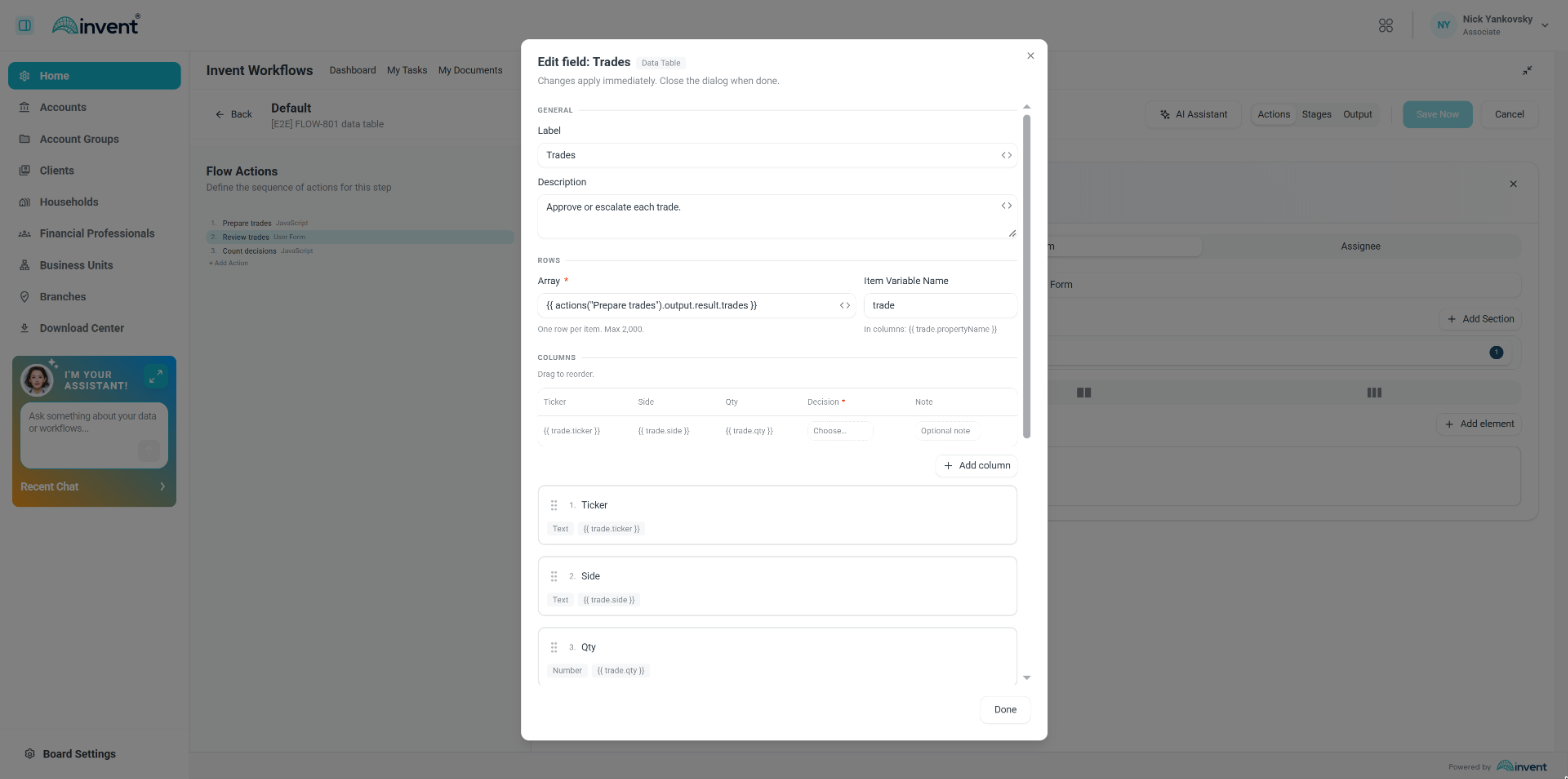
The data table
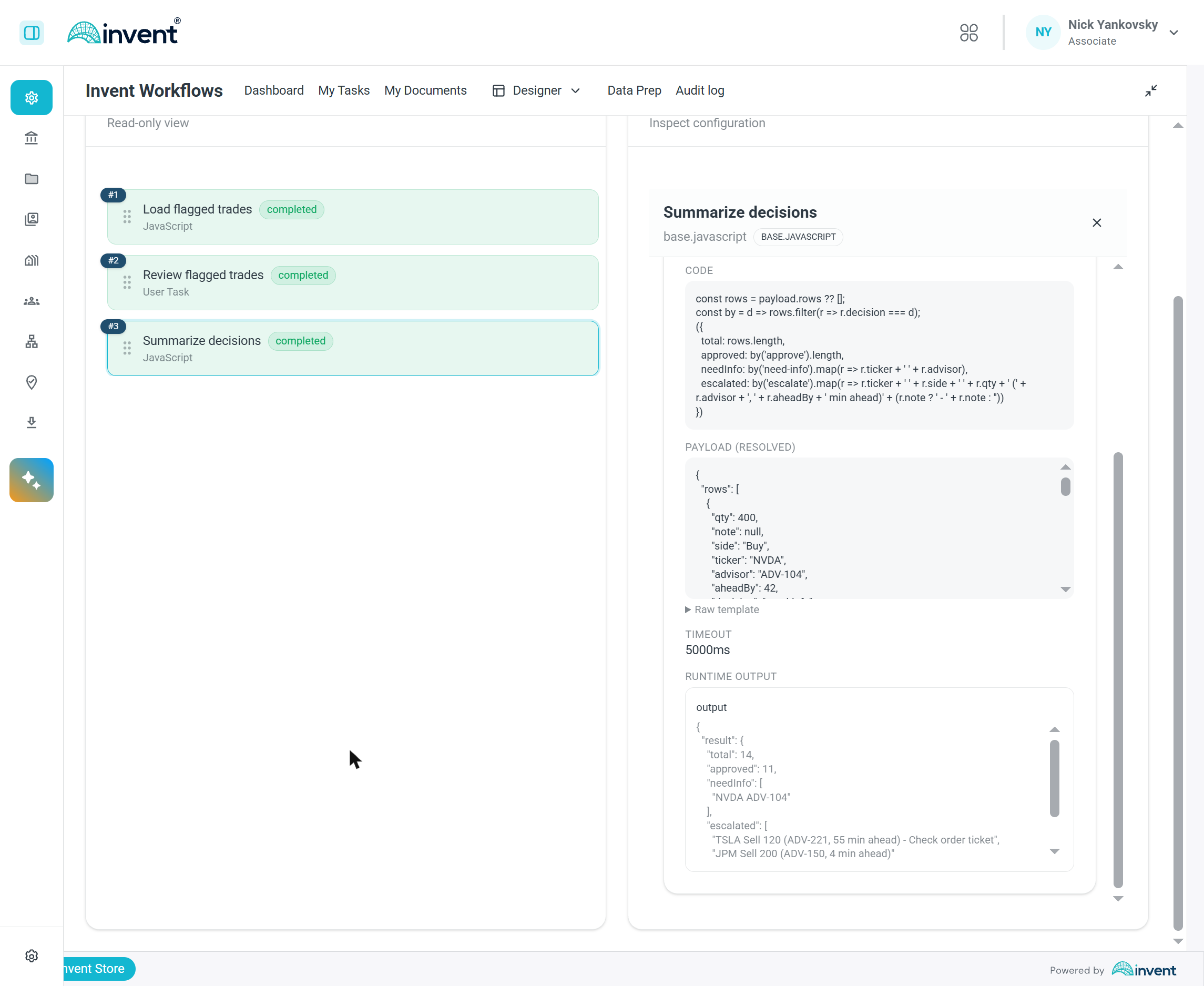
An example shows what it is for. A daily surveillance check flags 14 trades where an advisor traded ahead of a client. Before, that meant 14 tasks, or one task with a list to read and a box to type in. Now it is one task with a table. The reviewer approves eleven rows in two clicks, escalates two with a note, and asks about one. The next step gets all 14 answers and acts on them.
- It is a new field. On the Form tab, look under Layout & content for Data Table.
- Rows. Write one
{{ }}expression that gives a list, such as a list an earlier step returned. Then name one item of it, liketrade. The columns use that name. - Columns. A column either Shows data or is one the Reviewer fills in. A data column has a template, like
{{ trade.ticker }}. An answer column is text, long text, a number, an email, a phone, a link, a choice list, a checkbox or a date. - A column's choices are written in the column. A standard list, a lookup or a variable cannot fill them.
- Table. Turn on search, filters and bulk edit. Set the default sort, the rows per page and the frozen columns.
- Output. The next step reads every row whole, data and answers together, at
actions("X").data.fields.<table>. It is the same shape a repeating group gives. - The rows are fixed when the task is created. A later change to the list does not reach the task.
- The step fails rather than show a broken table. That happens when the rows are not a list, when a column's template fails, or when there are too many rows. The limit is 2,000 rows unless you set another, up to 5,000.
- Where it cannot go. Not on an approval form, because only a task keeps the rows. Not inside a repeating group. And not on a form shared by public link: saving with sharing on is refused.
- Renaming the item rewrites the columns. Every use of the old name in the column templates is changed, not only the first.
- Save checks the rest. A table needs at least one column the reviewer fills in. Its item cannot take a name the flow already uses, such as
input,variablesoractions.
Screenshot — a data table's rows and columns in the form builder
Screenshot — the next step gets every row with its answer
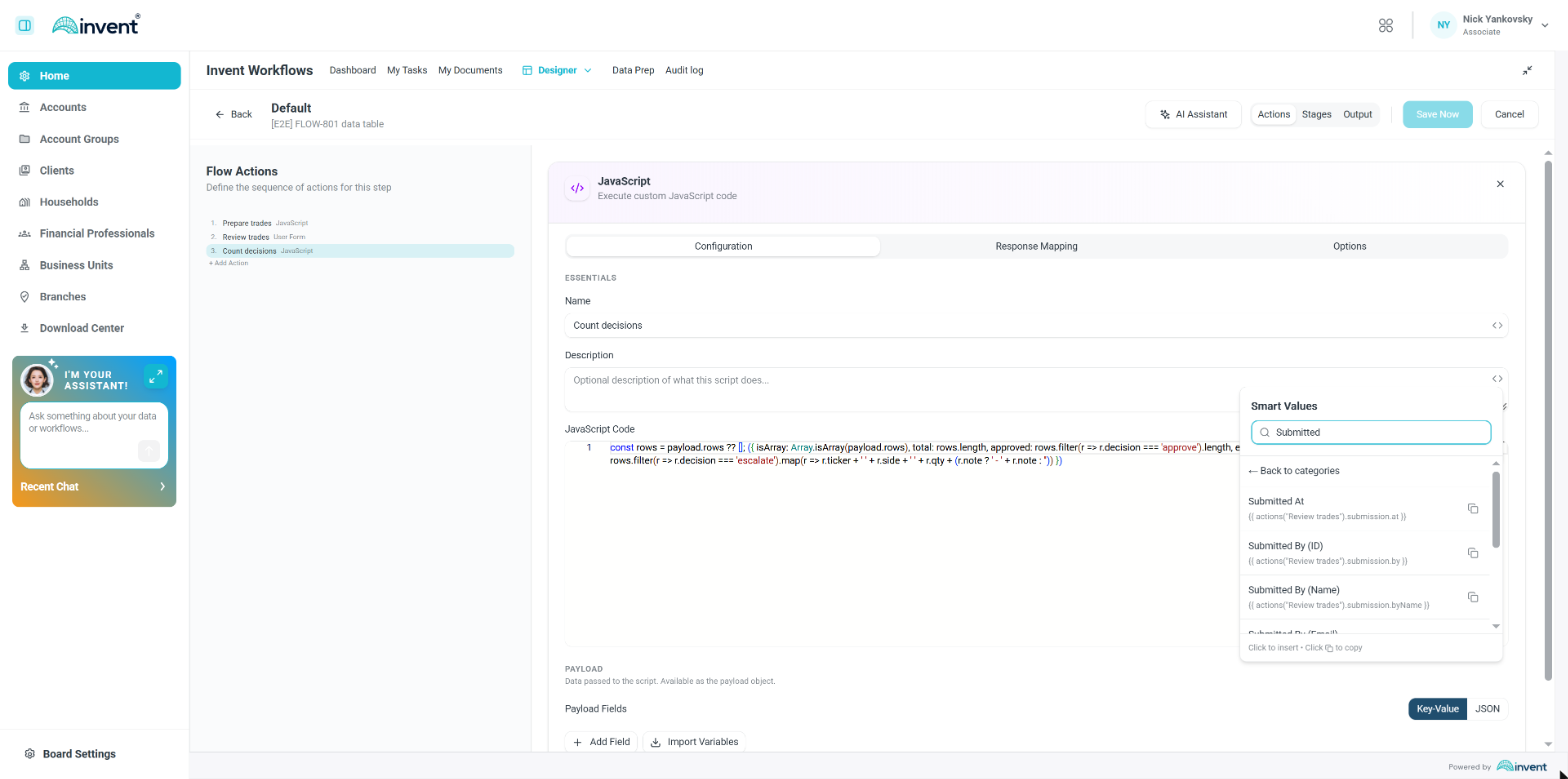
Who submitted a form
- Every task records its submission. That covers a form, an approval form, a document task and a time slot. The picker offers each value:
- Submitted At, Submitted By (ID), Submitted By (Name) and Submitted By (Email).
- Submitted By (Type):
user,external-grant,agentorsystem. - Grant ID, set when the form was completed through a public link.
- Submitted From (IP) and Submitted From (User Agent).
- A typical use. The step after a disclosure form names who accepted it, and from where, in an email.
- In an approval, each approver has their own. They sit under each decision, next to whether that person approved.
- They match the audit log. The values come from the same place as the task's audit record, and give the same time.
- A value nobody knows reads as blank.
- The address and the browser are personal data. Use them only where you mean to.
Screenshot — the submission values in the picker
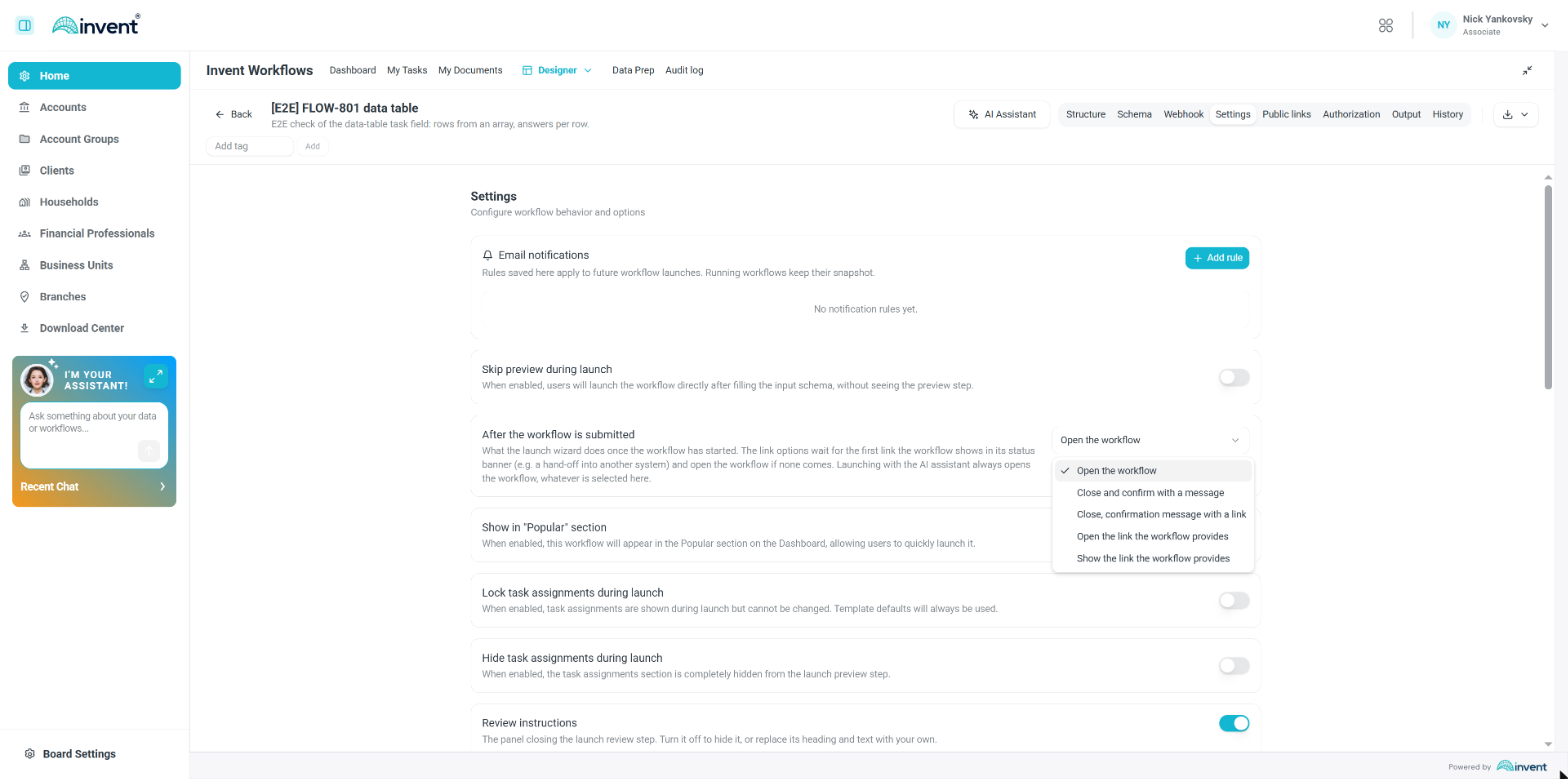
After the workflow is submitted
- Two more choices. Settings → After the workflow is submitted now offers Open the link the workflow provides and Show the link the workflow provides.
- Both wait for a link. The workflow puts it in its status banner, with a Status Banner action. The first
httpslink there is the one used. While it waits, the screen reads "Processing… preparing the next step." - Open follows the link in the same tab. A "Not opening?" link sits below, in case it does not. Show offers it as a button.
- No link within 60 seconds, or the workflow ends first: the workflow opens, as Open the workflow does.
- It applies wherever the workflow is launched from: the Workflows tab, Quick Access, a button on a portal page. Launching with the AI assistant always opens the workflow.
- A portal button can decide for itself. Its launch link takes
openLink=autooropenLink=button, which wins over the template. WithautoSubmit=trueit also submits the launch form once the page has filled it in. A form the page cannot complete stays on screen.
Screenshot — the two new choices in the template settings
A script's result in the picker
- Every JavaScript action offers Script Result. It also offers Script Result: <key> for each key of the object the script ends on, like
({ trades, total }). - Before, a script showed up only through its Response Mapping. With no mapping, you typed
{{ actions("Prepare trades").output.result.trades }}by hand. - A key is offered only when it is certain. A script that ends on a spread, a computed key or a function call offers the whole result and no keys.
- Output mappings of every action now show in the step's output list. Before, only those of HTTP actions did.
For the administrator
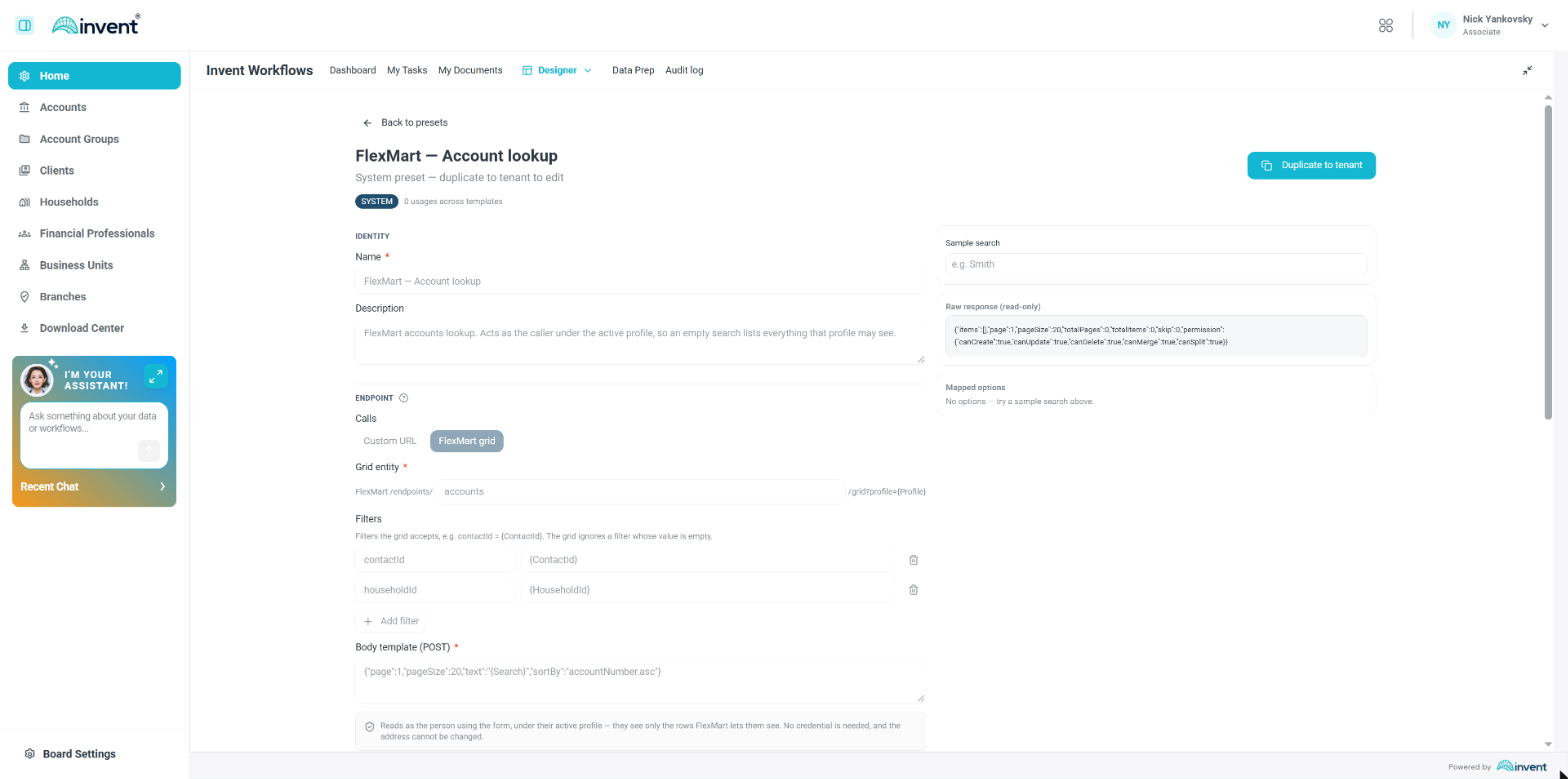
FlexMart grid lookups
- A lookup preset has a Calls switch: Custom URL or FlexMart grid. Presets are under Designer → HTTP lookup presets.
- A grid preset names the entity and the filters. The address is fixed up to the entity: FlexMart
/endpoints/<entity>/grid. A filter is a name and a value, likecontactId={ContactId}. The grid ignores a filter whose value is empty. - It reads as the person using the form, under their active profile. They see only rows they can already see. There is no credential to set.
- No release is needed. Until now only the presets Invent shipped could read as the user. Every new FlexMart list waited for a release.
- Duplicating a shipped grid gives a grid that works. Before, the copy became a preset with a credential, and it could not work. A copy made before this release is still that kind. Duplicate the shipped one again.
- A grid you write has no URL, so the preset list shows it by name, like
FlexMart · accounts grid. - It cannot reach anything else. The entity takes plain words only, with no placeholders and no
... A filter's value cannot add a parameter of its own.
Screenshot — a shipped FlexMart grid preset, the one to duplicate
Downloading an audit report
- Downloads work in the dashboard. Inside it, every download failed with "Failed to export the audit report — Your session has expired. Please log in again." That was true of PDF, CSV and JSON alike.
- Sending the report by email always worked.
For the person doing the work
Answering a table
- One row per item from earlier in the workflow. Some columns show data. The others are yours to fill in.
- Find the rows you need. Search, filter by column, sort and page through. Unanswered only hides the rows you have done. A counter reads like "12 of 75 answered".
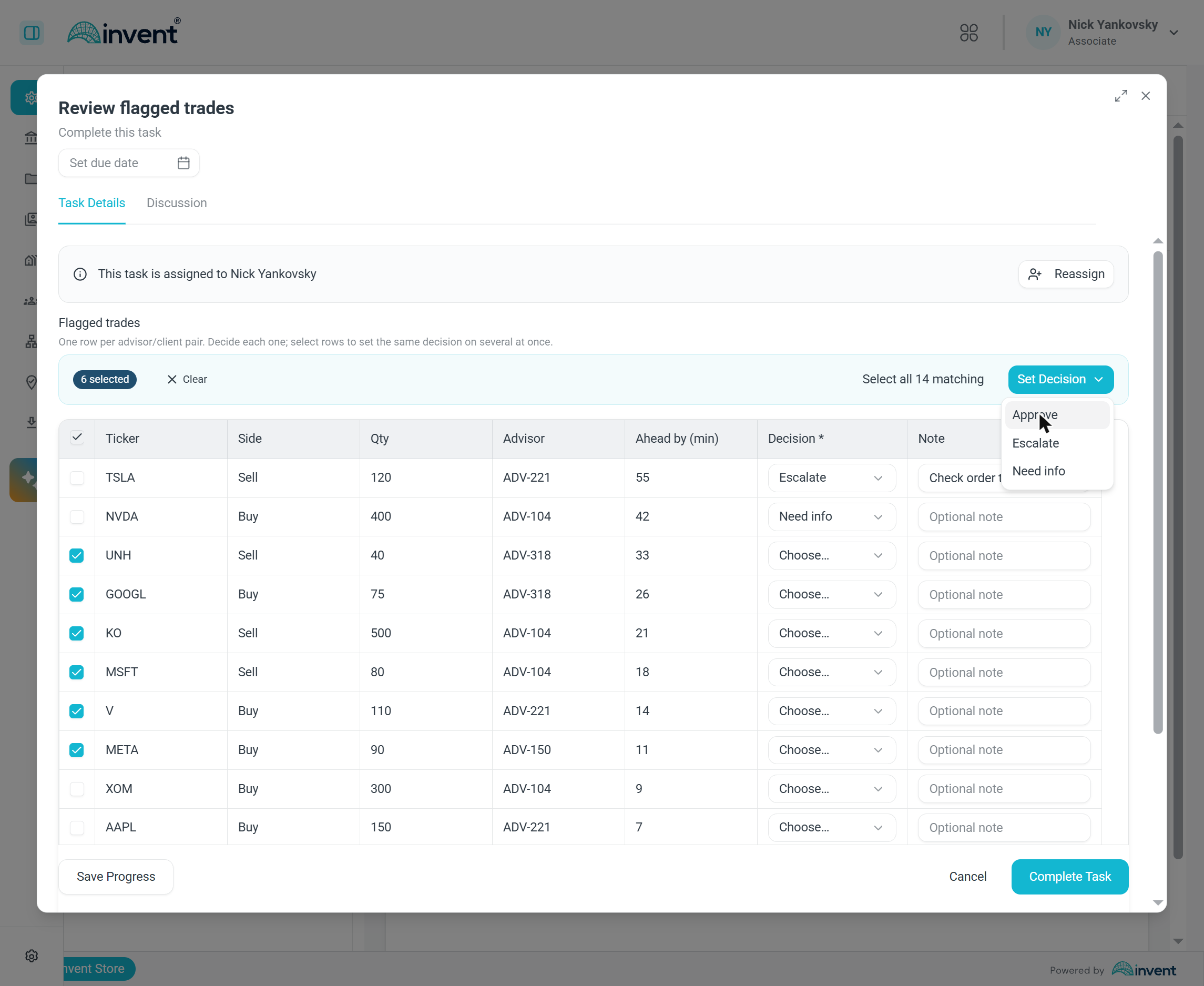
- Answer many rows at once. Tick the rows, pick a column and set one value for all of them. Then change any single row by hand.
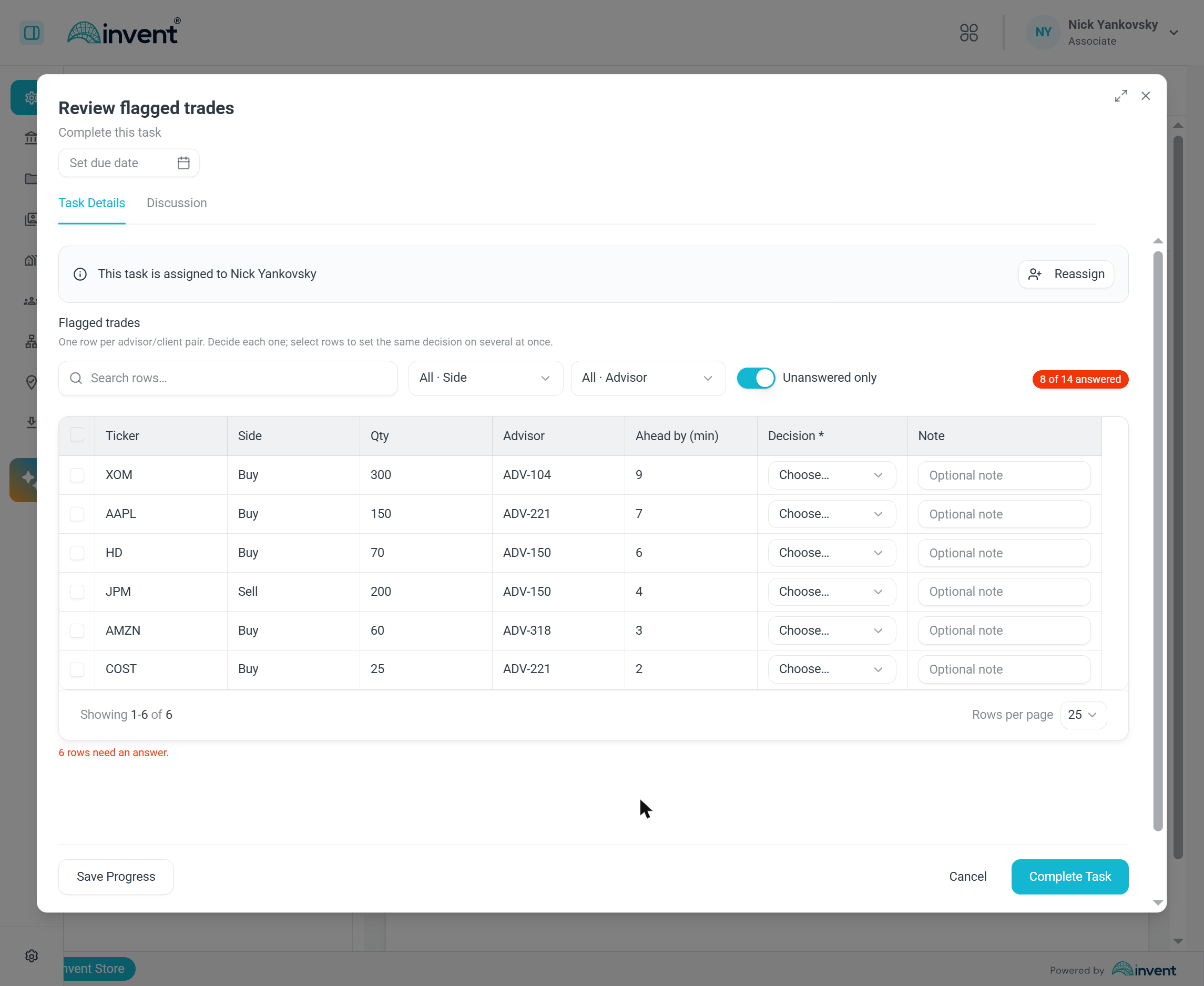
- Complete waits for every row. While a row misses a required answer, Complete is refused with "3 rows need an answer." The table then shows only those rows, and the count follows as you answer.
- The rows hold still while you type. An answered row does not leave Unanswered only in the middle of a word. The view catches up when you leave the cell.
- A completed task shows the same table, read-only, with the answers as text.
- In the assistant's chat panel, the table fits the narrow card and can be answered there.
Screenshot — six rows ticked, one decision for all of them
Screenshot — Complete refused: only the rows still to answer are shown
The task window
- It opens wide enough for its widest table. It used to size itself by the form's columns only. A one-column form with a wide table opened narrow, and the table scrolled sideways.
- Expand sits beside Close. It takes the window to nearly the whole screen. Restore size brings it back.
- The browser remembers. Every form window opens the way you left the last one. On a phone the window is already full width, so there is no button.
- The builder's form preview and a public form open at the same width as the task.
Errors follow your edits
- A red field clears once it is right. After a refused Complete or Next, a field stayed red while you fixed it. It cleared only on the next click.
- A rule that compares two fields is checked again when either one changes.
- A page in the section list marked with an error goes back to normal once its errors are fixed.
- Undoing an edit no longer wipes every error on the form.
- A multi-page public form works the same way.
Assistants
- The assistant can work with a data table. It sees the columns, how many rows there are and how many are answered. It also sees the first 20 rows.
- It answers only the rows the data supports. It never puts one guess on many rows, and never answers a row it has not seen. The rest is left to the person.
- It can build both new features into a template: a data table on a task form, and a later step that reads who submitted.
Behind the scenes
- Long text in a response stays out of memory. A string over 64 KB in a step's output is stored on its own. A long HTTP response goes to storage as it arrives, and is read from there. When a later step sends the text on, it streams back out.
- Nothing looks different. Template authors, and anyone reading a run, see the same values as before.
- The numbers. Receiving a 7 MB PDF in a JSON response took about 325 MB of the worker's memory. It now takes about 1 MB. Sending it on went from about 45 MB to about 2 MB.
- A response is measured by its own size. Before, it was measured after escaping. A response that escaping pushed over the limit is now stored instead of refused.
- GraphQL and FlexMart responses are still read whole.