Appearance
Getting Started
Welcome to Invent Workflows. This guide walks you through what the platform does and how to get started as a new user.
Overview
Invent Workflows lets your organization automate business processes. A workflow represents a structured sequence of tasks — forms to fill, approvals to grant, documents to collect, and automated actions to execute.
Here's how it works at a high level:
- An administrator creates a workflow template — defining the milestones, steps, input fields, and action flows.
- A user launches a new workflow by selecting a template, filling in input data, and submitting.
- The system creates a workflow instance and begins executing the defined steps.
- Users receive tasks in their task inbox — they complete forms, approve or reject requests, and upload documents.
- Automated actions (API calls, emails, delays) execute alongside user tasks.
- Everyone can track progress on the dashboard and drill into individual workflow instances.
Your First Steps
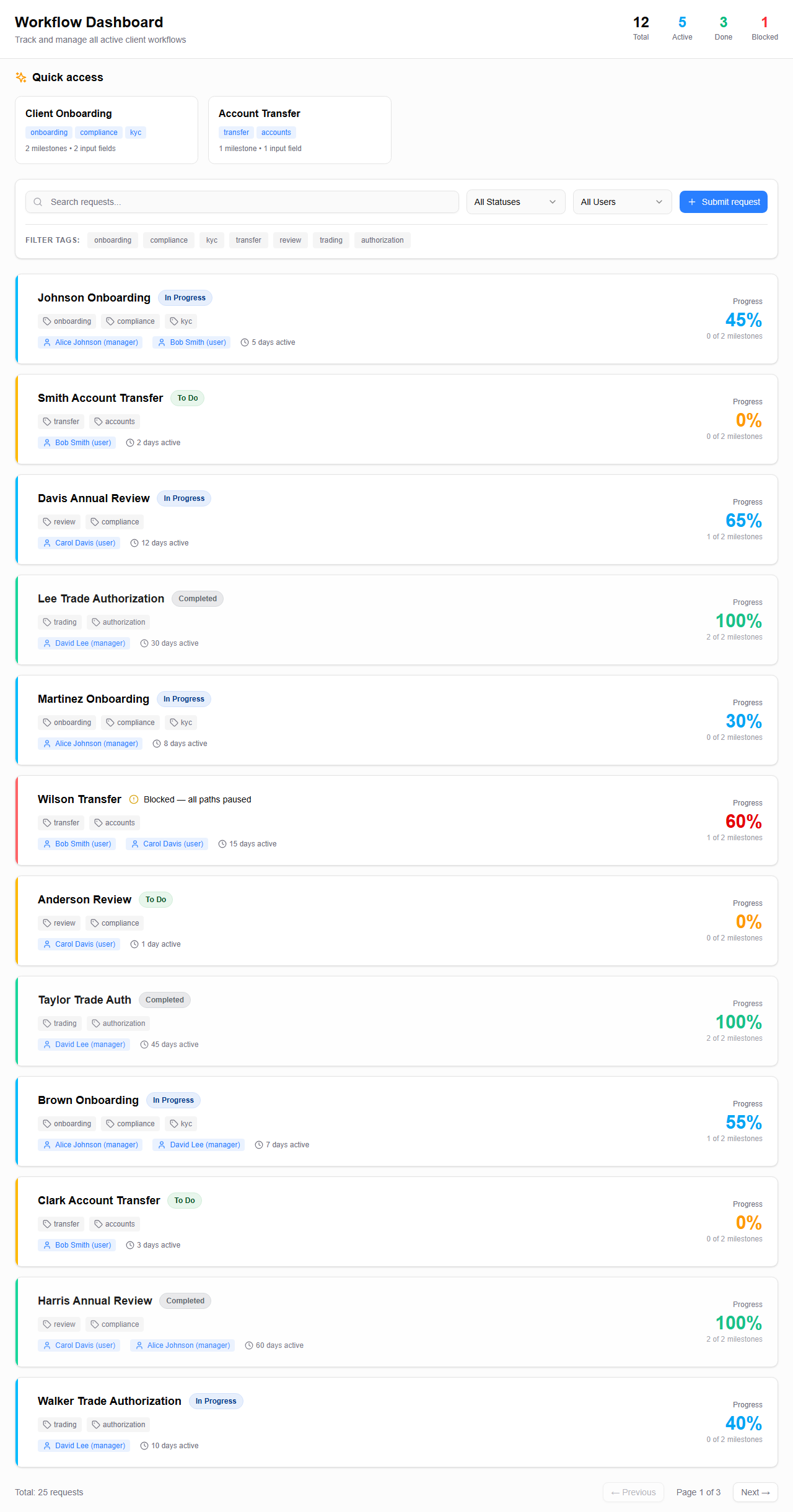
1. Open the Dashboard
When you first log in, you'll land on the Dashboard. This is your home base — it shows all workflow instances you have access to.
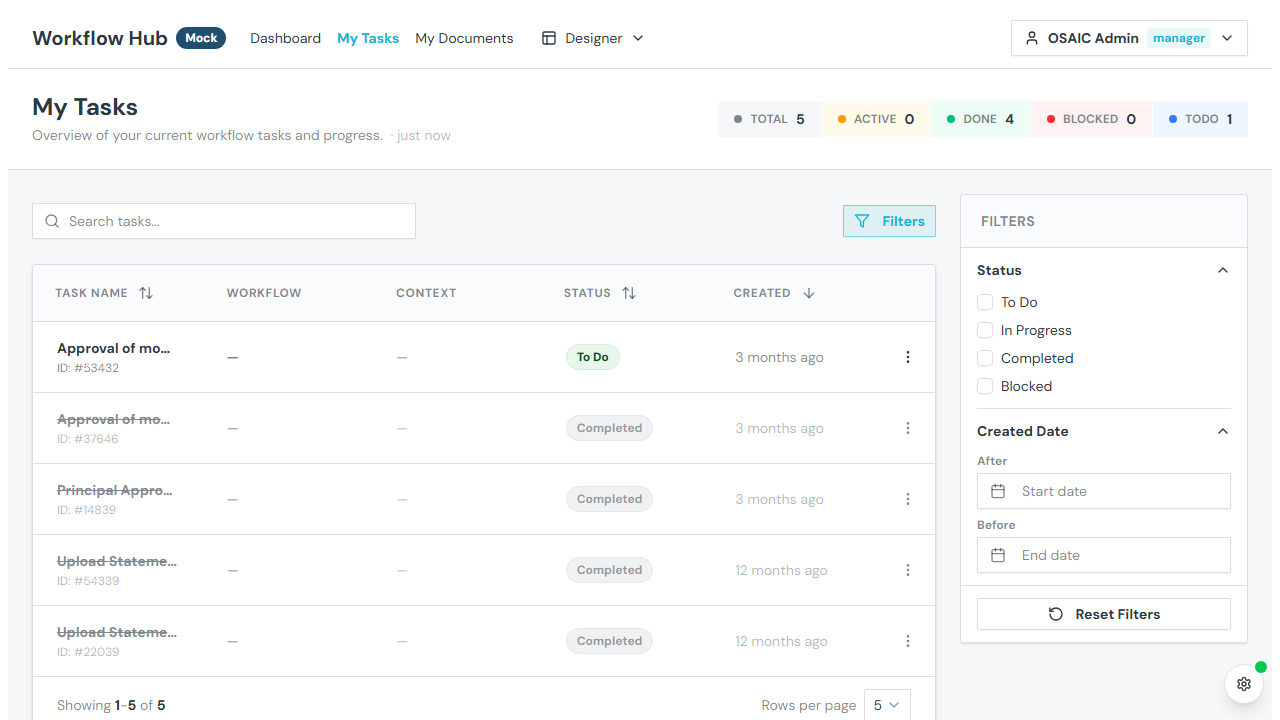
2. Check Your Tasks
Navigate to My Tasks to see tasks assigned to you. This is your personal inbox where you'll complete forms, approve requests, and upload documents.
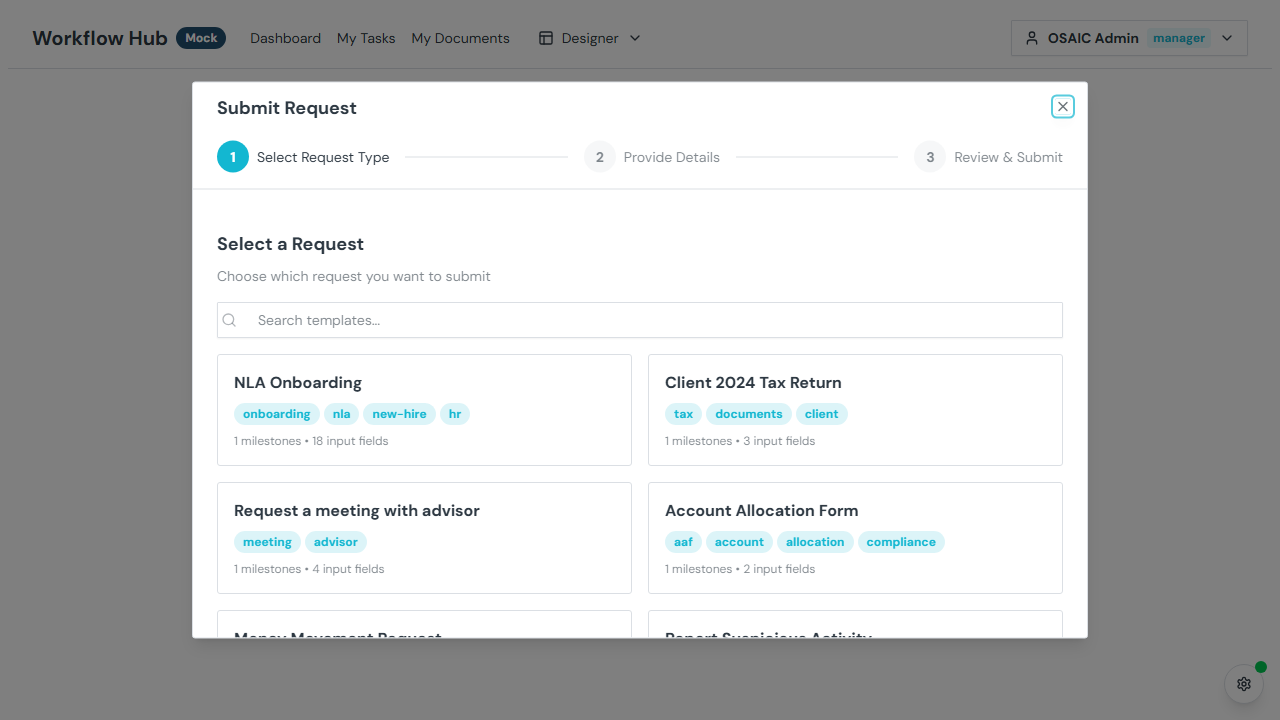
3. Launch a Workflow
Click Submit Request on the Dashboard (or go to Launch Workflow) to start a new workflow. You'll:
- Select a template
- Fill in the required input fields
- Review and submit
4. Track Progress
Click any workflow instance on the Dashboard to see its details — milestones, step progress, assigned team members, and more. See Workflow Tracking.
Navigation
The main navigation bar gives you quick access to:
| Menu Item | What It Does |
|---|---|
| Dashboard | View all workflow instances, search, filter, and launch new workflows |
| My Tasks | Your personal task inbox with filtering and sorting |
| My Documents | Browse and download files from your workflows |
| Designer | (Admin/Manager only) Create and manage workflow templates |
What's Next?
- Roles & Permissions — Understand what each role can do
- Technology Overview — See what powers the platform under the hood
- Explore Features — Discover everything the platform can do
- Designer — Learn how to create workflow templates