
Appearance
4.2.0 — Data Prep, discussions and connections
Backend 4.2.0 · Widget 4.8.0
Setting up a Case Type no longer asks a question about every column in your file. Data Prep reads the file once, proposes the sections it can prove from what is in there, and names the fix on the row that needs it. Every conversation about a workflow now sits in the workflow itself, and a template says who gets an email when something happens in it. Template folders decide who can see what, a template declares the connections its actions use instead of hiding them one by one, and email can go out in your organisation's own name. Archive and Cancel are on both the dashboard and the workflow, and the lookups on forms opened from a client or an account page work again.
Two things work differently than before. Please read those first.
Two changes to know about
Setting up a Case Type reads the file first
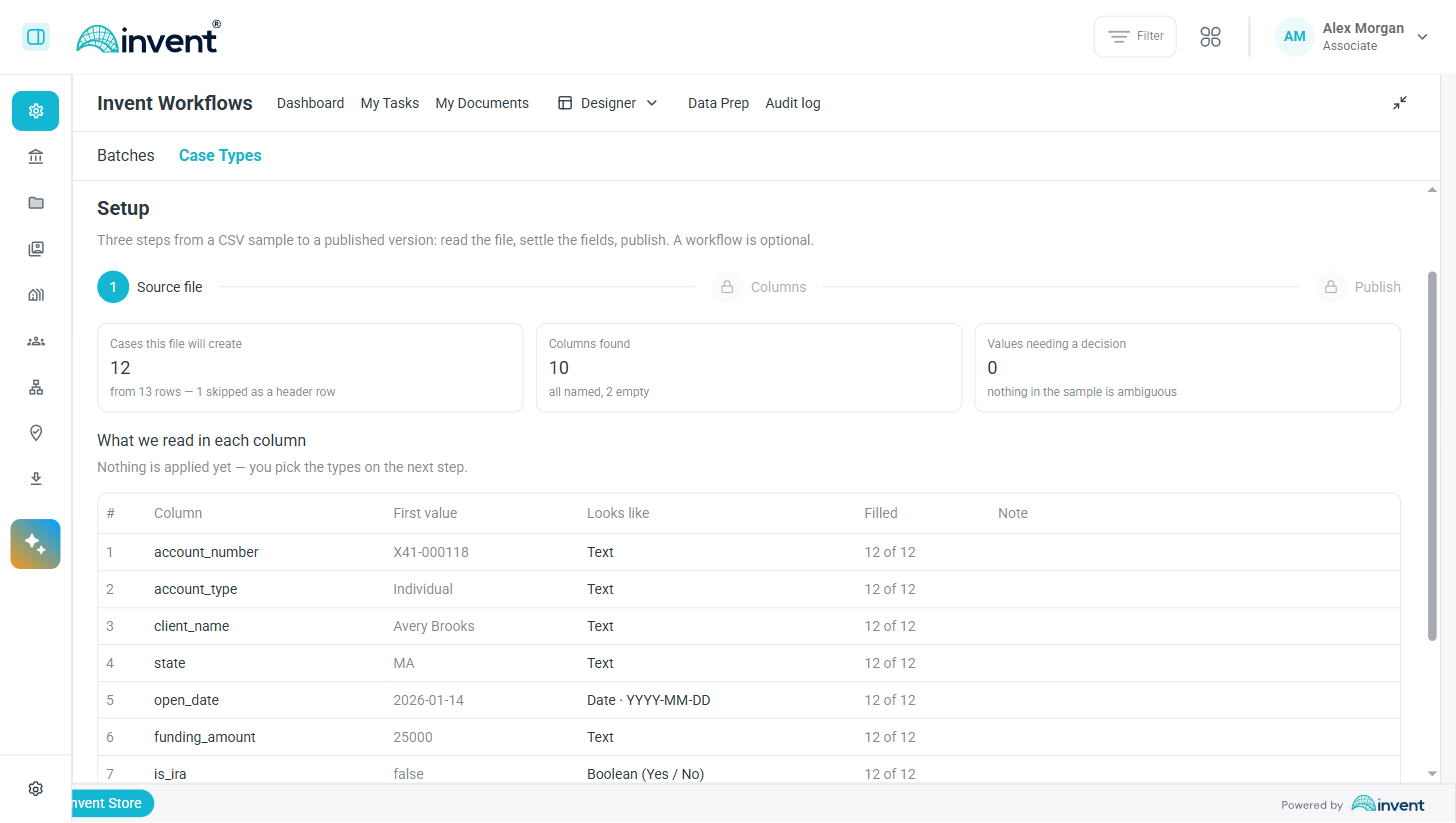
Setting up a Case Type used to ask you to decide about every column before it showed you anything. On a customer's own intake sheet — 203 columns, of which 68 were empty in every row — that was 203 decisions to get three fields, and the Case Type it produced still failed on every case in its first batch.
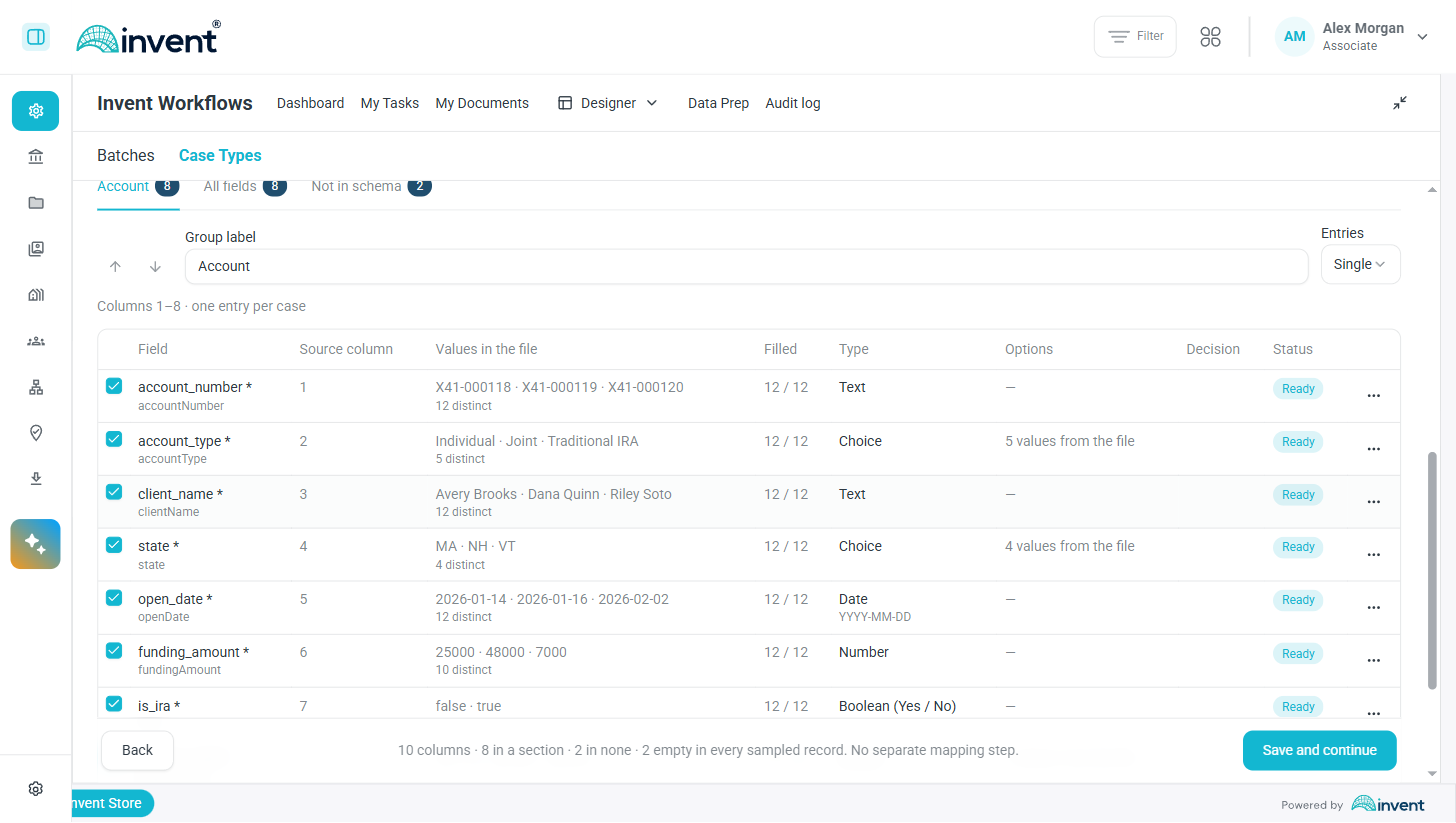
Now the file is read once. You get a proposed schema, grouped into sections that the file can actually support, with the columns behind each section named. You review it on the fields, accept or change what you want, and publish. If you have set up a Case Type before, the screens are not where you left them.
Screenshot — Case Type setup, step one: what was read in each column
Screenshot — the proposed schema, with the source column and the values behind each field
Field confirmation is gone from Data Prep
The confirmation mark on a Case Type field is removed, along with everything that reported it.
It gated nothing. It never affected whether a Case Type was ready or could be launched — the field dialog said so itself — and because the right to confirm came with the right to edit, whoever typed a value could confirm their own work. It looked like a second pair of eyes and was not one. Nothing you could do before is refused now.
Main changes
| Data Prep reads the file once | Case Type setup proposes a schema from the file instead of asking about every column. Sections are proposed only where the file supports them, and the columns behind each one are named. |
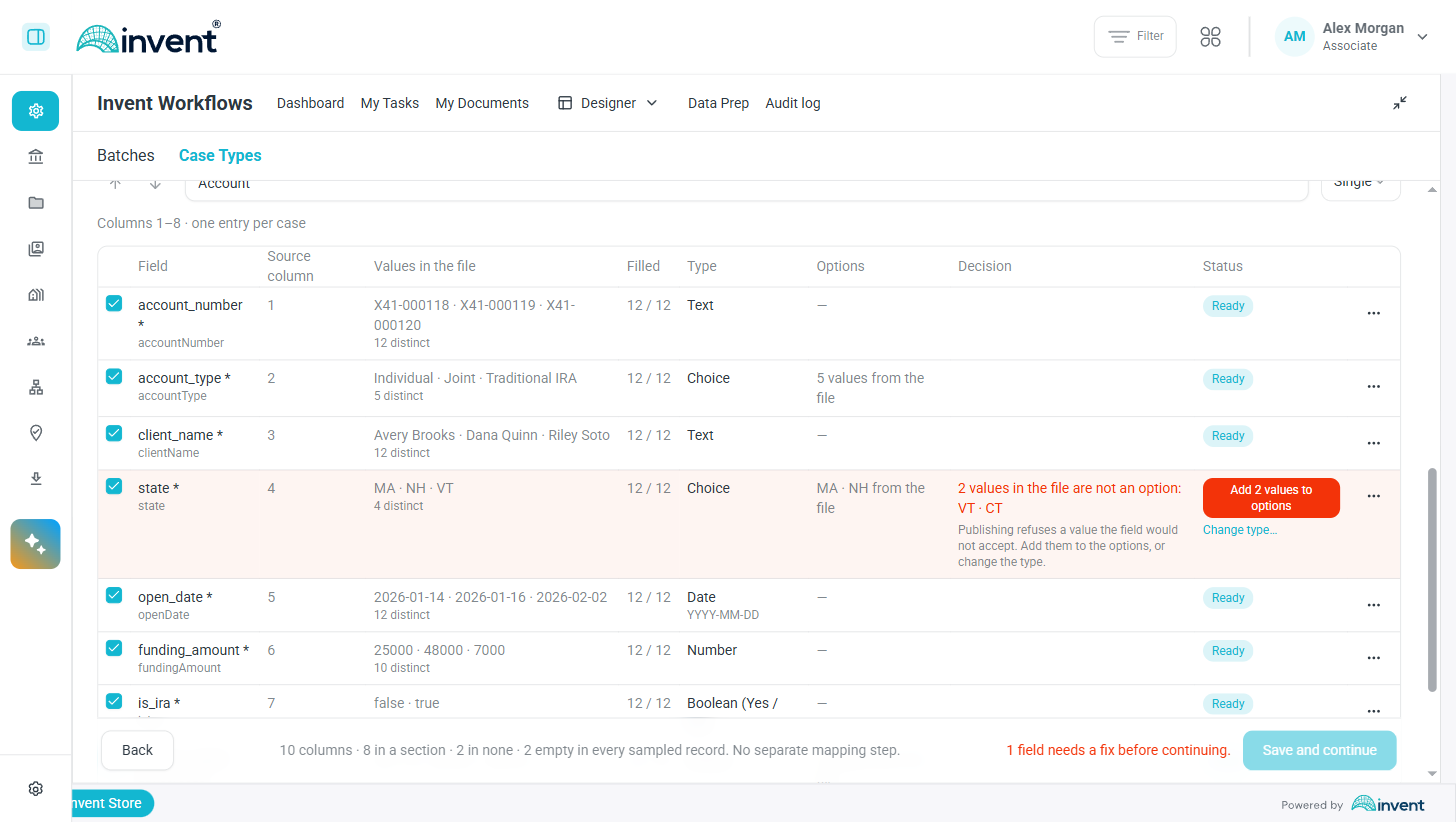
| Fix a column where the problem is | A row that holds a Case Type back now says what settles it and applies it in place — add the values the file holds to the options, fill an empty list from the file, clear a format rule the type never runs. |
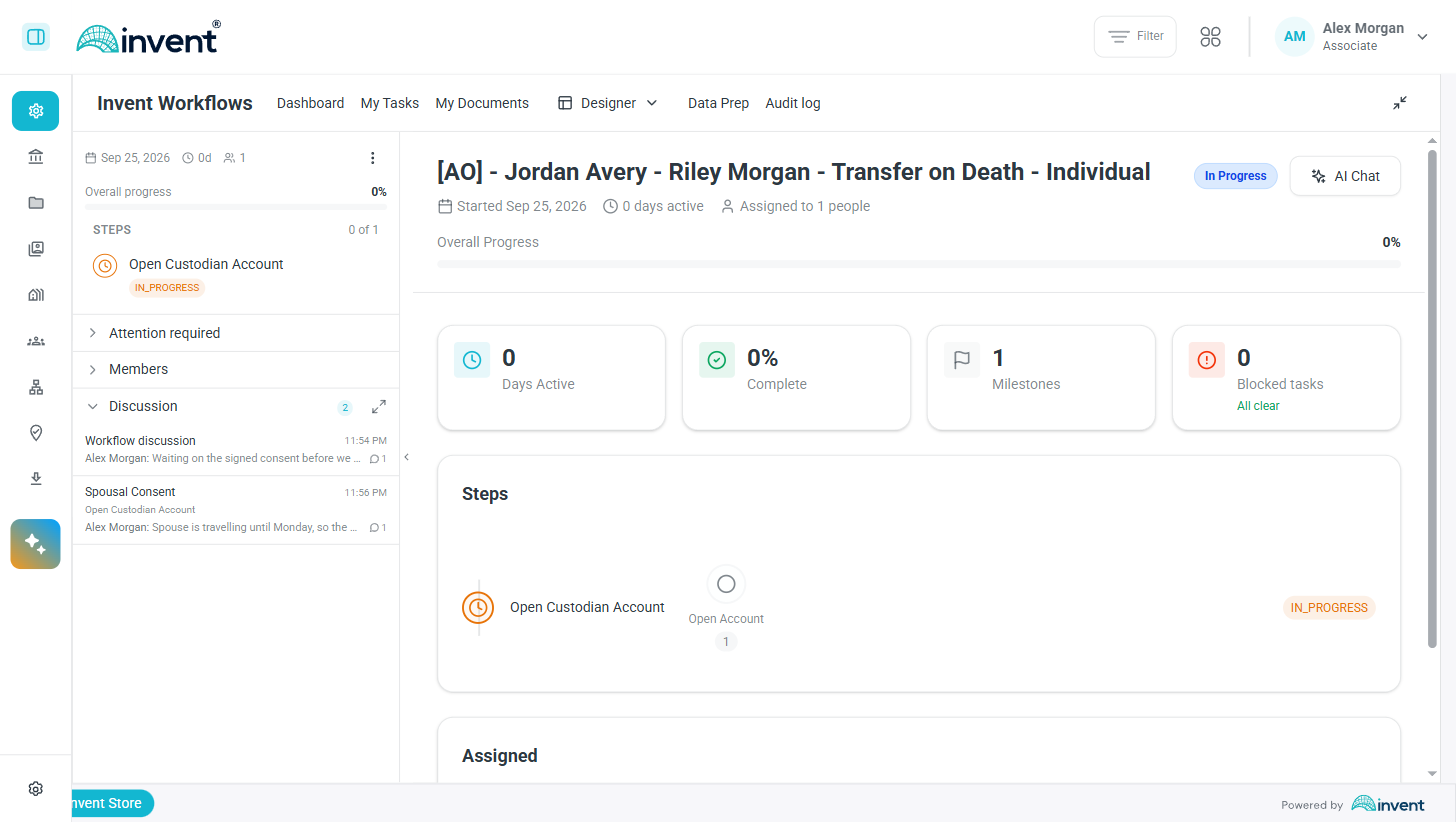
| Discussions live on the workflow | The rail holds a Discussion section under Members listing every thread in the workflow — the workflow's own first, then task threads by most recent activity, each naming its step. |
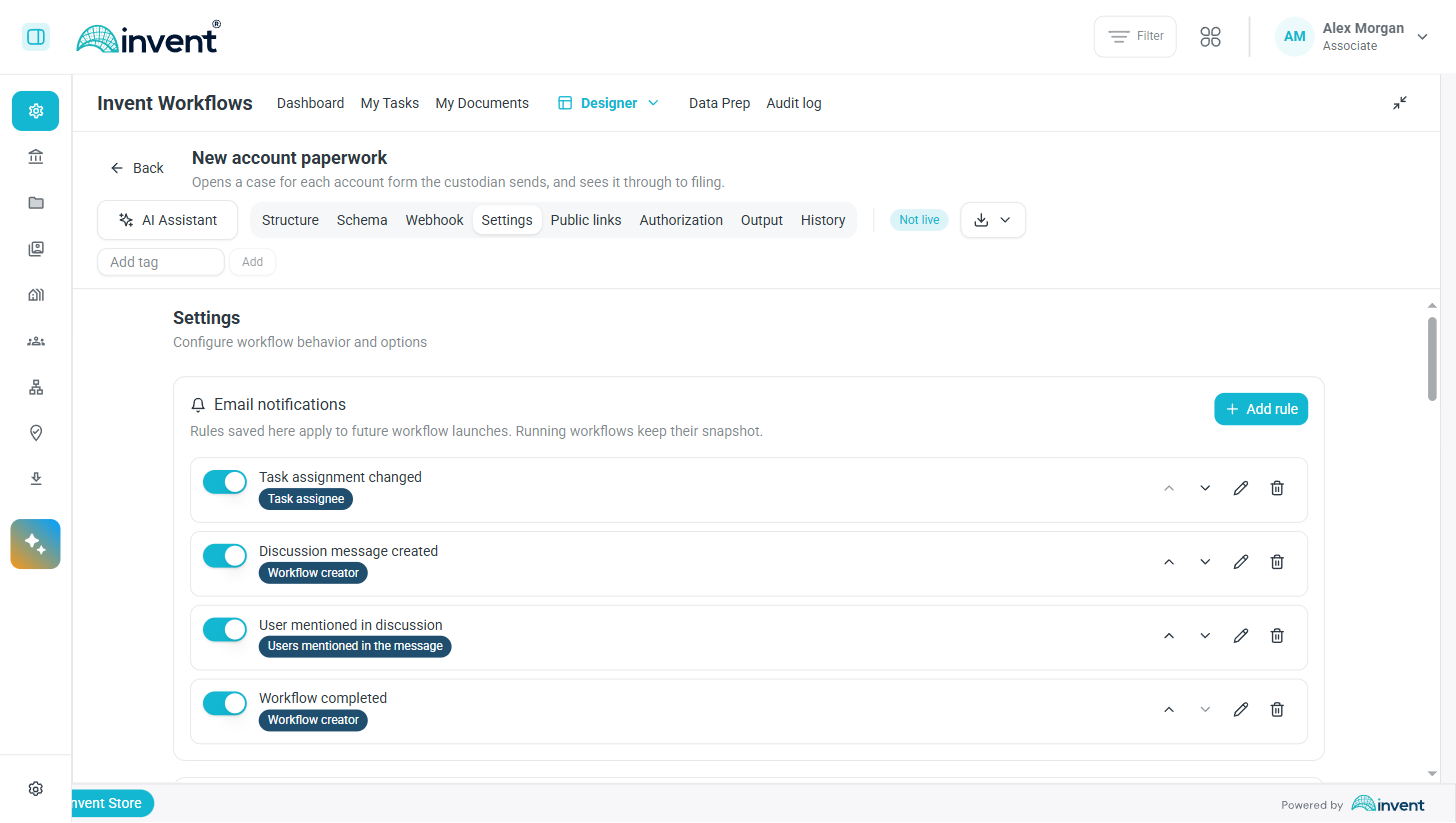
| Notifications you set on the template | A template's Email notifications settings say who is emailed when a task changes hands, when someone posts or is mentioned in a discussion, and when the workflow completes or is cancelled. |
| Folders decide who sees a template | A template folder is open to everyone or to the people and groups you choose, and nested folders inherit that. The access dialog states the access a folder ends up with, inherited grants included. |
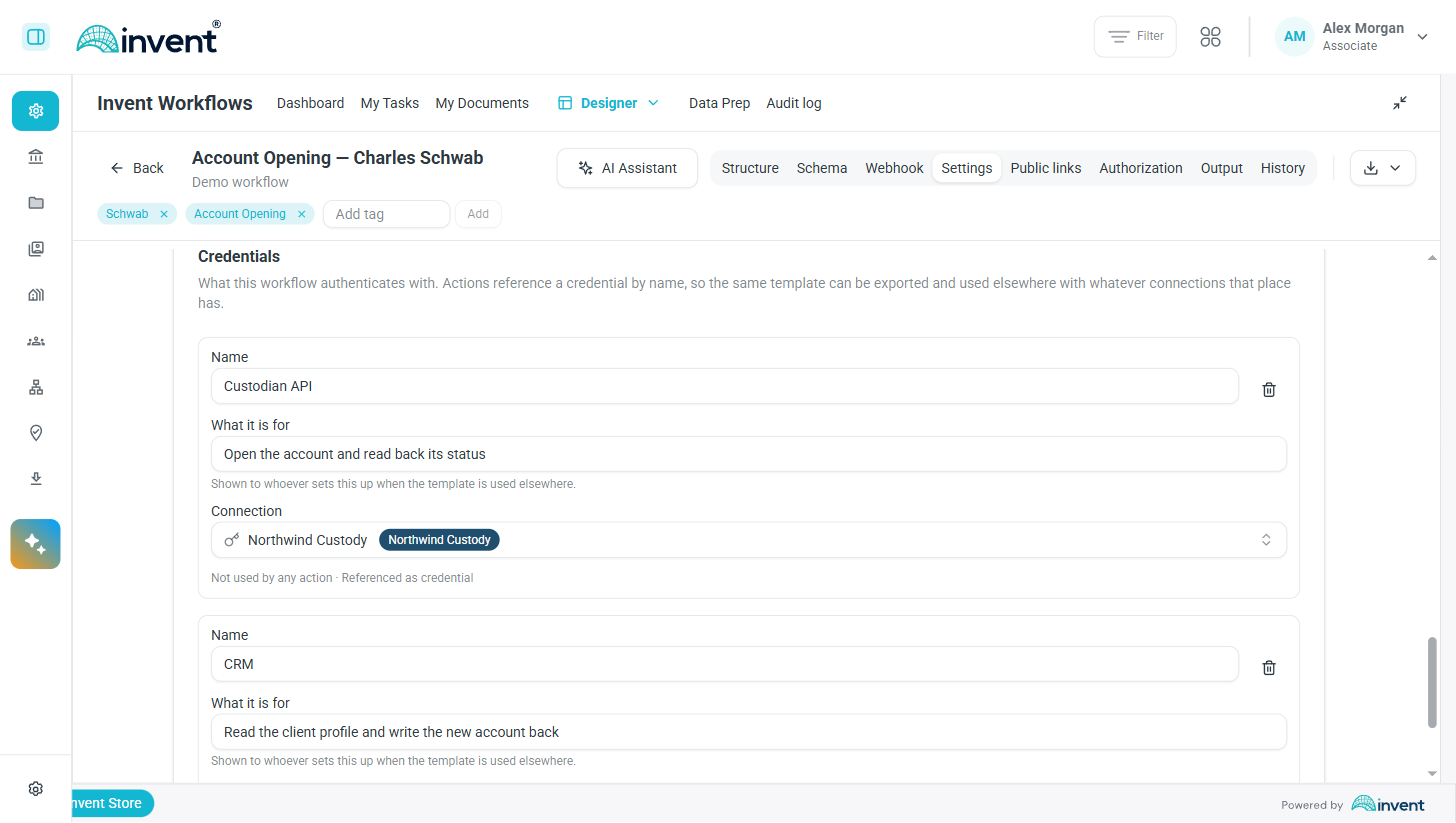
| A template owns its connections | A template declares the connections it needs as named slots, and its actions point at a slot. Exporting carries the slots, and importing asks which connection each one is in the environment you are importing into. |
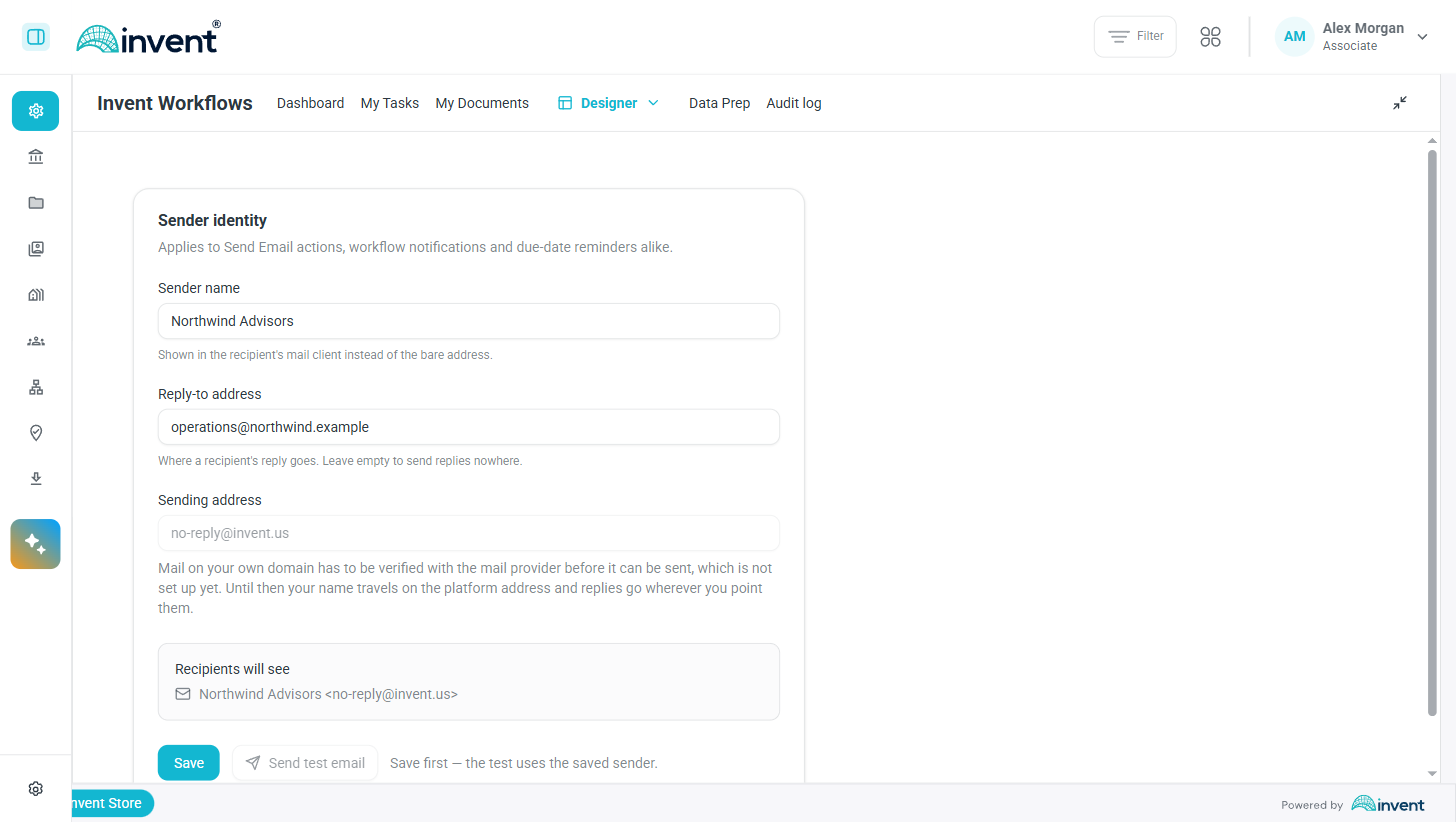
| Email in your organisation's name | A global administrator sets the sender name and the reply-to address on every email the product sends, and can send a test to themselves before saving it for everyone. |
| Archive and Cancel on both screens | Both actions are now on the dashboard row and in the workflow itself, each still offered only where it applies. The dashboard also has an Archived filter. |
| The batch page, rebuilt | A filter rail with counts, grouped column headers, a fields popover — and a cell you can edit in the cell, instead of in a dialog that loses what you typed. |
| Lookups and the action palette caught up | The FlexMart SQL action is attachable from the palette, account sleeves have a system lookup preset, and forms opened from a client or an account page narrow their lookups again. |
| Who appears in a picker is a rule | Directory visibility is a list of rules on an attribute or on named people and groups, in either an exclude or an allow list, evaluated on the server. |
For the workflow designer
Notifications a template sends
- Rules, on the template's settings. Email notifications is a list of rules. Each one says When this happens, who the Recipients are, and what to Send via. Rules are ordered, and can be edited, moved and removed.
- What can set one off. Task assignment changed, Discussion message created, User mentioned in discussion, Workflow completed and Workflow cancelled.
- Who gets it. Named users, plain email addresses, or a role resolved when the event happens: Workflow creator, Task assignee, Previous task assignee, Person who triggered the event, Discussion message author, Users mentioned in the message. Exclude the person who triggered the event keeps a rule from mailing someone about their own action.
- The two workflow-level triggers offer fewer roles. Workflow completed and Workflow cancelled happen with no task in scope, so they offer the workflow creator and the person who triggered the event, and nothing that resolves through a task.
- A rule reaches the next launch, not the current one. Rules saved on the template apply to workflows launched after the save. A workflow already running keeps the rules it launched with.
Screenshot — email notification rules on a template
Connections a template owns
- Connections are declared once, on the template. A template has a Credentials section listing the connections it uses: each slot has a name, a line saying what it is for, and the connection it is bound to. An action then picks a slot instead of a connection of its own.
- An action can still carry its own. The credential field on an action offers the template's slots and This action's own, so a one-off call does not force you to declare a slot for it.
- Export and import carry the slots. A template taken to another environment arrives with its slots named, and the import asks which connection each one is. Before, every action had to be opened and re-pointed by hand, and the ones you missed failed at run time.
- A slot in use cannot be renamed away. The designer counts how many actions name each slot, including actions nested inside an If or a For Each, so a slot that something depends on is not silently removed.
Screenshot — the connections a template declares, with what each one is for
Folders and access
- Two ways to open a folder. A folder is open to Everyone, or to selected users and groups. Grants are inherited by every folder nested inside it, so you set access where it makes sense and the rest follows.
- The dialog tells you where you will land. Above the picker, the access dialog states the access the folder actually ends up with, including what it inherits. You are not left working it out from two screens.
- A default folder. Each tenant can name one default folder. Templates created without a folder go there, instead of ending up in no folder at all — which is a state in which a template can be neither published nor launched.
Actions and lookups
- The FlexMart SQL action is in the palette.
FlexMart — SQLhas been available since 3.1.0 but the palette never learned about it, so the only way to put it in a template was the API. You can now attach it like any other action. - A system preset for account sleeves. The FlexMart account sleeve lookup joins the system presets, so a form can look sleeves up without a tenant preset behind it.
- The assignee picker is a system preset. The people picker used to run on a preset each tenant authored for itself. Since a tenant preset may no longer act as the person using it, those presets started answering with an error. The assignee lookup now ships with the product.
- Client and account lookups narrow again. A form opened from a client or an account page filters its client and account lookups by that client or account. The tenant presets that used to carry those filters could no longer do it.
- Markdown in a form lays out properly. A Markdown block containing a table no longer overlaps the fields beside it, and fields stacked in one grid column keep their spacing.
- The editor stopped claiming repairs. Opening a template could stamp it as repaired when nothing had been repaired — a refresh of the editor's own state was being recorded as a fix to your template.
- Importing a template creates one template. Picking a file could fire the import over and over — dozens of duplicates, then a crash — when the reference lists were already loaded, which is exactly the case right after a failed import. One file, one import.
For the administrator
- Email sender. Designer → Email sender sets the name recipients see and the address replies go to, and shows the line a recipient actually gets. Send test email sends one to you using the saved sender, so you check it before anyone else does. The sending address is shown but not yours to edit: mail leaves on the product's address until a domain of your own is verified with the mail provider, and the field carries that state — Awaiting domain verification while it is in progress, Verified once it is done. The screen is visible to a global administrator.
- Public forms send as you too. Email sent on behalf of a public form uses the same sender as everything else, rather than the platform default.
- Who appears in a picker is a rule, not a regular expression. A directory visibility rule is now either an attribute — a field, an operator and a value — or an explicit list of people and groups. The table states each rule in a sentence.
- Two lists, not one. Alongside the exclusions you already had, a tenant can turn on a whitelist, where only an allowed match is a candidate. An exclusion still wins over an allowance, and the whitelist is off until someone turns it on. Preview shows which people a saved policy actually selects.
- The server decides, and says so. Rules are evaluated server-side: the people endpoint is filtered before it answers and every principal carries a hidden flag, instead of the browser fetching the rules at start-up and applying them itself. The administrator bypass and the exemption for your own account are server rules now, so they hold for every client.
Screenshot — the sender identity every email goes out with
For the person who starts the work
- One click starts one workflow. A published template with no input fields, set to skip the preview, could submit itself more than once while the launch screen was open. On one real morning that meant a thousand workflows in four minutes. A template like that now submits once per open.
- The widget opens on the board's own default. A board with its own default module opened on the global default instead.
For the person doing the work
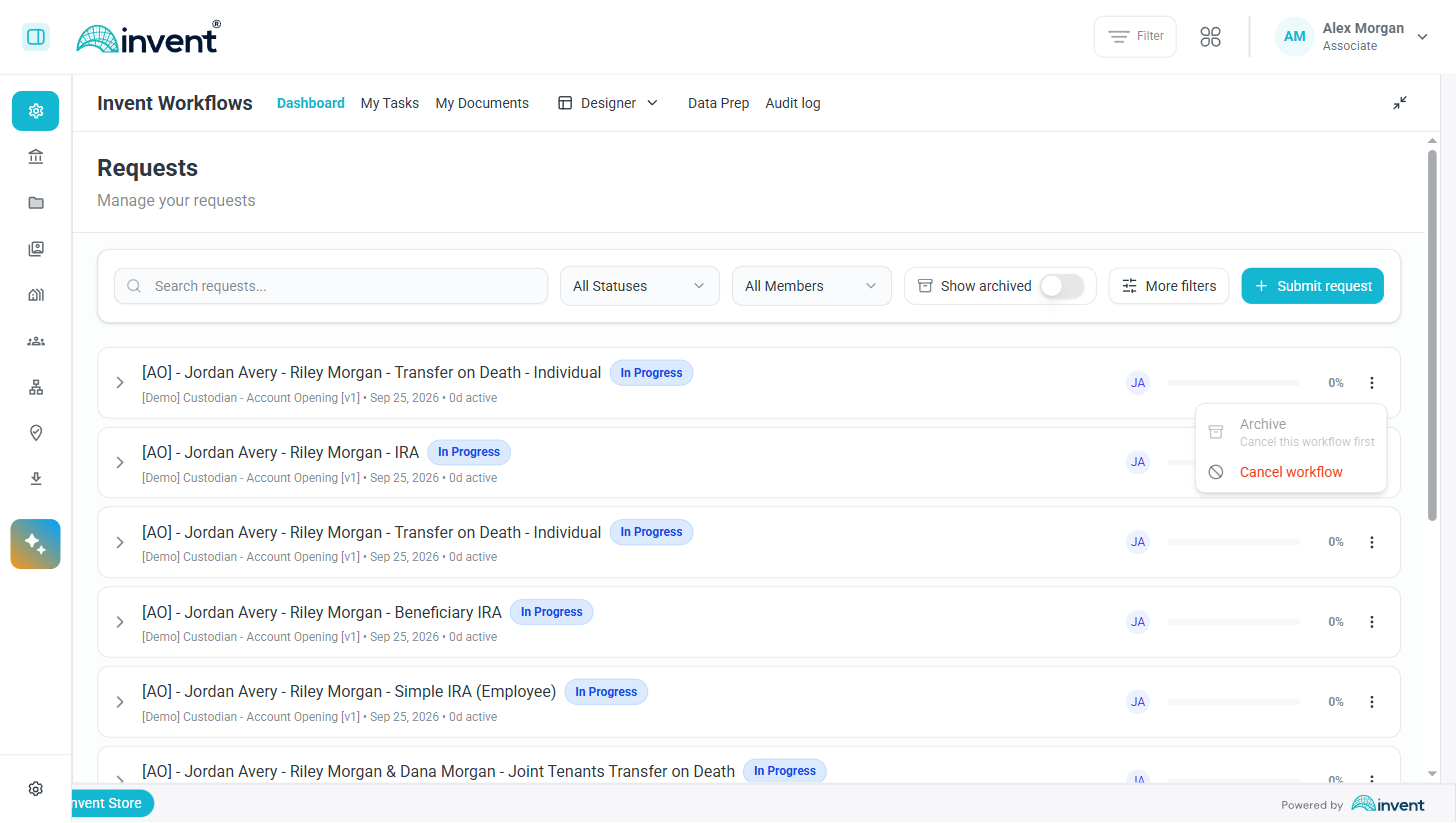
- Archive and Cancel are on both surfaces. Clearing a running workflow away used to mean opening it to cancel, then going back to the list to archive it. Both actions are on the dashboard row and in the workflow, each gated on the case it applies to: Archive for a workflow that is not running, Cancel for one that is. The dashboard's row menu disables Archive on a running workflow and says why under the label.
- An Archived filter, in every dashboard design. Archived workflows are reachable from the list rather than only through a link someone kept.
- A completed form reads as what was answered. Reopening a finished task showed the form as a set of disabled inputs. It now reads as values — including inside a repeating group — so a completed task can be read without being mistaken for one waiting on you.
- Every approver has a row. A step approved by several people showed one row and nothing else. The flow now lists each approver under the approval, with that person's own status, and the approval row above still carries the overall decision — which is the only place the any, count, percentage and first policies and early termination are visible. Inside a loop, each pass lists its own approvers.
- A blip no longer blanks the list. One failed refresh replaced a dashboard list that was still in hand with a red box, while the pagination under it kept reporting the real total. A failure with rows on screen now keeps them and says they are stale, with a Retry; only a failure with nothing to show is an error state.
- The product keeps up during a wobble. When the live-update channel drops, every open browser used to fall back to the same poll on the same tick — on 17 September that took one endpoint from about 2 requests a minute to 240 against a database that was still recovering. The fallback now backs off as the outage lasts and is spread across clients, so recovery is not fought over.
- A lookup's answer reads back properly. A task's saved answer to an entity lookup is shown through that preset's display template, instead of as the stored identifier.
- Every conversation about a workflow is in the workflow. The rail has a Discussion section under Members, carrying the number of messages in the whole workflow. Until a task has been talked about, the section is the workflow's own conversation. Once one has, it becomes a list — the workflow thread on top, then a row per task by most recent activity, each naming its step and showing who wrote last and the start of what they said. Open a row to read that thread; the arrow returns to the list, and the button beside the section title opens the same thread in a larger view.
- Mentioning someone on a thread. Typing
@offers the people on the workflow — people, not groups. Whether a message or a mention reaches anyone by email is decided by the template's notification rules, so a thread is not another inbox to watch.
Screenshot — Archive and Cancel on a dashboard row, with Archive disabled on a running workflow
Screenshot — the Discussion section of the rail, listing the workflow thread and a task thread
Data Prep
- The file is read once. See above: setup proposes a schema instead of interviewing you column by column.
- A column's type comes from the whole file. Types were decided from the first 50 records. They are now decided from a census of every row, which is what removes the "9 distinct values, not typed with confidence" tie for a reader to break.
- Sections a file can prove. A section is proposed when the file supports it, counted across every slot of a repeated field. Proposals that the data cannot stand behind are not offered, which is what produced Case Types that failed on every case.
- Review in two stages, then on the fields. The review step used to ask two questions at once — is this section right, and are its fields right — and gave you a card per section with the fields a click away. It now asks one thing at a time and puts the answer where the fields are.
- The named fix, on the row.
Decidewas a badge that explained little. A row now says what settles it and does it in place, with Change type... beside it opening the field editor on the type picker. The explanation moved out of a tooltip onto the row, and the toolbar counts the fields that need a fix with a Show them filter. Where the census could not count a whole column, no list fix is offered and changing the type is the action. - A retyped Choice fills itself. Changing a field to Choice offers the values the file actually holds, instead of leaving an empty option list to type out.
- What the file said survives a reload. The facts read off the file stay with the draft, so reloading the page mid-setup does not send you back to the file.
- Booleans import as booleans.
trueandfalsein a CSV were imported as text, and read one way on one screen and another way on the next. - A refused call says what refused it. A call stopped by a budget or a limit now names the one that stopped it, instead of failing with a general message.
- The batch page. A filter rail with counts on it, grouped column headers, and a popover for choosing fields.
- Edit a cell in the cell. A cell that looks like an input now behaves like one. Before, typing into it opened a dialog and what you typed was lost.
- A saved layout is checked against its own draft. A mapping saved against one draft was checked against whichever draft was current, which could deadlock a Case Type on a column its schema no longer had.
- Long runs end cleanly. A batch that reaches its size budget now finishes on a whole call rather than stopping halfway through one. The follow-up questions after such a run no longer lose track of what was already built.
Screenshot — a field that needs a fix, with the fix named on the row
Assistants
- A reopened chat stays usable. Reopening a thread with a few turns in it and sending one more message could answer "the AI agent's state became inconsistent, please start a new chat" — and every later message in that thread failed the same way. Those threads work.
- Cancel stops a run that is streaming. Cancelling while the assistant was mid-answer did not always take.
- A thread's identity comes from the server. The browser used to be able to name a thread it was about to create. Every thread id is now issued when the thread is created, which closes the last way two tabs could end up writing into the same conversation.
- Fifteen findings from a behaviour audit. An audit of how the three assistants actually behave produced a list of claims nothing in the product guaranteed. They are closed.
Behind the scenes
- Your tools see only what you may call. The MCP server lists the tools the caller's permissions allow, rather than the full set with a refusal at the end. Tool schemas are published in a readable shape, a failed call names its cause, a template created through it is filed in a folder, and template folders are addressable.
- Agent runs are traced end to end. A run is inspectable as one trace, with the prompt, the tool calls, the model, the tokens, the cost and the latency in one place, along with what the caller asked for — which workflow, which step, and whether a person or a schedule started it. A run's facts are filterable, and what a log keeps is masked.
- People keep the name the directory gives them. The local copy of people was written once and never revisited, so a renamed person kept their old name on tasks and in pickers. A background sweep now reconciles it against the directory.
- Every service reports its build. The version a service is running now reaches the running process, so what you see in monitoring is the build that is actually deployed.
- Audit events stay a sensible size. Request and response bodies on an audit event are capped before the event is recorded.
- Request logs record the status the caller got. A denied permission used to be logged as one thing and served as another.
- The MCP surface was audited in production. The server went live on 16 September and was reviewed against real use; everything that review found is fixed.