
Appearance
3.1.0 — Alpha
Backend 3.1.0 · Widget 3.31.0
This is the Alpha release of Invent Workflows. Templates now keep a version history, and assistants keep working after a refresh or a deploy. Workflows can act on behalf of a named person, and a new MCP server lets your own tools work with workflows.
Two things work differently than before. Please read those first.
Two changes to know about
Saving a template no longer publishes it
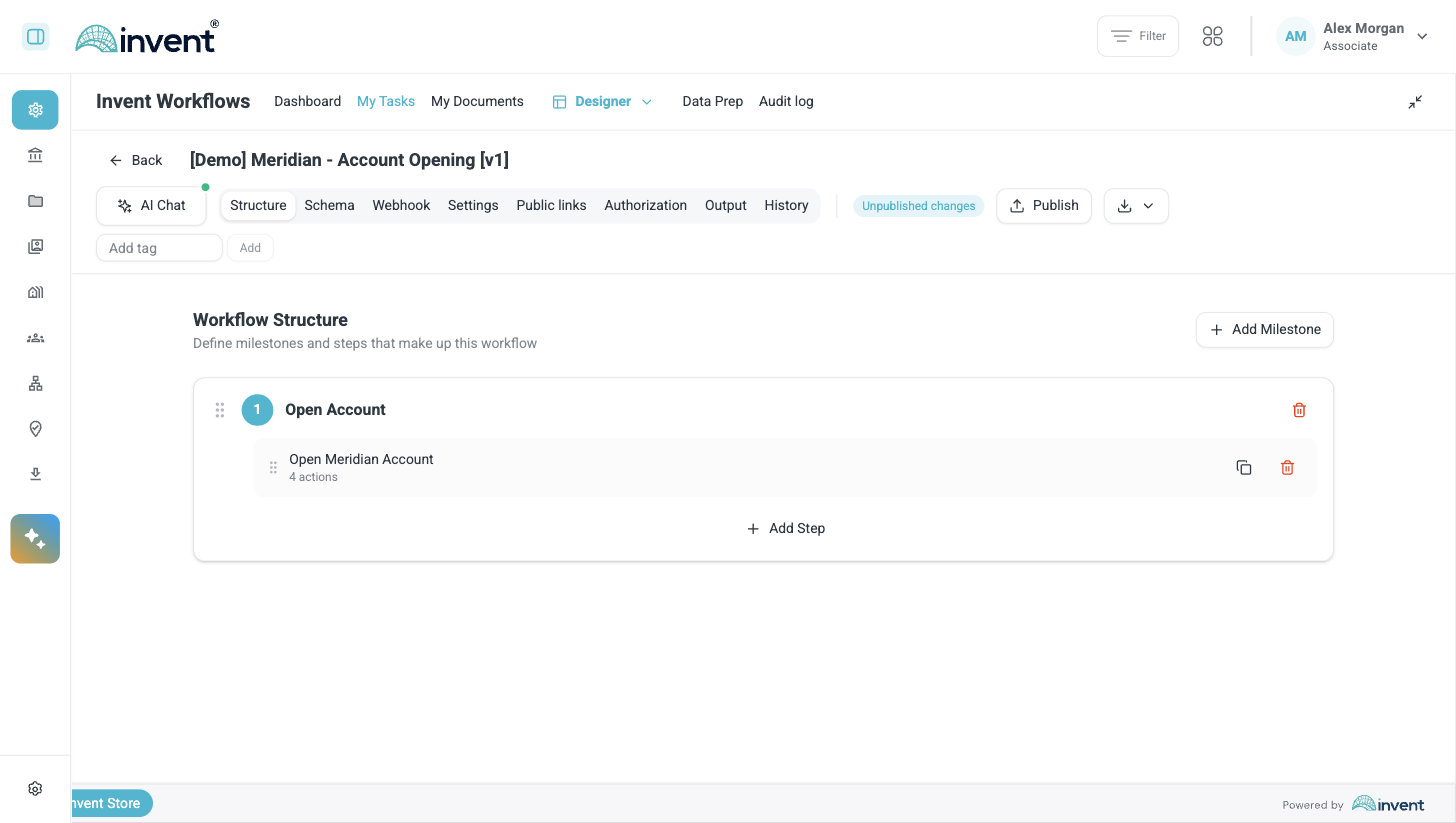
Saving changes to a published template no longer affects new launches immediately. Instead, saving creates a new draft version and marks the template as having unpublished changes. New launches continue to use the current published version until someone publishes the updated template.
Please tell your template designers about this. Otherwise someone will change a template, save it, test it, and wonder why nothing changed.
Screenshot — a template with unpublished changes, next to the Publish button
Templates that use a removed lookup preset will not save
We removed the seven system lookup presets named DAP3 —, because that platform no longer serves lookups.
If a form field still uses one of them, two things go wrong. The lookup returns no results when someone fills in the form. The template also refuses to save or publish, so nobody can edit it until you change the field.
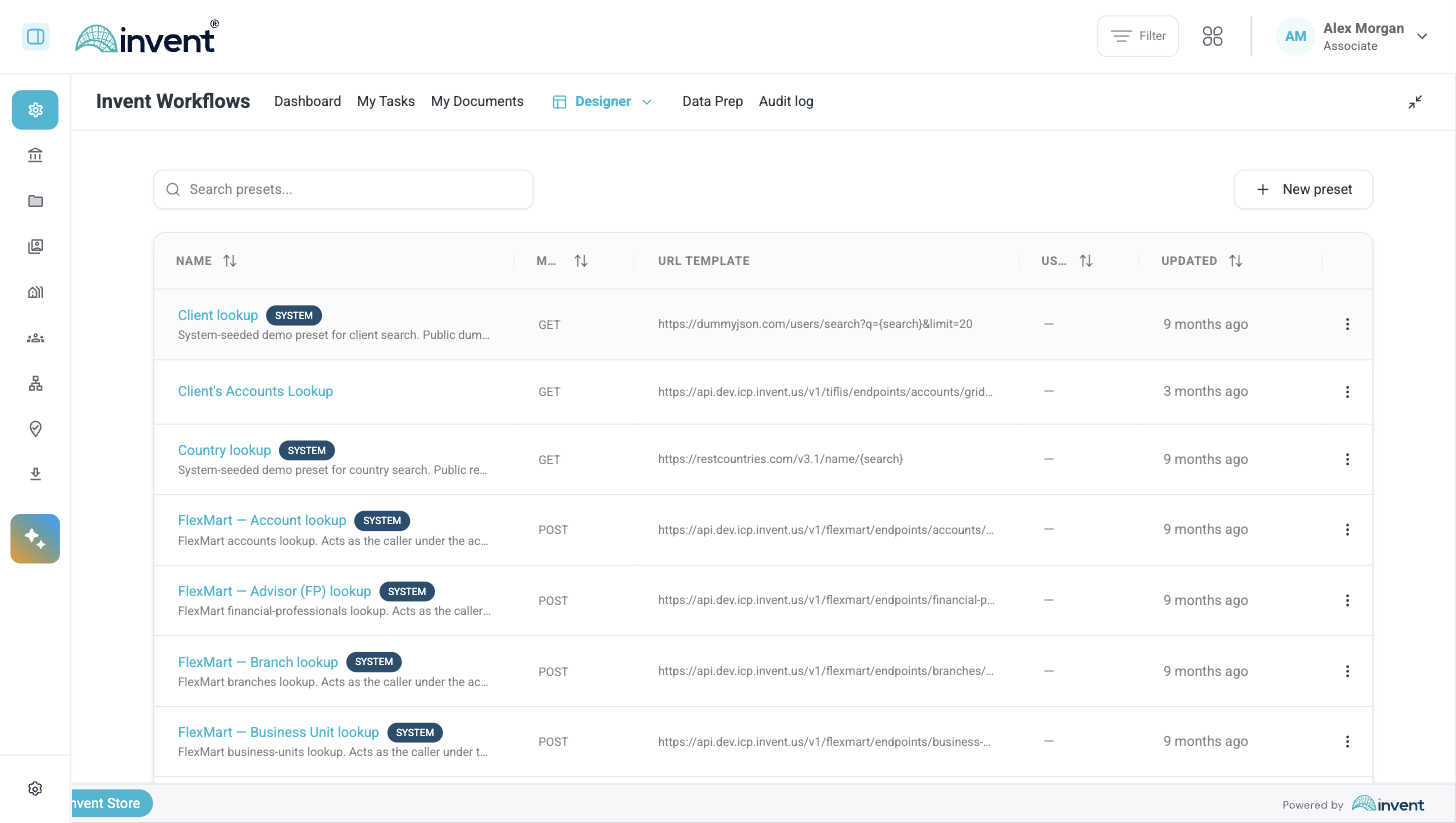
Changing the field is simple. The replacement preset for the same entity uses the same two variables, Search and Profile, so your settings carry over. Select the FlexMart — preset for the same entity and save.
Fields that use a DAP4 — preset still work. Those are the presets we kept: they have the same id and behave the same way, and we only renamed them to FlexMart —.
To find the templates that need attention, try saving each one. If it saves, it does not use a removed preset.
Screenshot — the lookup preset list, showing the FlexMart system presets we kept
Main changes
| Version history and rollback | We save a version every time you save a template. You can copy an old version back into your draft, or make it the live version for new workflows. |
| Assistants keep their work | Building a template, editing a flow and working with a running workflow now use the same engine. The assistant keeps working after a refresh, a lost connection or a deploy. |
| Workflows can act as a person | When a workflow calls another Invent service, it can use a named person's identity. That service then applies that person's permissions. |
| Waiting, branching and external calls | Poll an endpoint until it is ready, branch on a value, call a platform service through the gateway, and read FlexMart data from the editor. |
| MCP server | Your own tools can list templates, launch workflows, complete tasks and read results. |
| Tasks show where they belong | My Tasks shows the workflow, the client, the step and the milestone for each task. |
For the workflow designer
Versions
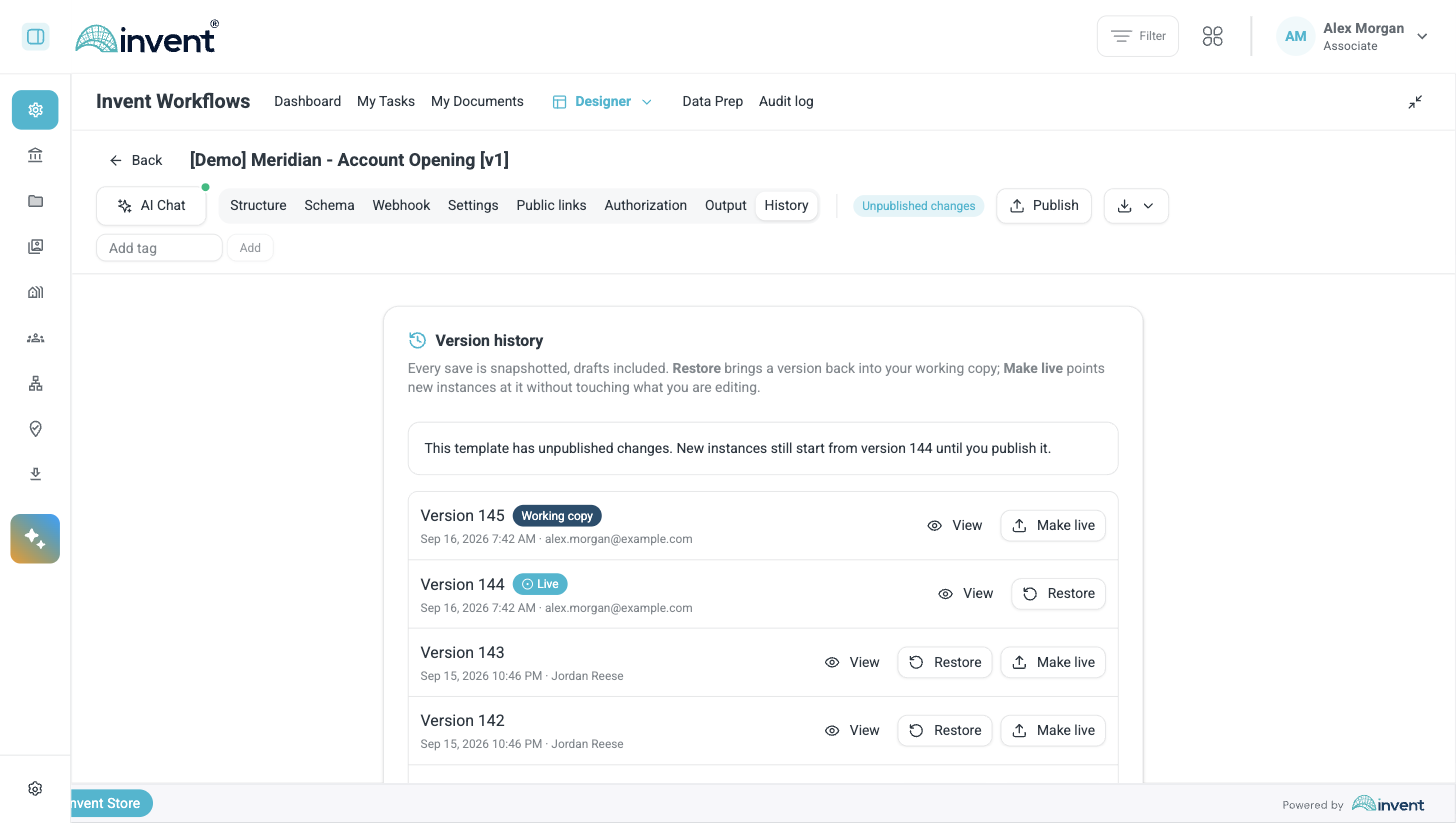
- Version history. We save a version every time you save a template, including drafts. The list shows which version is Live and which one is your Working copy. Restore copies an old version into the version you are editing. Make live tells new workflows to use a version, without changing what you are editing.
- Add or replace fields when you apply a template. When you apply an input template to a form, you can now add its fields to the existing ones or replace them. Before, it always replaced them.
Screenshot — version history for a workflow template
Flow editor
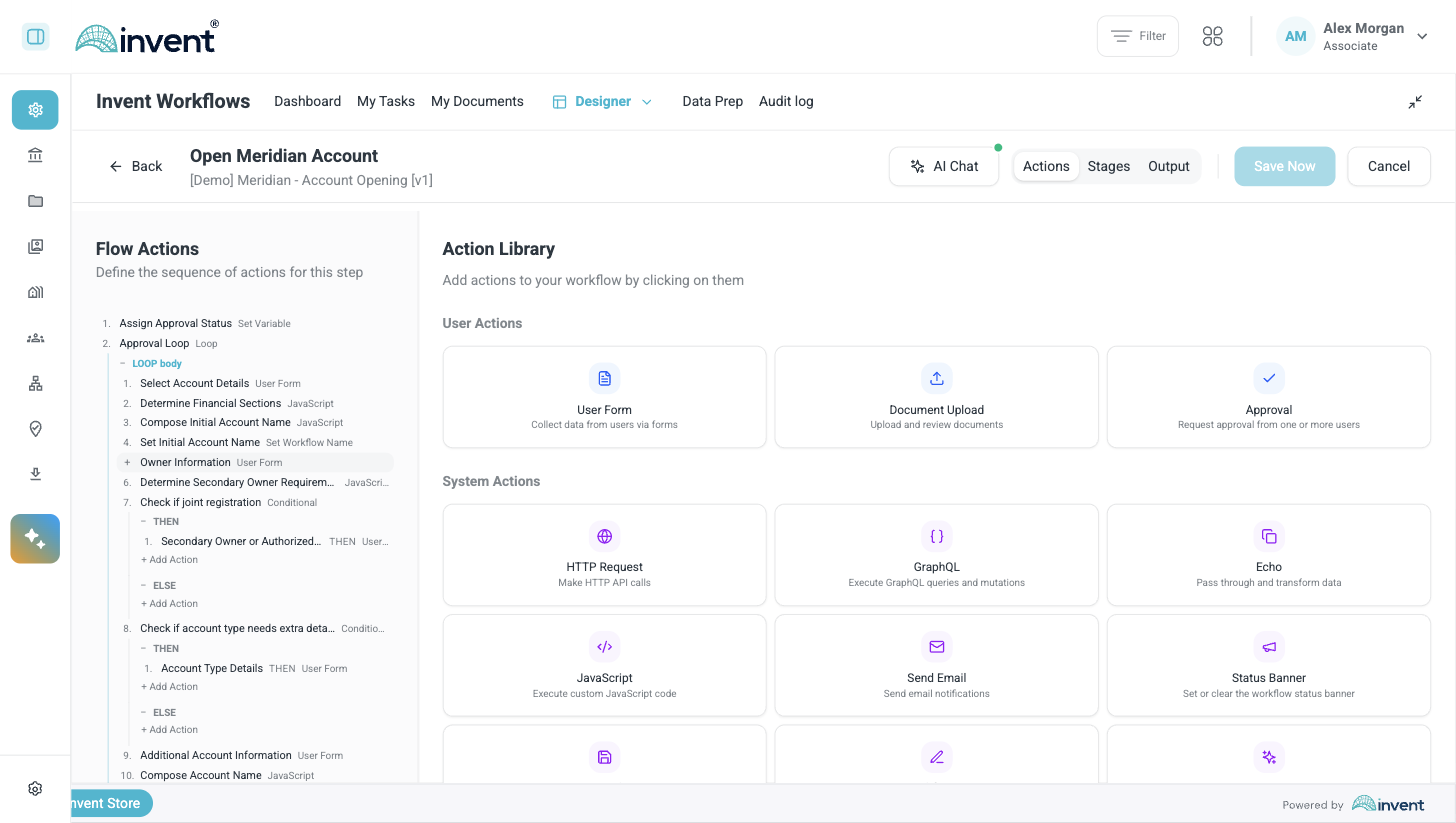
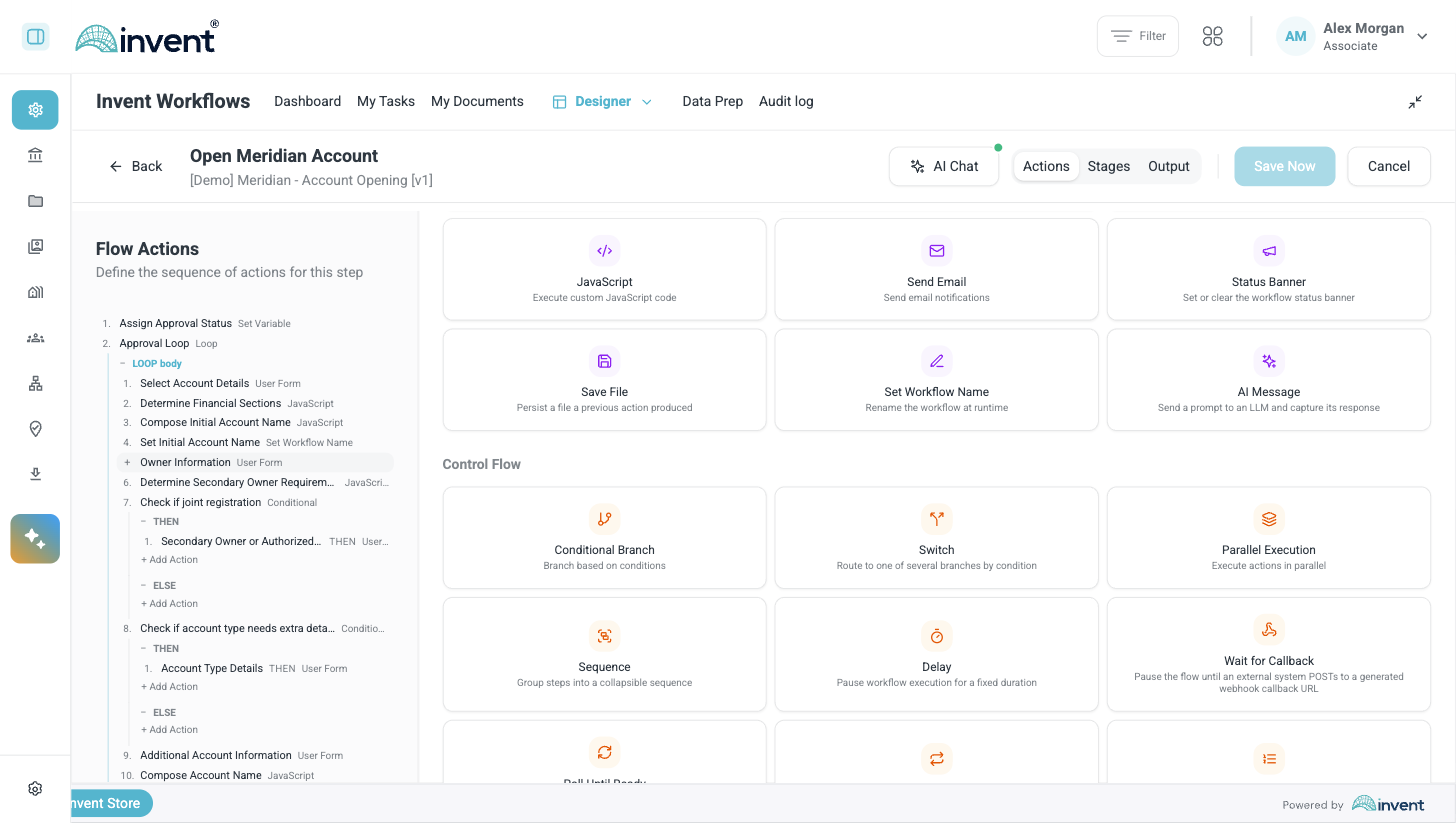
- Compact view for long flows. You can show a long process as a compact list of rows instead of cards. Both views have a button that inserts a new step directly below an existing one.
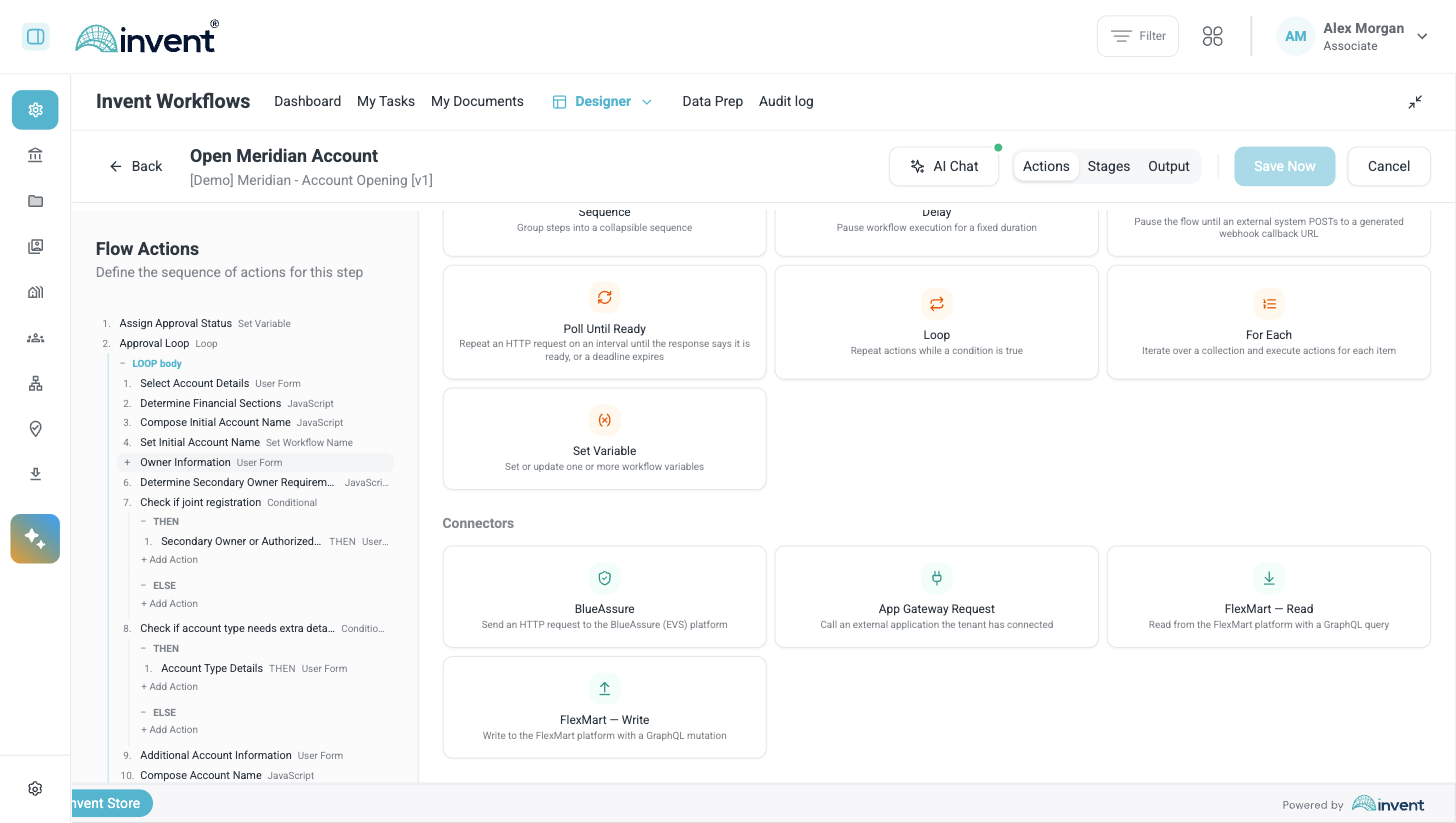
- Poll Until Ready. This action repeats an HTTP request at a set interval until the response says the work is ready, or until a deadline passes. You no longer need to build this loop yourself.
- Switch. This action sends the process to one of several branches, based on a value. You define the branches you need.
- Set Workflow Name. This action sets the name of a running workflow from an expression. Your list of workflows then shows real names instead of thirty copies of the template name.
- Build an HTTP body from named fields. You can build the body of an outgoing request field by field, as JSON or form-urlencoded. Multipart bodies and file parts are supported.
- Checks on action and task names. You can no longer save a flow that has an unresolved
expression in an action name. Before, this only failed when the workflow ran. Custom task titles now stay as you wrote them when you save. - Pick condition values from the field's options. For "equals" and "does not equal" conditions, you now select from the options the field actually has. Before, you typed the value, and a typo failed without any message.
- Separate expression engine. We moved expression evaluation into its own engine. The output of one step can no longer appear in another step's expressions.
Screenshot — the compact flow tree, with the action library next to it
Screenshot — control flow actions in the action library
Forms and fields
- We store the label, not only the code. When someone selects an option, we now store the label they saw along with the value. Later steps, emails and exports can show "Roth conversion" instead of
RC_2. - Deadlines use business dates. You can set a deadline as a number of days or as an exact date. We calculate it as a calendar day in the business time zone, so "in 3 days" means the same day for everyone. If you leave the expression empty, the task has no deadline.
- Connect lookup presets to workflow variables. You can connect the placeholders in a lookup preset to your workflow's variables. The search then only returns results for the client the workflow is already about. If a placeholder has no value, we tell you before you save.
- Write your own launch instructions. You can add instructions to the launch screen, so people read them where they need them.
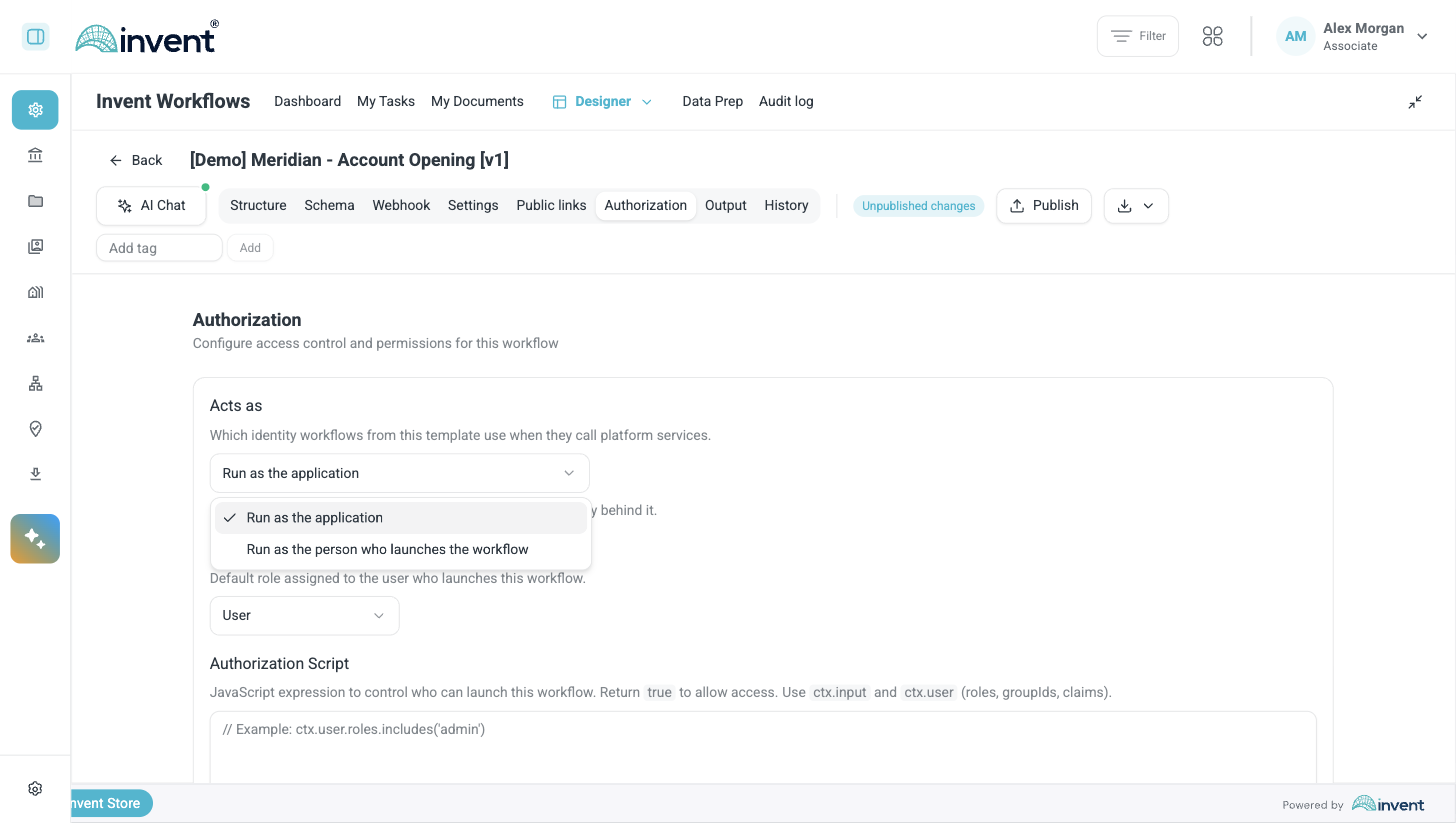
- Choose the identity a workflow uses. On the Authorization tab, choose which identity workflows from this template use when they call platform services. You have two options: run as the application, which has the minimum rights and no person behind it, or run as the person who launches the workflow.
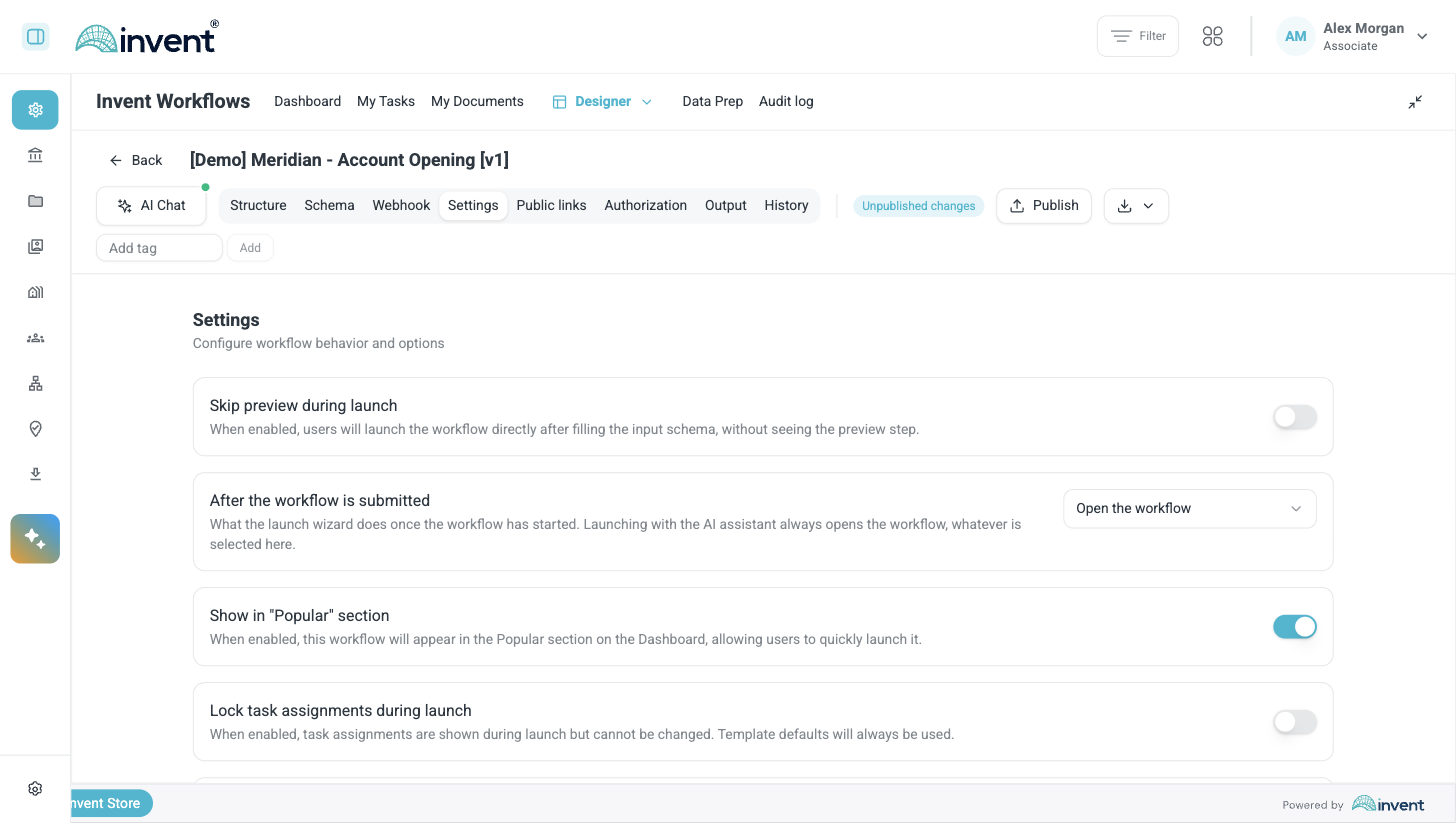
- Choose what happens after launch. On the Settings tab, choose where the person goes after they launch the workflow.
Screenshot — the "Acts as" setting on the Authorization tab
Screenshot — template settings, including what happens after the workflow is submitted
For the person who starts the work
- See connection status before you submit. The launch screen now shows whether each connection the template needs is authorized. You find an expired credential before the workflow starts, instead of three steps later.
- Context from the page fills in reliably. When you start a workflow from a client or account page, the form fills in that context. We fixed the cases where it did not. Multi-select lookups now fill in. Values set by a field mapping are no longer cleared when you change something else on the form.
- Filters stay as you set them. Your filters on the Dashboard and in My Tasks stay set when you navigate away and come back. Clear now really clears them, instead of returning to the widget's default.
- Find a workflow by any related client. Search now matches a context id inside a list of them. If a workflow relates to several accounts, you can find it by any one of them.
- Quick Access uses real usage. We now build the Quick Access list on the server from how templates are actually used.
For the person doing the work
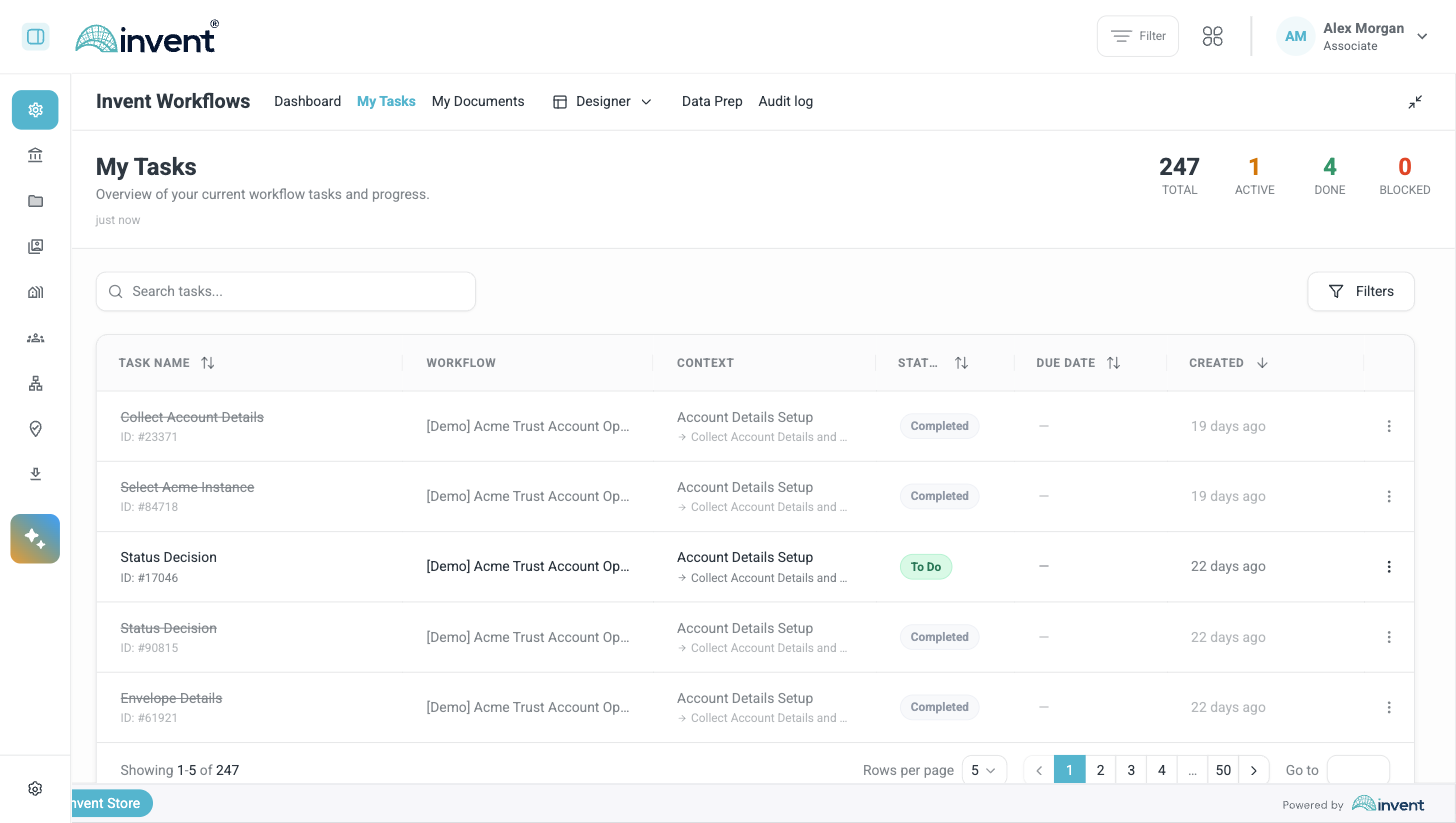
- Each task shows which workflow it belongs to. My Tasks now has a workflow column and a context column, and each task shows its step and milestone. You can tell twenty tasks apart, instead of seeing twenty rows called "Review".
- Open the workflow behind your task. If a task came from a workflow that a trigger started, you can now open that workflow. Before, you could see the task but not the workflow.
- Reminder settings show what is saved. The due date popover now shows the reminder settings that are actually in use. Before, it opened empty.
- Search waits until you type enough. A lookup field no longer searches after the first character. It waits until you have typed the minimum length set in the preset. Large directories are now usable.
- The page reloads after large updates. When an update is too large to send over the live connection, the server tells the page to reload its data. Before, the page kept showing old information.
Screenshot — My Tasks with the workflow and context columns
Assistants
There are three assistants. One builds a template from a description, one edits an existing flow, and one works with a running workflow. The Data Prep assistant uses the same engine.
- All assistants use one engine. They behave the same way, get new features at the same time, and follow the same rules about what they can do.
- An assistant keeps its work. We record what an assistant does as it works. If you close the tab, lose your connection, or we deploy an update while it runs, the work is still there when you come back.
- Claude Sonnet 5, with instructions generated from the code. Both template assistants now use Claude Sonnet 5. We generate what they know about the product from the list of real actions, so they describe actions that exist, with the correct parameters.
- Attach a file in the chat. A file you attach now appears as a proper form section, and there is one clear way to attach it.
Connectors, webhooks and the API
- MCP server. Workflows, templates and instances are now available over the Model Context Protocol. Your own tools can list templates, launch workflows, complete tasks and read results.
- App Gateway Request. This action calls an external application that your tenant has connected. You write the request body in the editor, like any other HTTP action.
- FlexMart actions in the editor. Read FlexMart data with a GraphQL query, write it with a mutation, or use the SQL action when a query is simpler.
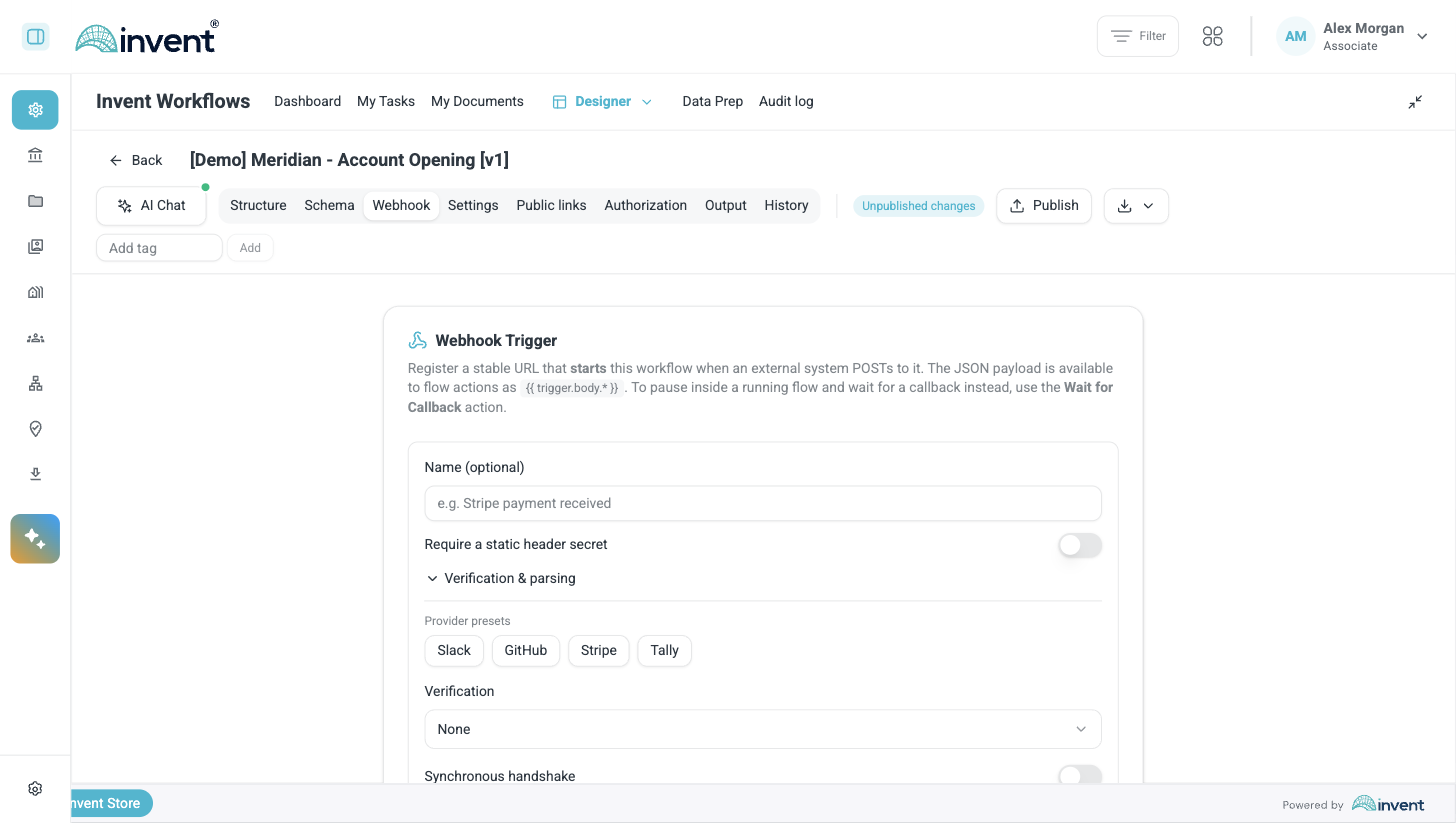
- Webhook triggers can filter requests. A trigger can now filter incoming requests by their body. Requests that do not match are dropped, instead of starting a workflow that ends immediately. Anonymous requests receive a 202 response and are not written to the audit log.
- Filter by a list of search values. The instance query API can filter on a search attribute that holds a list of values. This is what lets you find a workflow by any of its related records.
- FlexMart is the only data platform for lookups. Lookups no longer try one platform and then retry against another. Seven system presets remain — Client, Household, Account, Financial Professional, Branch, Business Unit and Opportunity — and they all use one address. If the platform returns 404, we treat that as the answer instead of retrying somewhere else.
Screenshot — connector actions: BlueAssure, App Gateway Request and FlexMart
Screenshot — registering a webhook trigger on a template
Security and reliability
You will not see these changes in the interface, but a security review will ask about them.
- Workflows can use a person's identity. When a workflow calls another Invent service, it can present a named person's identity. That service then applies that person's permissions and records their name. If responsibility moves to someone else, you can point a running workflow at them.
- Outgoing connections are blocked by default. Every outgoing HTTP request passes a check when the connection opens. We block anything that is not explicitly allowed, including addresses that resolve to internal networks.
- Directory exclusions apply everywhere. If your tenant hides certain accounts from the directory, they are now hidden everywhere you select a person, not only in the directory itself.
- Permissions follow the step that owns a flow. We check permission to read or change a flow against the step that owns it. You can only read a step's flow if you have access to its workflow.
- Repeating an operation is now safe. Creating tasks, sending events and resuming a flow can all be repeated safely. A restart at the wrong moment no longer loses a task or leaves a workflow stuck. If the same flow starts twice with the same id, we reject the second one.
Data Prep
Early access
Data Prep is available on request, not switched on for everyone. We tested version 1 in September with one design partner.
Data Prep is for work that arrives as a file instead of a request. You define a case type, import a spreadsheet into it, correct the data in a grid together with colleagues, and launch workflows on the rows.
- Build a case type from your file. Setup reads the columns of a sample file and turns them into fields. You choose how many rows the header takes up by looking at the real file. You can collapse groups and search fields, so a type with 168 fields is still manageable.
- Review the import before you create cases. Before a batch is created, a paged table shows what each column contains, which values cannot be imported, and how many records we found. We test numbers and dates with the same rule the import will use.
- Two people can work in the grid at once. You can filter, sort, reorder columns and edit cells with the keyboard. When you come back from a case, your filter, selection and scroll position are the same. If someone else is editing a field, we lock it instead of overwriting it. Each failing cell is listed on its own line.
- The assistant proposes, you apply. The assistant returns a proposal and shows what it read to get there. Nothing changes until you apply it. It never publishes a schema or changes permissions by itself.
- Launch on a selection, then export. You see problems before the run starts. Each result is linked to the versions used and to a snapshot of the input data. One failing case does not hide the others. Publishing a new version never changes existing batches without telling you.
Bug fixes
Forms and the form builder
- Multi-column forms are now read out and tabbed row by row, matching how they look on screen.
- Dropping a field onto an occupied cell no longer makes the field underneath disappear.
- The order of fields stays correct after you drag them on the grid.
- A required file upload inside a hidden section no longer blocks a form that does not show it.
- File upload works on approval forms and in required repeating groups.
- Dynamic values are validated inside repeating groups, and child fields get the correct step and task names.
- Valid answers in selection fields are no longer rejected.
- Files attached in advance carry into the next round, so a form sent back for correction keeps its attachments.
Flow editor and designer
- Publish, restore and delete errors now show a message instead of failing quietly. They are also shown once, not twice.
- Variable tokens are inserted exactly as written in JSON editors.
- Stage colour, order and icon stay correct after you save and reload a template.
- An empty due date expression means no deadline, instead of a task that is immediately overdue.
- The polling request is saved correctly from the editor.
- An empty value in a body field is sent, and you can use the same field name more than once.
Launching
- Hidden fields filled in by a mapping stay in the data you submit.
- Context values survive a form reset. Hidden lookup fields and entity ids are saved into search attributes. A type placeholder counts as an empty value, not as data.
- Back works when you open step 2 from a direct link, and a true/false field is filled with a real boolean value.
- The "launch with assistant" option resets on every attempt.
Tasks and dashboards
- Clear and Reset no longer save the widget's default filters as your filters.
- A lookup you clear stays cleared, and a resolved label no longer changes back to a raw id.
- Opening a task no longer clears its due date.
- A date without a time is read as a calendar day, not a UTC timestamp, so dates no longer shift by one day in western time zones.
- Step stages are read from the running workflow, so restoring an old template version does not change history.
- An approval reads its own results instead of the task data of one approver.
Widget behaviour and display
- Fullscreen shows the widget you opened and keeps it full width. We fixed three problems: the widget could be hidden, the page could shrink it when it re-rendered, and leaving fullscreen could leave you looking at a page that had moved.
- A table no longer takes over the scroll wheel, selecting a row does not loop inside a form, and server-side sorting starts in ascending order.
- The title of the success message is visible. It used to be the same colour as its background.
Platform and integrations
- FlexMart requests are sent as plain JSON and ask for the fields the grid needs. Client search returns birth date and address.
- We read the caller's profile from IAM when we create their account, so a first-time user gets their real details.
- FlexMart is named correctly when we exchange tokens.
- Lookup presets in user context can no longer reach tenant presets.
- Anonymous webhook requests are not written to the audit log.
Data Prep
- We fixed many first-version problems using real files. Fields show the name they already have, formats are read from the type that owns them, a completed step no longer looks locked, and the last step can finish the wizard.
- A failed assistant run is reported as failed instead of idle, mapping actions stay visible after you save, and the import status of a batch is shown in words.
What Alpha means
Alpha means the product is ready to run real processes, with us working alongside you. It also means the contracts are not final yet.
- Template and API contracts can still change between releases. We will describe every change the way we describe the two at the top of this page.
- Your existing templates become version 1, so the history has a starting point. The first time you save each one after that, it records one extra version. Nothing is lost, and archived and published templates keep their status and their first-published date.
- When you report a problem, please include the batch or instance id and the time. That lets us find it quickly in our traces.