
Appearance
Templates
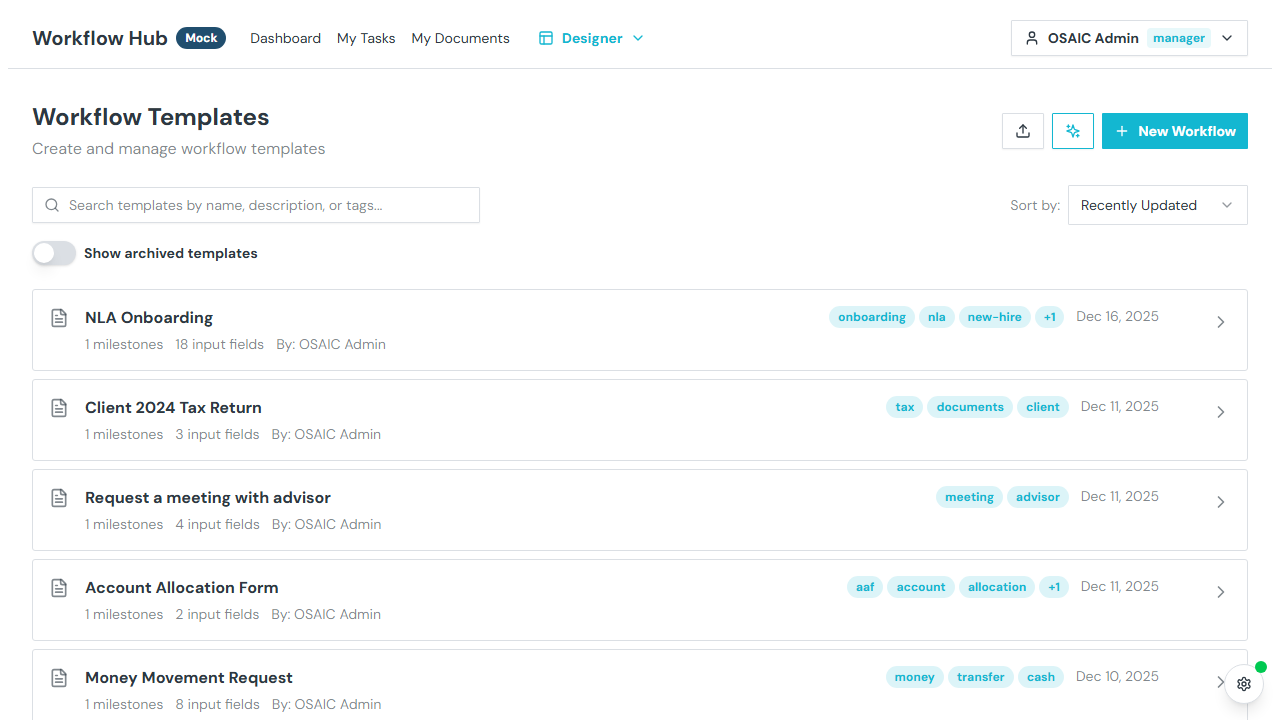
The Templates page is the starting point of the Designer. Here you manage your workflow templates — the blueprints that define how workflows operate.
INFO
The Designer is available to Admin users. See Roles & Permissions for details.
What You See
Templates are displayed as a list, each showing:
- Name — the template title
- Description — what the workflow does
- Tags — category labels
- Milestones — number of milestones defined
- Input fields — number of input fields
- Author — who created the template
- Last updated — when it was last modified
Creating a Template
New Template
Click New Workflow to create a blank template. This immediately opens the Template Editor where you can define the structure, input schema, and settings.
Import from JSON
Click Import to upload a JSON file containing a template definition. This is useful for sharing templates between environments or restoring from a backup.
AI Generation
Click the AI icon to open the generation dialog. Describe the workflow you want (e.g., "Client onboarding with KYC verification and document collection") and the system will generate a template structure for you. You can then refine it in the editor.
Managing Templates
Each template has an action menu with:
| Action | Description |
|---|---|
| Edit | Open the Template Editor |
| Duplicate | Create a copy of the template |
| Archive | Hide the template from the default view (it becomes unavailable for launching) |
| Unarchive | Restore an archived template |
| Export JSON | Download the template as a JSON file |
| Export Markdown | Download the template as documentation |
| Delete | Permanently remove the template |
Searching and Sorting
Search
Type in the search box to filter templates by name, description, or tags.
Sort
Use the sort dropdown to order templates by:
- Recently Updated — most recently modified first
- Oldest Updated — least recently modified first
- Name A–Z — alphabetical order
- Name Z–A — reverse alphabetical
Archived Templates
Archived templates are hidden by default. Toggle Show Archived to include them. Archived templates appear with a dashed border, reduced opacity, and an "Archived" badge.
Template Workflow
A typical template lifecycle:
- Create a new template (or import / generate with AI)
- Define structure — add milestones and steps in the Template Editor
- Define input schema — add the input fields users fill when launching
- Design flows — configure actions for each step in the Flow Editor
- Set permissions — configure who can launch and what roles are assigned
- Publish — make the template available for users to launch workflows from