
Appearance
Dashboard
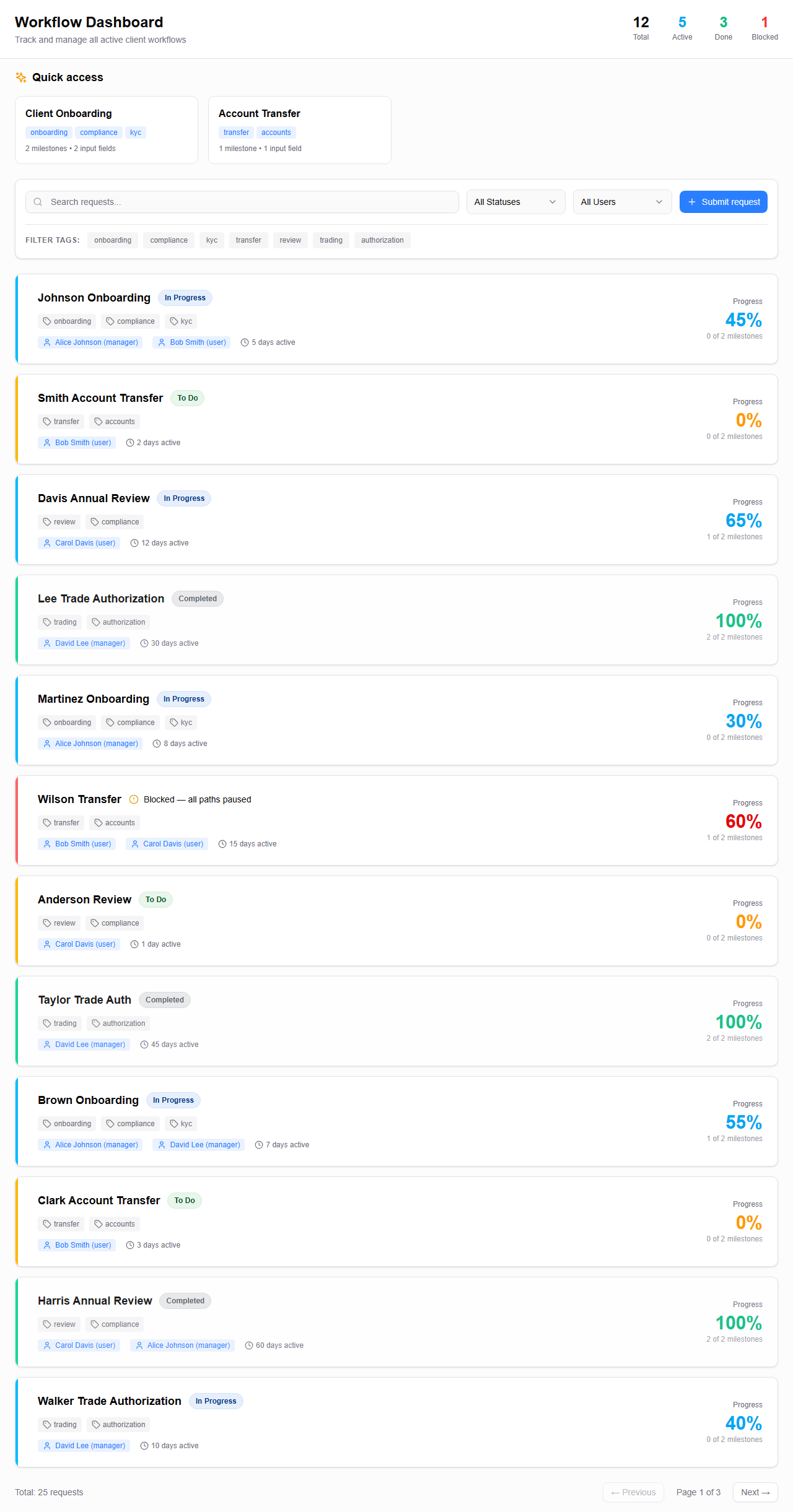
The Dashboard is your home base in Invent Workflows. It shows all workflow instances you have access to and lets you search, filter, and launch new workflows.
What You See
The Dashboard displays workflow instances as cards, each showing:
- Instance name — the name of the workflow
- Status badge — Active, Blocked, Completed, Cancelled, or To Do
- Progress bar — visual indicator of how far the workflow has progressed
- Days active — how long the workflow has been running
- Assigned members — number of team members involved
- Tags — labels from the template (e.g., "Onboarding", "Compliance")
- Milestone count — how many milestones the workflow contains
- Attention badges — warnings if there are blocked tasks or step impacts needing attention
Click any instance card to open its details page.
Layout Variants
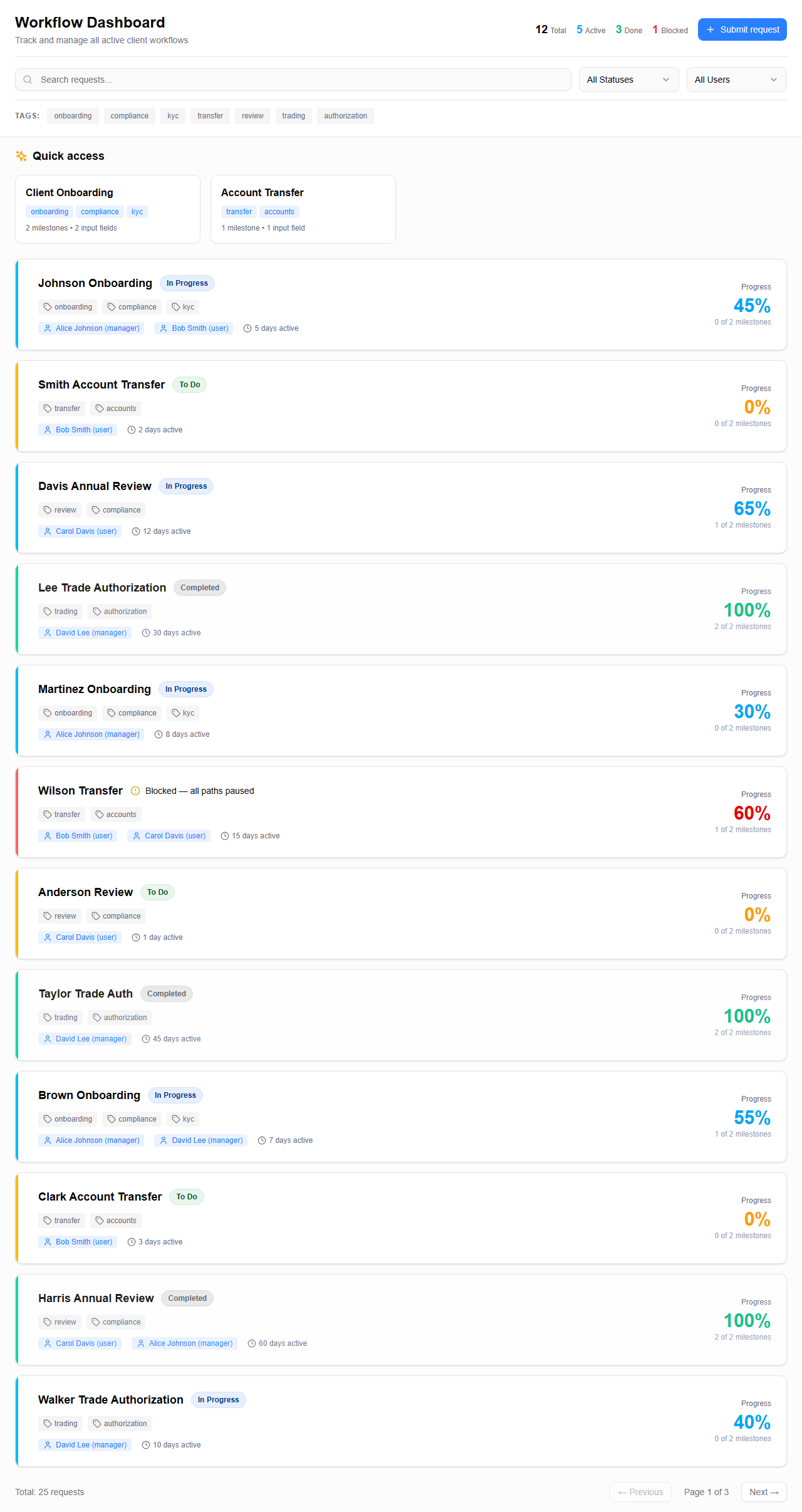
The Dashboard supports different layout configurations that control how the header, cards, and filters are displayed. These are configured by your administrator via widget settings.
Header Variants
The header controls the top section of the Dashboard — title, statistics, and optionally embedded filters.
| Variant | Description |
|---|---|
| Classic | Title only, filters displayed in a separate toolbar below |
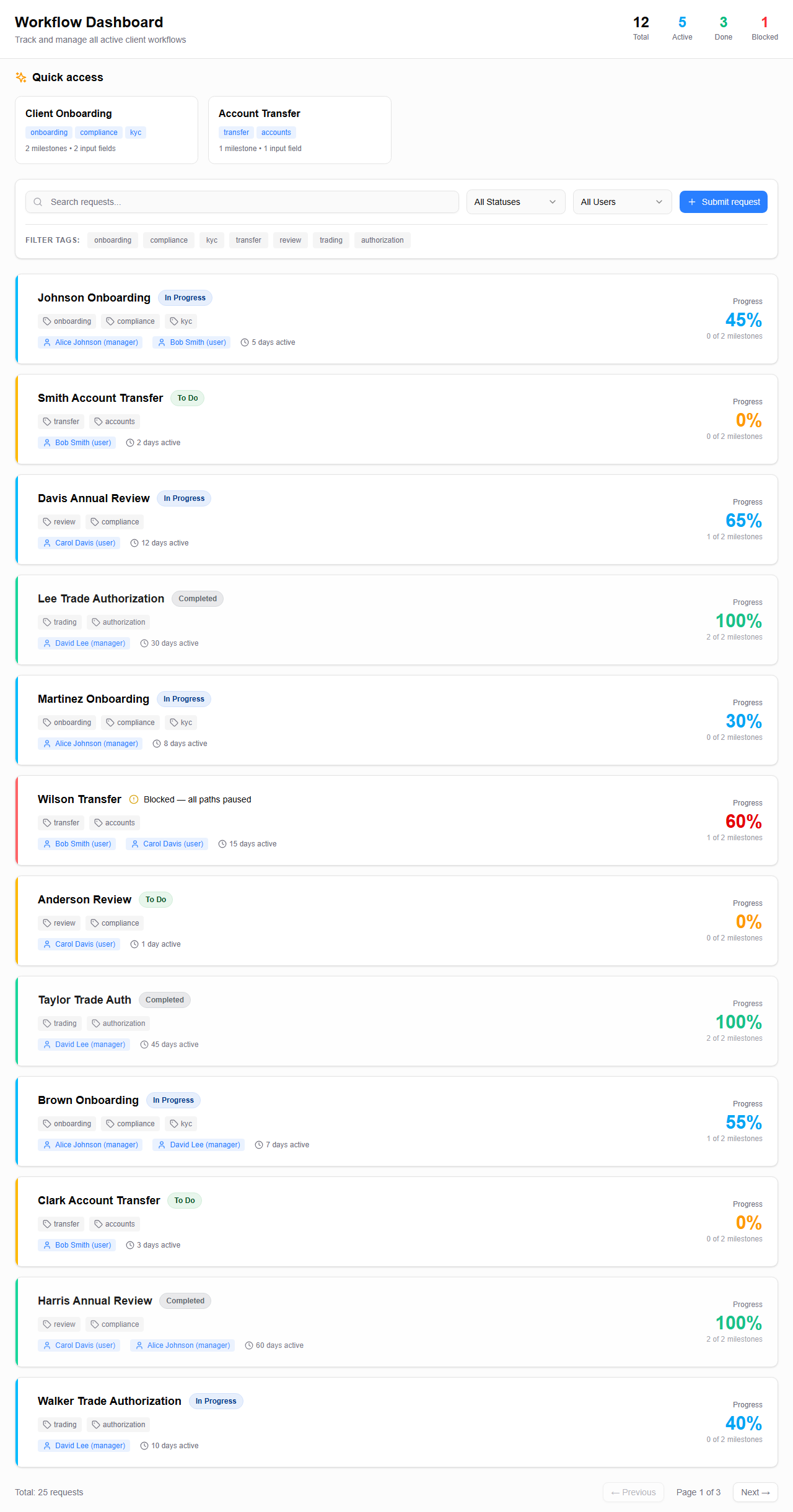
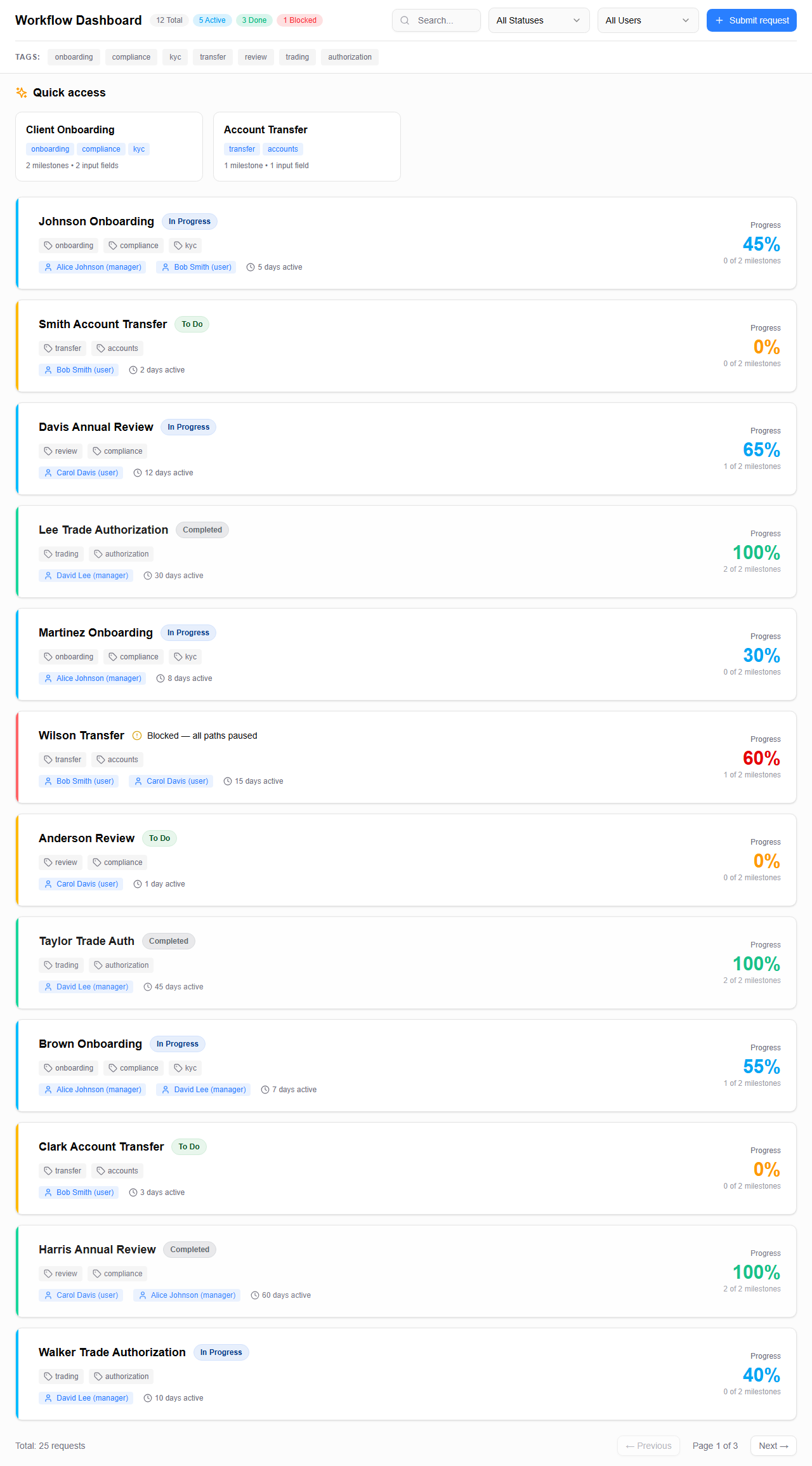
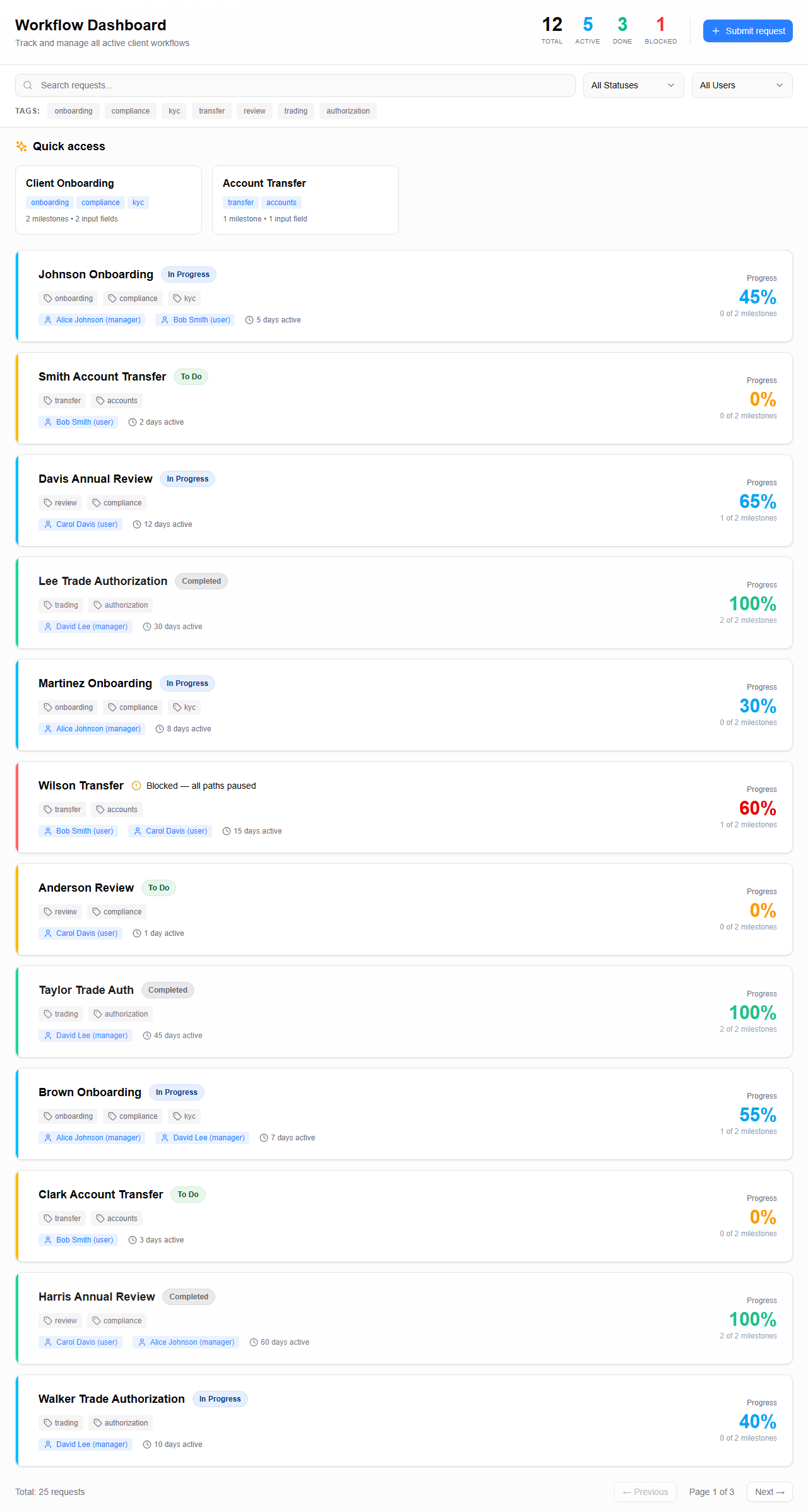
| Stats | Title with stat pills showing Total, Active, Done, and Blocked counts |
| Compact | Single-line header with stat pills and embedded search/filter controls |
| Hero | Large hero section with prominent title, stat numbers, and embedded filters |
| Merged | Title with inline stats and embedded filters arranged in two rows |
INFO
When using the Compact, Hero, or Merged header variants, filters are embedded directly in the header — there is no separate filter bar.
Card Variants
Cards control how workflow instances are displayed in the content area.
| Variant | Description |
|---|---|
| Standard | Full card with progress bar, assigned users, tags, and milestones (default) |
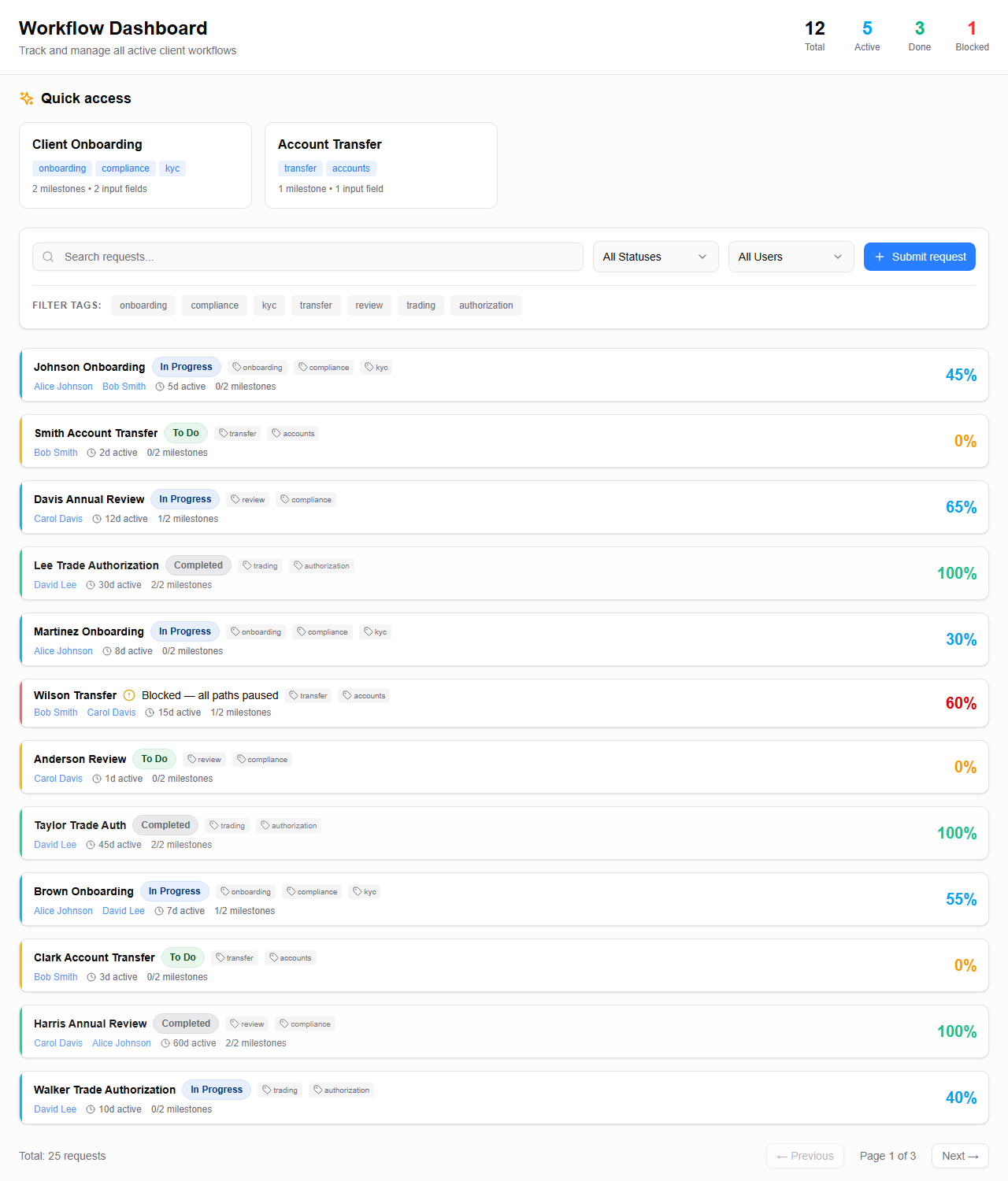
| Compact | Condensed single-row card showing name, status, and essential info |
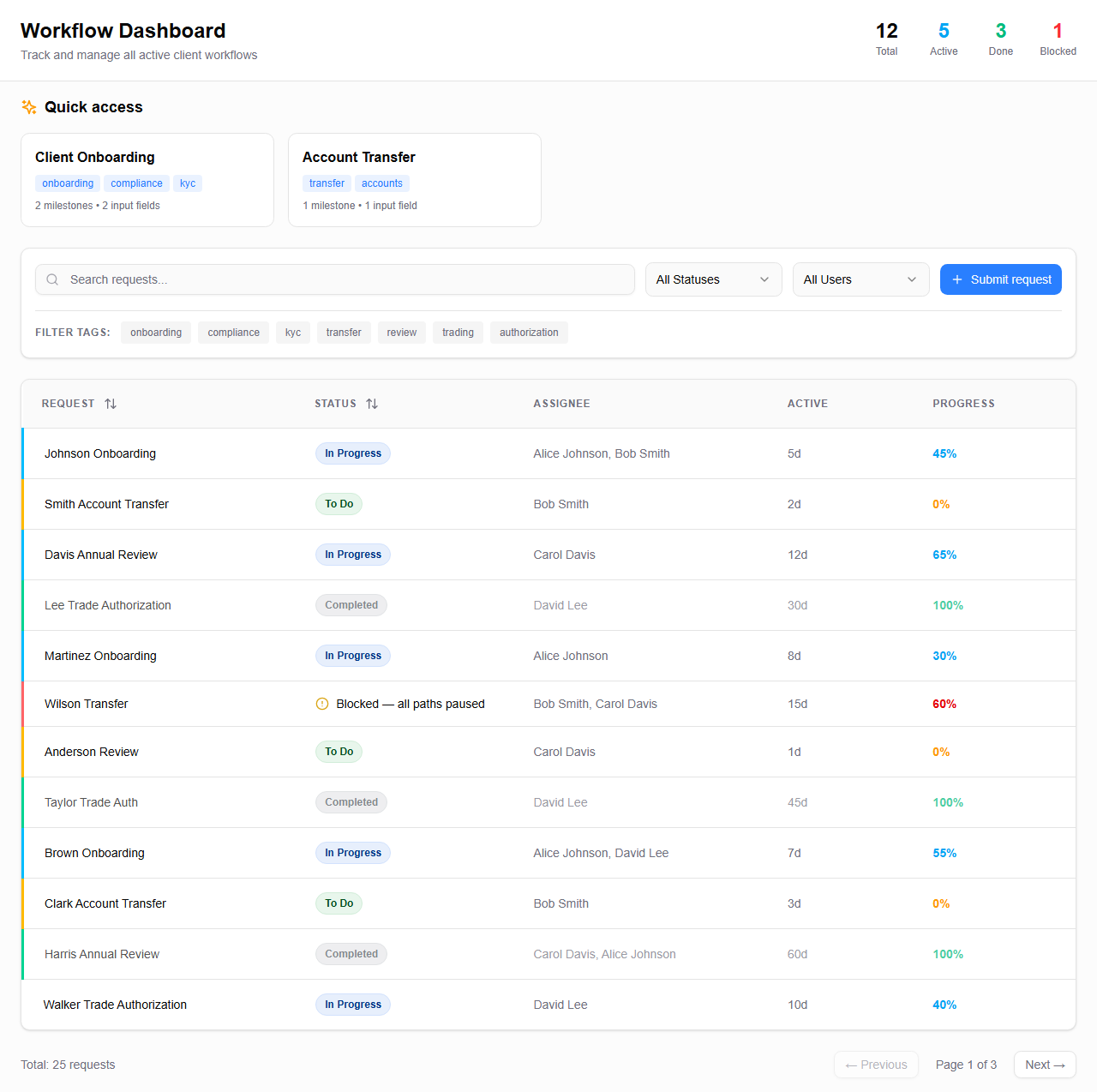
| Table | Data table with sortable columns (Request, Status, Assignee, Active, Progress) |
Filter Variants
| Variant | Description |
|---|---|
| Toolbar | Classic toolbar-style filters |
| Card | Modern card-based filter panel with inline tags (default) |
Quick Access
At the top of the Dashboard, you may see a quick access section showing popular workflow templates. Click one to immediately start the Launch Workflow wizard with that template pre-selected.
Searching and Filtering
Search
Type in the search box to filter instances by name. Filtering happens instantly as you type.
Status Filter
Use the status dropdown to show only instances with a specific status:
| Status | Description |
|---|---|
| All Statuses | Show everything |
| Active | Workflows currently in progress |
| Blocked | Workflows with failed or stuck tasks |
| Completed | Successfully finished workflows |
| Cancelled | Workflows that were manually cancelled |
| To Do | Workflows that haven't started yet |
Assignee Filter
Filter by who is assigned to the workflow. Select a specific team member to see only their workflows.
Tag Filter
Tags appear as clickable buttons below the toolbar. Select one or more tags to filter instances by template tags. Only instances from templates with the selected tags will be shown.
Context Filter
When the Dashboard is embedded in an external portal with entity context (e.g., a Client or Account page), it can automatically filter workflows to show only instances related to that entity.
The context filter activates when the widget receives URL parameters such as contactId, accountId, householdId, or financialProfessionalId. A filter chip appears in the toolbar showing the active context (e.g., "Client", "Account"). Click it to toggle context filtering on or off.
INFO
Context filtering relies on Search Attributes — input fields marked as searchable in the template. Only workflows whose searchable fields match the context values will be shown.
Clear Filters
Click Clear Filters to reset all filters and show all instances.
Launching a Workflow
Click the Submit Request button in the toolbar to open the Launch Workflow wizard.
Pagination
Instances are displayed 10 per page. Use the pagination controls at the bottom to navigate between pages. You'll see the current page number and total count of matching instances.
Auto-Refresh
The Dashboard automatically refreshes every 5 seconds, so you'll see status changes without needing to reload the page.
Empty State
If no instances match your current filters, you'll see a message suggesting you adjust your filters or launch a new workflow.