Appearance
My Tasks
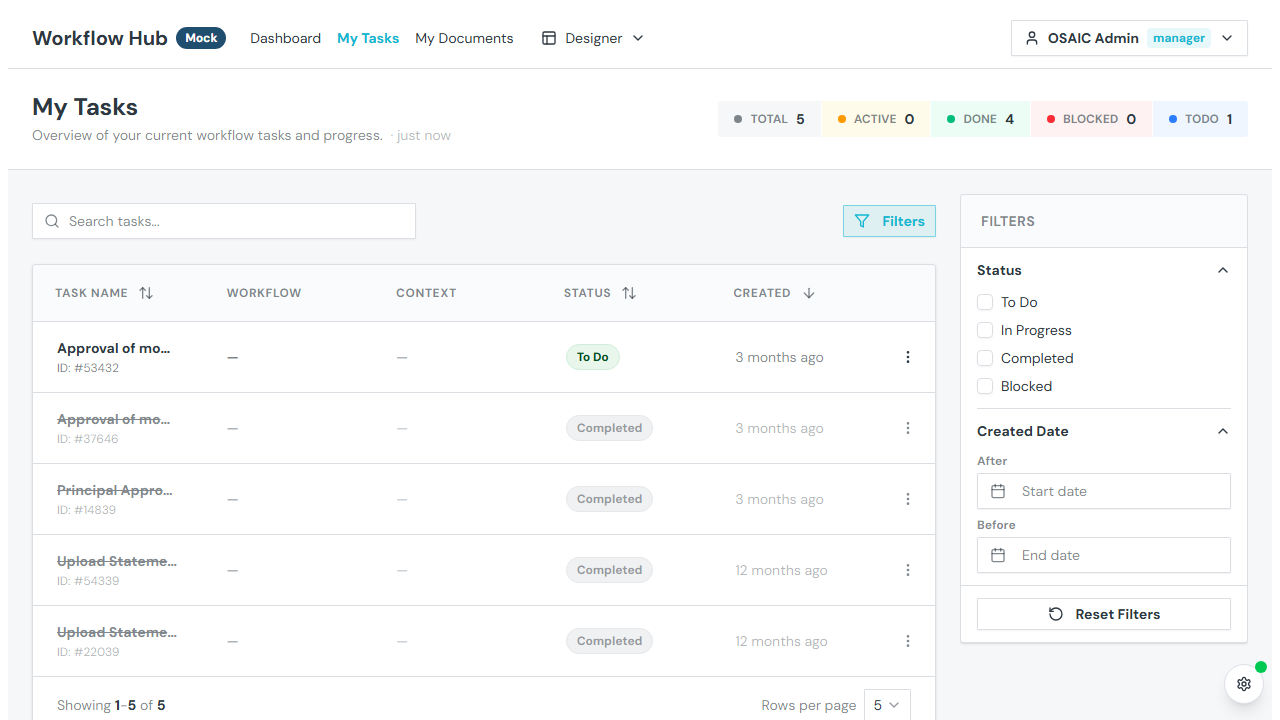
My Tasks is your personal task inbox. It shows every task assigned to you across all active workflows, with tools to search, filter, sort, and execute tasks directly.
What You See
Header Statistics
At the top of the page, you'll see summary counts of your tasks:
- Total — all tasks assigned to you
- To Do — tasks waiting for you to start
- In Progress — tasks you've begun working on
- Completed — tasks you've finished
- Blocked — tasks that can't proceed (upstream dependency or failure)
The header style may vary depending on your organization's configuration (cards, pills, ribbon, or progress bar).
Task Table
Your tasks are displayed in a data table with the following columns:
| Column | Description |
|---|---|
| Task Name | Name of the task (clickable to open) |
| Workflow Name | Which workflow this task belongs to |
| Context | Milestone and step breadcrumb (e.g., "Onboarding → Document Collection") |
| Status | Current status badge (To Do, In Progress, Completed, Blocked) |
| Created | When the task was created (shown as relative time with tooltip for exact date) |
| Actions | Menu with options: Open Task, View Workflow |
Click any task row to open the task execution modal.
Filtering
Filter Sidebar
Toggle the filter sidebar to access:
- Status — check one or more statuses to show (To Do, In Progress, Blocked, Completed)
- Date Range — filter by when tasks were created:
- Created Today
- This Week
- This Month
- Custom date range
- Clear Filters — reset all filters
Search
Use the search box to filter tasks by name. Search is instant and client-side.
Sorting
Click column headers to sort by task name, status, or creation date. Click again to reverse the sort direction.
Pagination
Control how many tasks appear per page using the page size selector (5, 10, 25, 50, or 100). Navigate between pages with the Previous/Next buttons, or jump directly to a specific page number.
Table Density
If your organization has configured it, you can adjust the row height for the task table:
- Compact — tighter rows, more tasks visible
- Comfortable — standard spacing
- Spacious — more breathing room per row
Executing Tasks
Click a task to open the execution modal. Depending on the task type, you'll see different interfaces:
- Form Tasks — fill in form fields and submit. See Task Execution.
- Approval Tasks — approve or reject a request with an optional comment.
- Document Upload Tasks — upload required files.
For more details on completing tasks, see Task Execution.