
Appearance
Flow Viewer
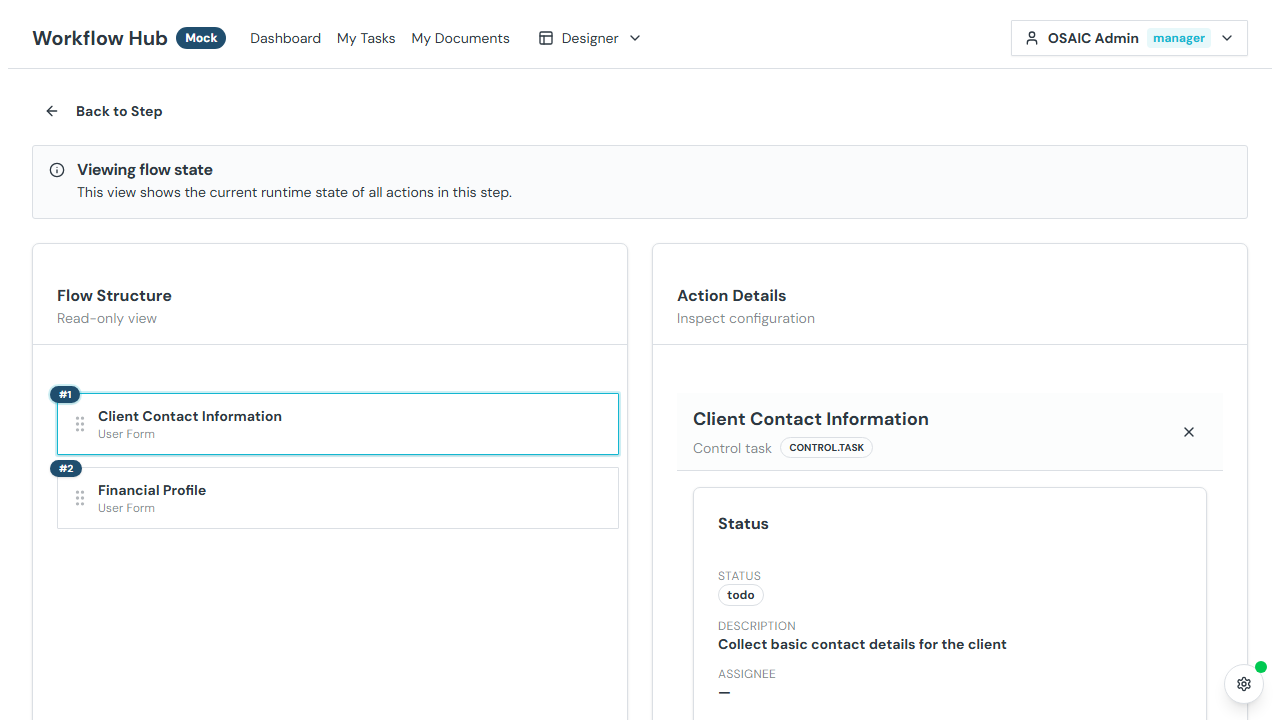
The Flow Viewer provides a read-only visualization of the action flow within a workflow step. It lets you inspect each action's configuration, runtime status, and output data.
Accessing the Flow Viewer
From a step instance page, click the View Flow link to open the Flow Viewer for that step.
Layout
The Flow Viewer is split into two panels:
Left Panel — Action Tree
A hierarchical tree showing all actions in the step flow. Actions can be:
- Sequential — run one after another
- Nested in conditionals — inside if/then/else branches
- Nested in parallel blocks — running simultaneously
- Inside loops — repeating while a condition is true
Each action shows its name, type icon, and runtime status (To Do, In Progress, Completed, Failed).
Click an action to view its details in the right panel.
Right Panel — Action Details
Shows the selected action's information (read-only):
- Action name and type — what kind of action this is
- Configuration — parameters, URL, headers, body, assignees, etc.
- Output data — response or result data from execution
- Error details — if the action failed, the error message and details
- Output mappings — which workflow variables are set from this action's output
Action Types Shown
| Type | Description |
|---|---|
| User Form | Collects data from an assigned user |
| Approval | Requests approval or rejection from a user |
| Document Upload | Collects files from a user |
| HTTP Request | API call to an external service |
| GraphQL | GraphQL query execution |
| JavaScript | Custom code execution |
| Echo | Data transformation |
| Send Email | Email notification |
| Delay | Timed pause in execution |
| Conditional | If/then/else branching |
| Parallel | Actions running simultaneously |
| Loop | Repeated execution |
| Set Variable | Updates a workflow variable |
Runtime Status
Each action shows its current execution state:
| Status | Meaning |
|---|---|
| To Do | Not yet started |
| In Progress | Currently executing |
| Completed | Finished successfully |
| Failed | Execution failed |
Retrying Failed Actions
If a system action has failed, administrators will see a Retry button in the action details panel. Clicking it re-executes the failed action.
INFO
Only global administrators can retry failed actions. Other users can view the error details but cannot trigger a retry.
Tips
- Use the Flow Viewer to understand the sequence of operations in a workflow step
- Check failed actions to understand what went wrong and whether a retry is appropriate
- Review output data to see what values were produced by each action