
Appearance
My Documents
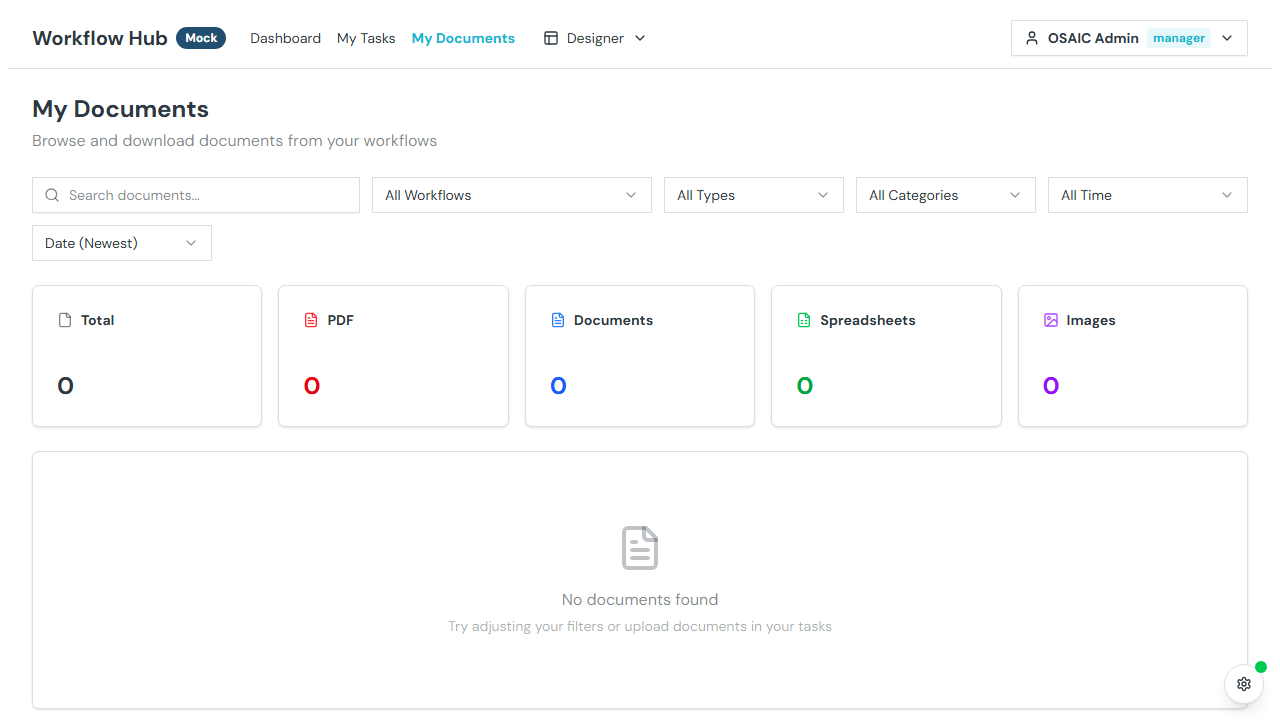
My Documents lets you browse and download all files associated with your workflows. Documents uploaded during task execution — forms, attachments, supporting files — are collected here in one place.
What You See
Statistics
At the top of the page, summary cards show:
- Total — total number of files across all your workflows
- PDFs — count of PDF files
- Documents — count of document files (Word, text, etc.)
- Spreadsheets — count of spreadsheet files (Excel, CSV)
- Images — count of image files
File Groups
Files are organized into collapsible groups by workflow instance. Each group shows the workflow name as a header, with individual files listed below. Files not associated with a specific workflow appear under an "Other Files" group.
File Cards
Each file shows:
- File type icon — visual indicator of the file format
- Filename — the name of the uploaded file
- Upload date — when the file was added
- Uploader — who uploaded the file
- File size — size of the file
- Download button — click to download
Searching and Filtering
Search
Type in the search box to find files by name. Search is performed server-side for accurate results across all your documents.
Workflow Filter
Select a specific workflow instance to show only files from that workflow.
File Type Filter
Filter by file type:
- All — show all files
- PDF — PDF documents only
- Documents — Word, text, and other document formats
- Spreadsheets — Excel, CSV files
- Images — PNG, JPG, and other image formats
Date Range Filter
Filter by upload date:
- Today — files uploaded today
- This Week — files from the current week
- This Month — files from the current month
- Custom — pick a specific date range
Sort Order
Sort files by:
- Date uploaded — newest or oldest first
- Filename — alphabetical order
- Type — grouped by file format
Downloading Files
Click the download button on any file card to download it to your computer.
Pagination
Files are displayed in pages. Use the pagination controls at the bottom to navigate between pages.
Empty State
If no documents match your filters, you'll see a message suggesting you adjust your filter criteria or noting that documents will appear here as they're uploaded during task execution.