Appearance
Task Execution
When a workflow reaches a step that requires user input, tasks are created and assigned to team members. This page covers how to view and complete tasks within a workflow step.
Step Instance Page
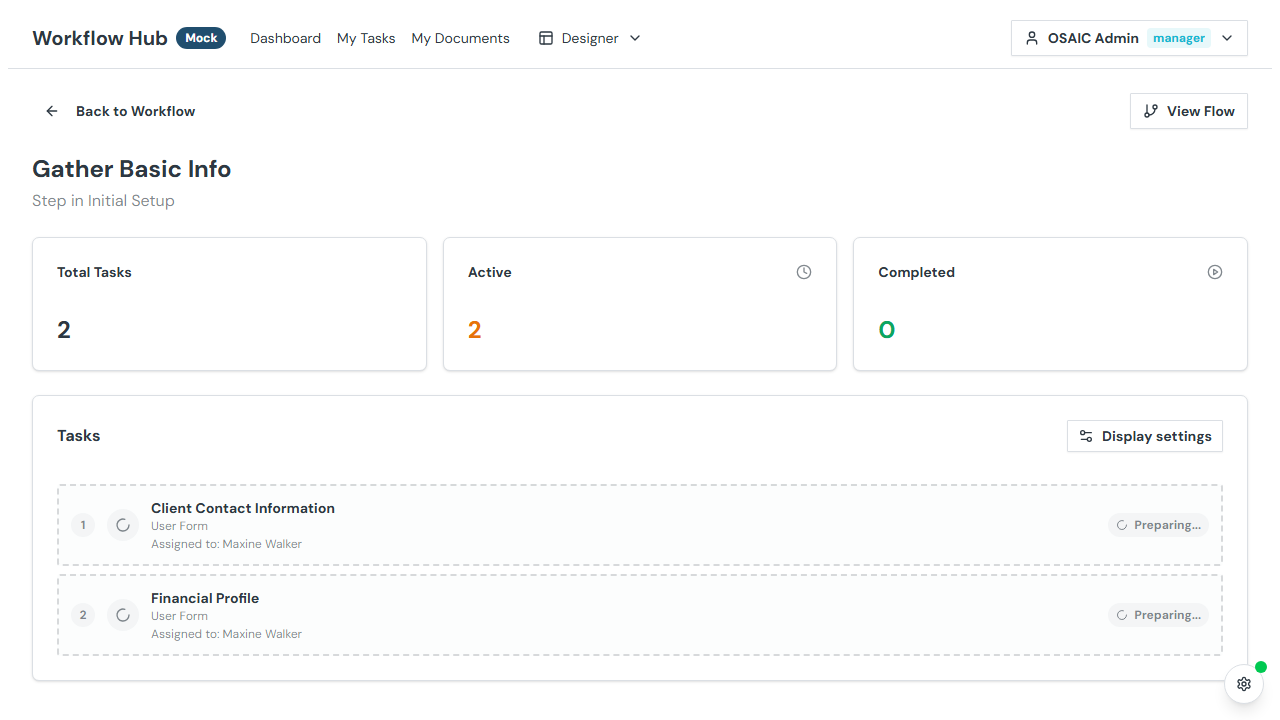
Navigate to a step by clicking on it in a workflow's milestone timeline. The step instance page shows all tasks in that step.
Task Metrics
Cards at the top show:
- Total Tasks — number of tasks in this step
- Active — tasks currently in progress
- Completed — tasks that are done
- Blocked — tasks that can't proceed
Display Options
- Assigned to me — toggle to show only your tasks
- Show completed tasks — toggle to include/exclude finished tasks
Task List
Each task in the list shows:
- Task name — what you need to do
- Type icon — indicates form, approval, or document upload
- Status badge — To Do, In Progress, Completed, or Failed
- Assignee — who is responsible
- Description — additional context (may include dynamic values from workflow data)
Click any task to open the execution modal.
Task Types
Form Tasks
Form tasks ask you to fill in data fields. Depending on the template, you may see:
- Text fields — single-line or multi-line text
- Number fields — numeric input, possibly with formatting masks
- Date fields — date pickers
- Checkbox fields — yes/no toggles
- Dropdown fields — select from options
- Multi-select fields — choose multiple options
Completing a form task:
- Fill in all required fields (marked with an indicator)
- Optionally fill in optional fields
- Click Submit to complete the task
Saving progress: If you can't finish right now, click Save Progress to save your entries without submitting. You can come back later to finish.
Approval Tasks
Approval tasks ask you to approve or reject a request.
Completing an approval task:
- Review the information provided (input data, previous task outputs)
- Optionally add a comment or fill in any additional form fields
- Click Approve or Reject
Document Upload Tasks
Document upload tasks require you to provide one or more files.
Completing a document upload task:
- Review the document requirements listed
- Drag and drop files or click to browse
- Upload the required documents
- Click Submit to complete the task
Task Discussion
Each task has a Discussion tab where you can post messages and communicate with other team members about the task. This is useful for asking questions, providing context, or flagging issues.
Assigning Tasks
If a task isn't assigned to anyone (or you're an admin/manager), you can assign the task to yourself or change the assignee. This is useful when tasks need to be redistributed among the team.
System Tasks
Alongside user tasks, you'll see system tasks — automated actions like:
- HTTP Request — API calls to external services
- GraphQL — GraphQL queries
- JavaScript — custom code execution
- Send Email — email notifications
- Delay — timed pauses
- Echo — data transformations
System tasks run automatically. You can view their details (configuration, response data, errors) but can't execute them manually.
Retrying Failed Actions
If a system task fails (e.g., an API call returns an error), administrators can click the Retry button to re-execute the action.
Real-Time Updates
The task list auto-refreshes every 3 seconds. When another team member completes a task, you'll see the status update and may receive a notification toast.
TIP
You won't be notified about tasks you complete yourself — notifications only appear for actions by other team members.