
Appearance
Workflow Tracking
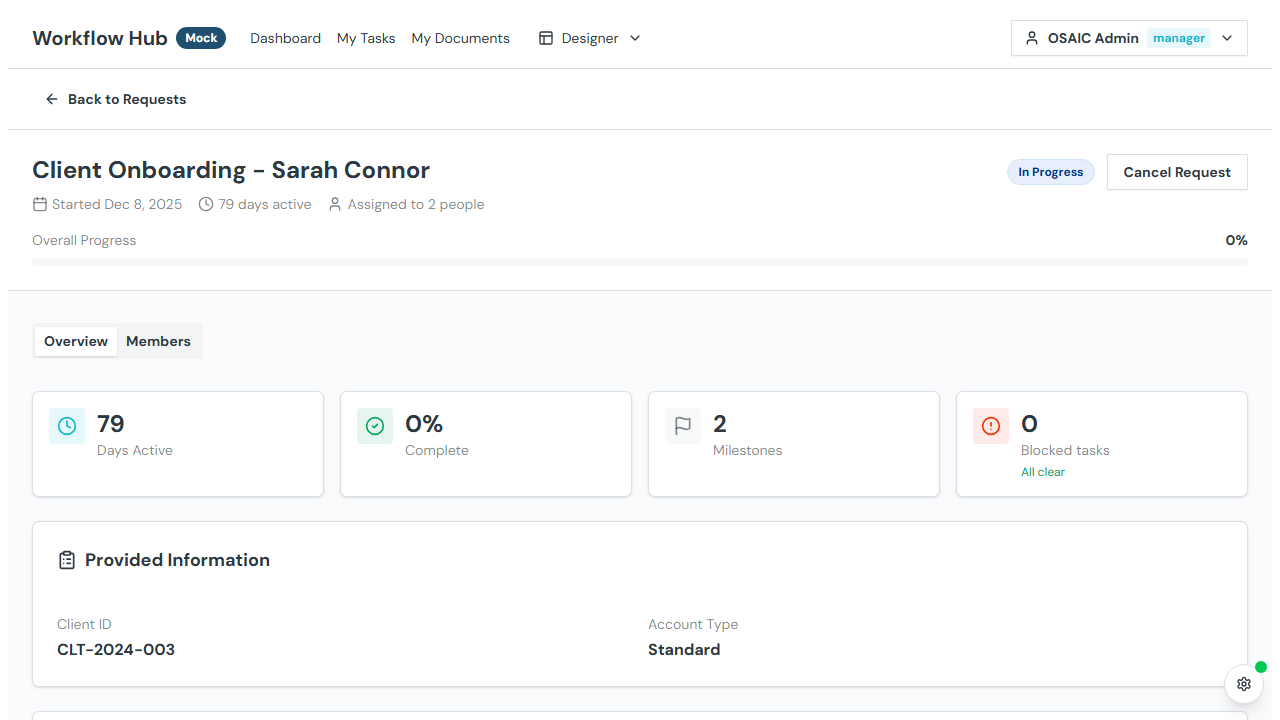
After a workflow is launched, you can track its progress from the instance detail page. This page shows milestones, steps, task status, input data, and team members.
Accessing an Instance
Click any workflow instance card on the Dashboard to open its detail page.
Instance Header
At the top you'll see:
- Instance name — the name of the workflow
- Status badge — current status with visual animation for active/blocked states
- Progress bar — percentage of milestones completed
- Created date — when the workflow was launched
- Days active — how long it's been running
- Team members count — number of people involved
- Attention badges — warnings for blocked tasks or step impacts
Tabs
The instance page is organized into tabs:
Overview
The primary view showing workflow progress.
Metrics Cards
Quick-reference cards at the top:
- Days Active — time since launch
- % Complete — milestone completion percentage
- Milestones — total milestone count
- Blocked Tasks — count of tasks needing attention
Provided Information
A card displaying the input data that was entered when the workflow was launched. Shows field labels and their values.
Workflow Output
If the workflow has completed, this card shows the output data produced by the workflow's actions.
Milestones Timeline
An expandable timeline showing each milestone and its steps:
- Milestone — name, status, and progress
- Steps within each milestone — name, status, and action count
- Click a step to navigate to the step instance page where you can view and execute tasks
Attention Panel
If there are blockers (failed actions, stuck tasks), an attention panel highlights what needs action, with descriptions and links to the affected steps.
Attached Files
Files uploaded during task execution appear here. Click to download any file.
Assigned Users
Quick view of team members assigned to this workflow.
Members
View and manage the team members on this workflow instance.
- Member list — each member shows their avatar, name, email, and role badge (Admin, Manager, User)
- Your entry — marked with a "You" indicator
- Add Member (Admin only) — search for users or groups and assign them a role
- Change Role (Admin only) — update a member's instance role
- Remove Member (Admin only) — revoke a member's access
Cancelling a Workflow
Instance administrators can cancel a running workflow by clicking the Cancel button. You'll be asked to provide a reason. Cancelled workflows cannot be restarted.
Auto-Refresh
The instance page automatically polls for updates:
- Active/To Do instances — refreshes every 3 seconds
- Failed instances — refreshes every 10 seconds
- Completed instances — no automatic refresh
This means you'll see task completions, status changes, and progress updates in near real-time without manually reloading.
Status Reference
| Status | Meaning |
|---|---|
| To Do | Workflow created but hasn't started executing |
| Active | Workflow is in progress — tasks are being executed |
| Blocked | One or more tasks or actions have failed |
| Completed | All milestones and steps finished successfully |
| Cancelled | Workflow was manually cancelled |