
Appearance
Template Editor
The Template Editor is where you define the complete structure and configuration of a workflow template. It's organized into tabs: Structure, Schema, Settings, Authorization, and Output.
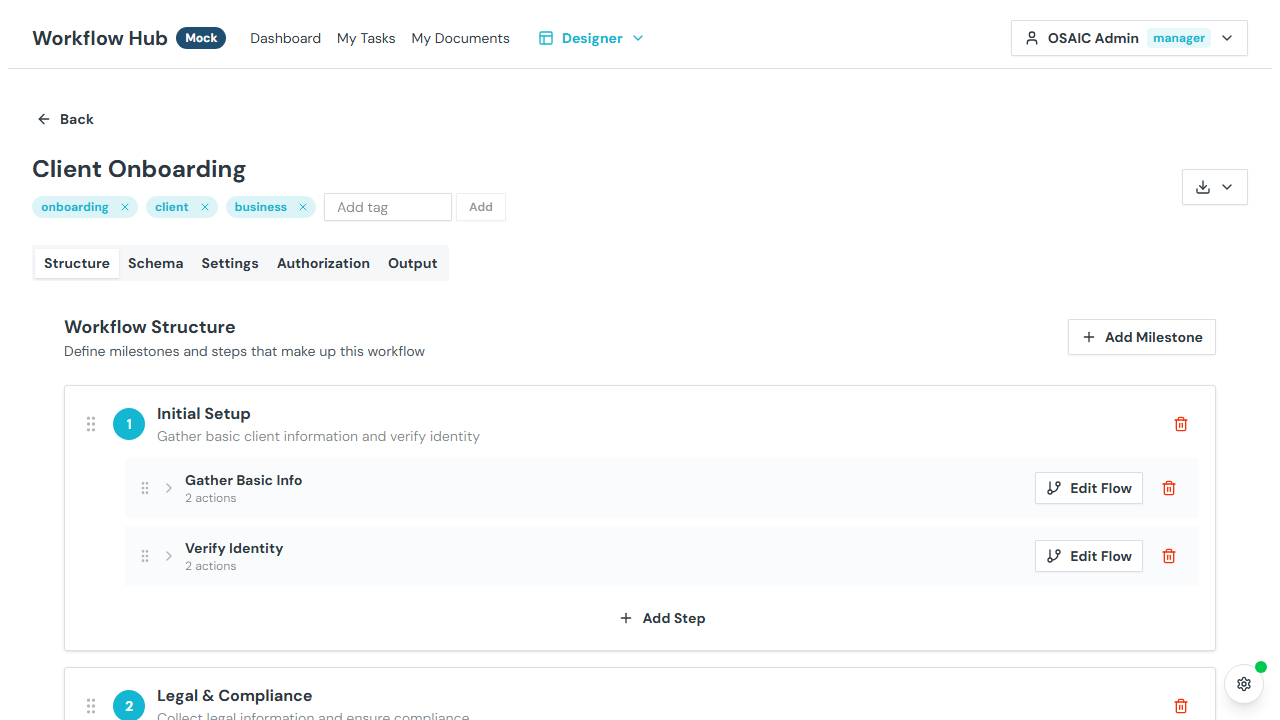
Header
At the top of the editor:
- Template name — click the pencil icon to edit inline
- Tags — add or remove tags using the tag input field
- Export — download the template as JSON or Markdown
- Auto-save indicator — changes are saved automatically (1-second debounce)
Structure Tab
The Structure tab defines the milestones and steps that make up your workflow.
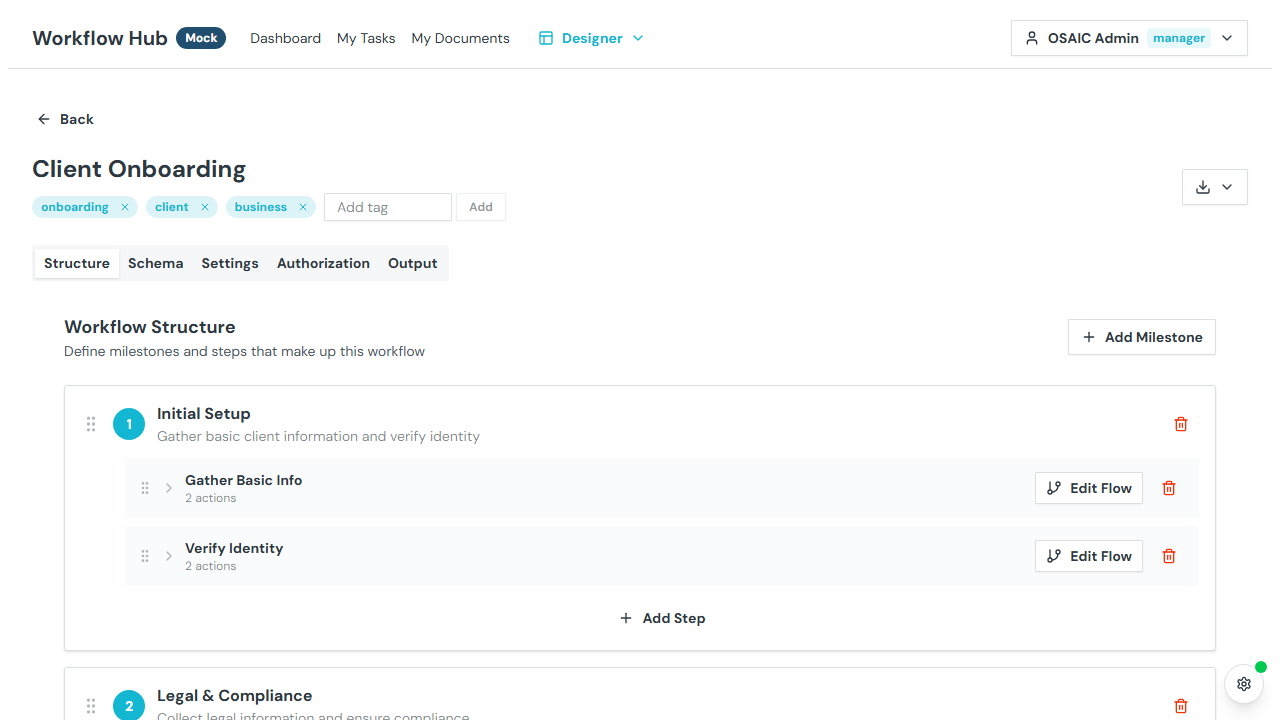
Milestones
Milestones are the high-level phases of your workflow (e.g., "Application", "Review", "Onboarding").
- Add Milestone — click the button to create a new milestone
- Edit — click the edit icon to change a milestone's name and description
- Delete — remove a milestone and all its steps
- Reorder — drag milestones using the grip handle to change their sequence
Steps
Steps are the execution units within a milestone. Each step contains actions (user tasks, API calls, etc.) defined in the Flow Editor.
- Add Step — click the button within a milestone to add a new step
- Edit — change the step's name and description
- Delete — remove a step and all its actions
- Reorder — drag steps within a milestone to change their sequence
- Edit Flow — click to open the Flow Editor for this step
Each step shows the number of actions configured inside it.
Input Schema Tab
The Schema tab defines the input fields that users fill in when launching a workflow.
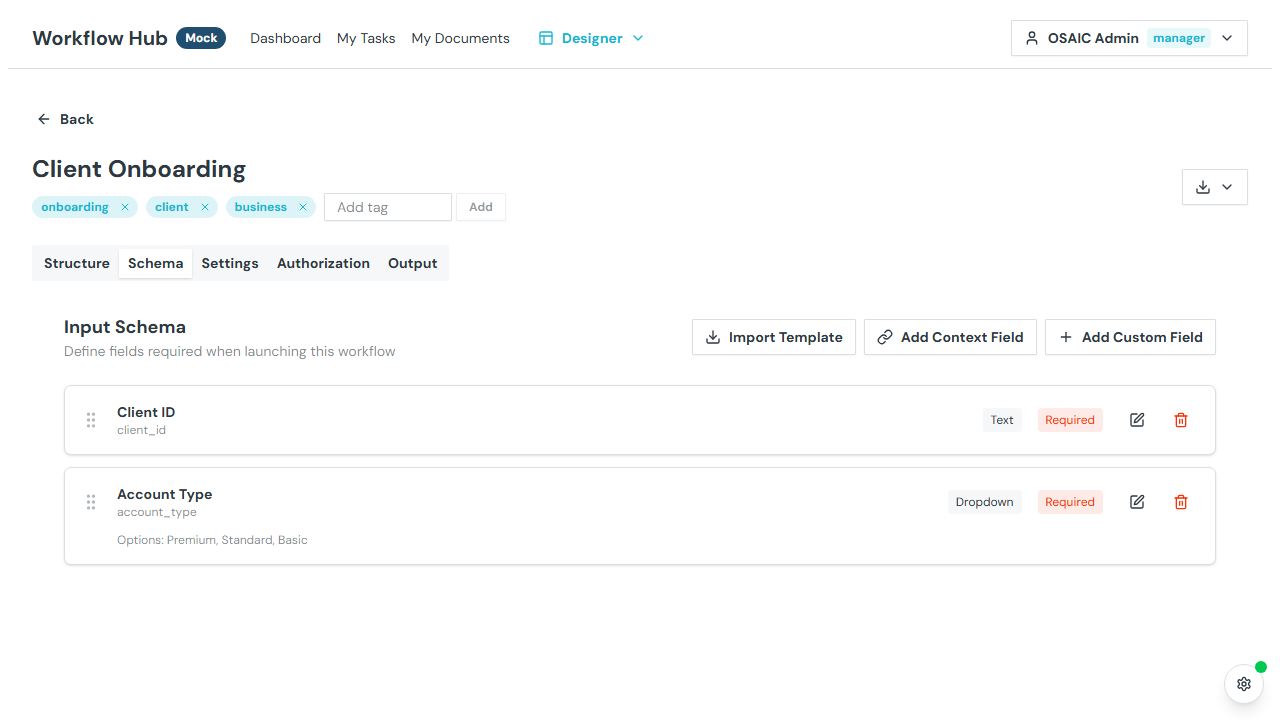
Adding Fields
Click Add Field to create a new input field. For each field, configure:
| Property | Description |
|---|---|
| Name | Machine identifier (alphanumeric and underscores, must start with a letter) |
| Label | Display label shown to users |
| Type | Field type — see table below |
| Required | Whether the field must be filled before launching |
| Hidden | Whether the field is hidden from the user (can be pre-filled via URL params) |
| Searchable | Whether this field becomes a Search Attribute for filtering workflows on the Dashboard |
| Description | Help text shown below the field |
| Placeholder | Hint text shown inside empty fields |
Field Types
| Type | Description |
|---|---|
| Text | Single-line text input |
| Number | Numeric input, with optional formatting mask |
| Date | Date picker |
| Checkbox | Boolean yes/no toggle |
| Select | Dropdown with predefined options |
| Multi-select | Choose multiple options |
| Checkbox Group | Multiple checkboxes |
| Time Slot | Time range selector |
Number Masks
Number fields can have a formatting mask that controls how the value is displayed:
- Pattern mask — uses
#placeholders (e.g.,###-##-####for SSN format) - Regex mask — uses a regular expression for custom patterns
Visibility Conditions
Make a field conditionally visible based on other input values. For example, show a "Details" text field only when the "Needs Details" checkbox is checked.
Supported operators include: equals, not equals, contains, greater than, less than, and more.
Validation Rules
Number and date fields support cross-field validation:
- Greater than / Less than another field
- Equals / Not equals a specific value
- Range validation with min/max
Import from Template
Click Import from Template to bulk-import fields from a saved Input Template. Imported fields are merged with any existing fields.
Managing Fields
- Edit — click a field card to modify its properties
- Delete — remove a field from the schema
- Reorder — drag fields to change their order in the launch form
Search Attributes
Mark input fields as Searchable to make them available for filtering on the Dashboard. When a workflow is launched, searchable field values are stored as Temporal search attributes, enabling fast lookups.
Field types are automatically mapped:
| Input Field Type | Search Attribute Type |
|---|---|
| Text, Select, Email, Phone, URL | Keyword |
| Number | Double |
| Date | Datetime |
| Checkbox | Bool |
| Multi-select, Checkbox Group | Keyword List |
TIP
Mark fields like Client Name, Account Number, or Status as searchable to enable the Context Filter on the Dashboard.
Context Fields
Add context fields that bind to entity data (e.g., Client, Account, Household). These fields are automatically populated from the entity context when the workflow is launched from a portal.
Available context entities include:
- Client — first name, last name, and other client attributes
- Account — account details
- Household — household information
- Financial Professional — advisor data
Context fields appear in the field catalog grouped by entity. They are typically hidden from the user (populated automatically) and marked as searchable to enable context filtering on the Dashboard.
Settings Tab
Template-level settings including name, description, and tags.
Authorization Tab
Controls who can launch this template and what roles are assigned to workflow members. See Roles & Permissions for details on:
- Creator role — what role the launcher gets (Admin, Manager, or User)
- Authorization script — JavaScript expression controlling launch access
- Default permissions — users, groups, or expressions that are automatically added when a workflow is launched
Output Tab
Define workflow output variables — data that the workflow produces when it completes. Output mappings connect action results to named output variables.