
Appearance
Input Templates
Input Templates are reusable sets of input fields that can be imported into any workflow template's input schema. Instead of defining the same fields from scratch each time, create a template once and reuse it across multiple workflows.
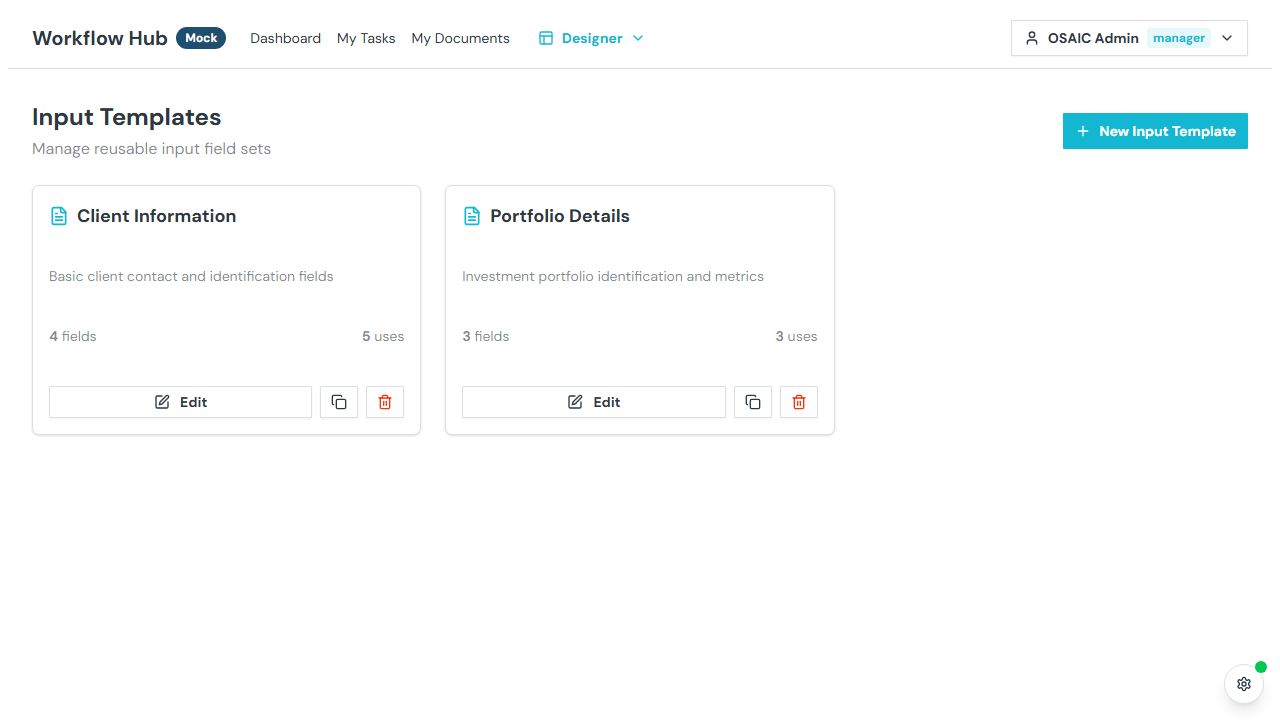
What You See
Input templates are displayed as a grid of cards, each showing:
- Name — the template title
- Description — what fields this template contains
- Field count — number of fields defined
- Usage count — how many workflow templates use this input template
Each card has an action menu with Edit, Duplicate, and Delete options.
Creating an Input Template
Click New Input Template to open the editor dialog.
Template Details
- Name — a descriptive name (e.g., "Client Information", "Account Details")
- Description — optional description of the template's purpose
Defining Fields
Add fields to the template. Each field requires:
| Property | Description |
|---|---|
| Name | Machine identifier (alphanumeric, underscores, starts with a letter) |
| Label | Display label shown to users |
| Type | Text, Number, Date, Checkbox, Select, Multi-select, Checkbox Group, or Time Slot |
| Required | Whether the field must be filled |
| Description | Optional help text |
Type-Specific Options
- Select / Multi-select — define the list of options users can choose from
- Number — optionally add a formatting mask (pattern like
###-##-####or regex) - Number / Date — optionally add validation rules (e.g., must be greater than another field)
Managing Fields
- Add — click to create a new field
- Edit — click a field to modify its properties
- Delete — remove a field
- Reorder — drag fields to change their display order
Using Input Templates
To use an input template in a workflow:
- Open the Template Editor
- Go to the Schema tab
- Click Import from Template
- Select the input template you want to import
- The fields are merged into your workflow's input schema
TIP
Importing merges fields — it doesn't replace existing fields. You can import from multiple templates and then customize individual fields as needed.
Managing Input Templates
| Action | Description |
|---|---|
| Edit | Open the template editor to modify fields |
| Duplicate | Create a copy of the template |
| Delete | Permanently remove the template |
Tips
- Create input templates for common data patterns used across multiple workflows (e.g., "Client Info", "Account Details")
- Use descriptive names so template designers can quickly find the right template to import
- Keep templates focused — one template per logical group of fields rather than one giant template