Appearance
Form Task Templates
Form Task Templates are reusable form configurations for user tasks within workflow steps. Define a form once and use it across multiple workflow action flows, ensuring consistency and saving time.
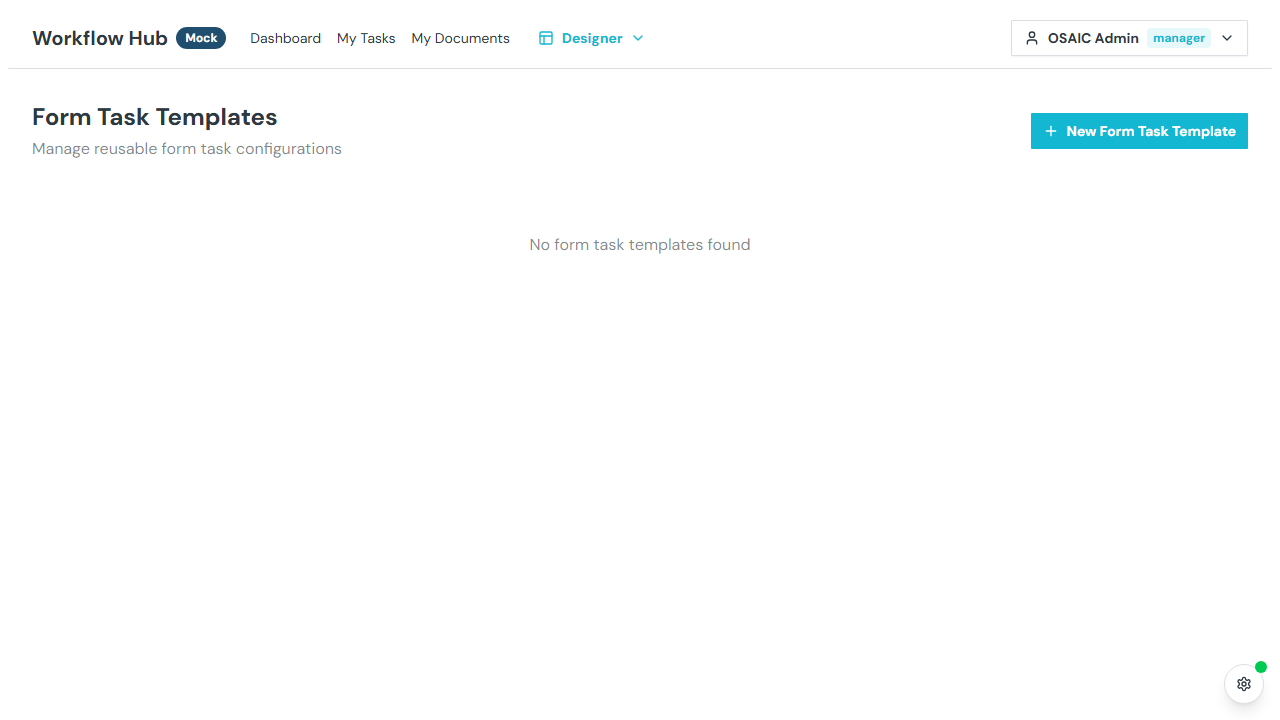
What You See
Form task templates are displayed as a grid of cards (3 columns), each showing:
- Name — the template title
- Description — what the form collects
- Field count — number of form fields
- Usage count — how many flow actions reference this template
- Action menu — Edit, Duplicate, Delete
Creating a Form Task Template
Click New Form Task Template to open the editor.
Template Details
- Name — a descriptive name (required)
- Description — what this form collects
Default Assignee
Optionally select a default assignee — the user who will be assigned this task by default when the action runs. This can be overridden in the flow editor or at launch time.
Form Fields
Add fields to define what data the form collects. Each field supports:
| Property | Description |
|---|---|
| Name | Machine identifier |
| Label | Display label |
| Type | Text, Number, Date, Checkbox, Select, Email, Phone, URL, Textarea, Markdown, Time Slot, Multi-select, Checkbox Group |
| Required | Whether the field must be filled |
| Placeholder | Hint text in empty fields |
| Description | Help text below the field |
Type-Specific Options
- Select / Multi-select — define the options list
- Number — optional formatting mask (pattern or regex)
- Number / Date — optional validation rules
Visibility Conditions
Form task template fields support visibility conditions with two scopes:
form.*— reference other fields in the same form (e.g., show "Details" ifform.needsDetailsis true)input.*— reference workflow launch input values (e.g., show "Account Number" only ifinput.accountTypeequals "Existing")
This allows forms to dynamically show or hide fields based on context.
Validation Rules
Number and date fields support cross-field validation:
- Greater than / Less than another field
- Equals / Not equals a value
- Range constraints
Using Form Task Templates
To use a form task template in a workflow:
- Open the Flow Editor for a step
- Add a User Form action
- In the action configuration, select the form task template
- The form fields are loaded from the template
You can also define form fields directly in the flow editor action without using a template.
Managing Templates
| Action | Description |
|---|---|
| Edit | Modify the template's fields and settings |
| Duplicate | Create a copy |
| Delete | Permanently remove |
Tips
- Use form task templates for forms that appear in multiple workflows (e.g., "Compliance Review", "Client Verification")
- The default assignee saves time when the same person typically handles a certain type of task
- Visibility conditions make forms adaptive — users only see the fields relevant to their situation