Appearance
Settings
Invent Workflows can be configured through widget settings. These settings control which features are visible, default filter values, and UI appearance.
Navigation Settings
| Setting | Default | Description |
|---|---|---|
showHeader | true | Show or hide the entire header navigation bar |
showDashboard | true | Show or hide the Dashboard link in navigation |
showMyTasks | true | Show or hide the My Tasks link in navigation |
showMyDocuments | true | Show or hide the My Documents link in navigation |
showDesigner | true | Show or hide the Designer dropdown (admin/manager only) |
defaultModule | "dashboard" | The page shown when the app first loads. Options: dashboard, my-tasks, my-documents, designer |
Dashboard Settings
| Setting | Default | Description |
|---|---|---|
showDashboardStatusFilter | true | Show or hide the status filter dropdown |
showDashboardUserFilter | true | Show or hide the assignee filter dropdown |
showDashboardTagsFilter | true | Show or hide the tag filter bar |
defaultStatusFilter | "all" | Pre-selected status filter when the Dashboard loads |
showQuickAccess | true | Show or hide the Quick Access (popular templates) section |
showLaunchStepper | true | Show or hide the step indicator in the Launch Workflow wizard |
Dashboard Design
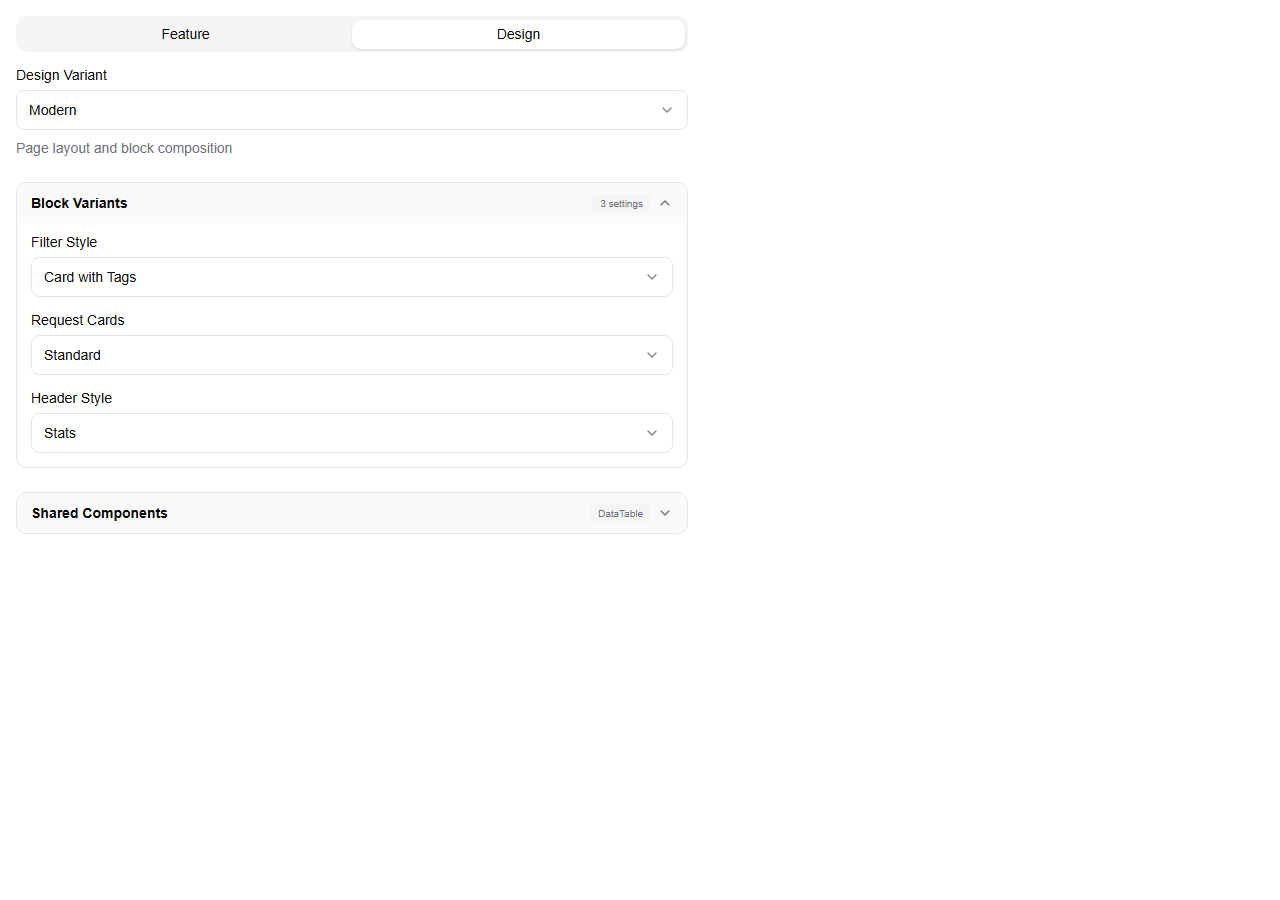
When the Dashboard uses the Modern design variant, additional layout settings become available:
| Setting | Default | Description |
|---|---|---|
headerVariant | "stats" | Header style. Options: classic, stats, compact, hero, merged |
cardVariant | "standard" | How workflow instances are displayed. Options: standard, compact, row |
filterVariant | "card" | Filter layout. Options: toolbar, card |
See Dashboard Layout Variants for screenshots and descriptions of each option.
My Tasks Settings
| Setting | Default | Description |
|---|---|---|
headerVariant | "cards" | Header style. Options: cards, pills, ribbon, progress |
tableDensity | "default" | Row height in the task table. Options: compact, default, comfortable, spacious |
defaultShowFilters | true | Whether the filter sidebar is open by default |
defaultPageSize | 5 | Number of tasks per page |
defaultSortField | "createdAt" | Default sort column. Options: name, status, createdAt |
defaultSortDirection | "desc" | Default sort direction. Options: asc, desc |
defaultStatusFilter | [] | Pre-selected status filters (array of statuses) |
Due Date & Reminders
| Setting | Default | Description |
|---|---|---|
dueDateTimezone | — | Timezone for due date calculations. When set, reminders are sent based on the configured timezone rather than UTC. |
INFO
Due dates are stored as full date-time values with timezone offset, enabling timezone-aware reminder notifications.
Page Headers
| Setting | Default | Description |
|---|---|---|
showPageHeadersOn | [] | Array of page names where page headers are shown (e.g., ["dashboard", "my-tasks"]) |
Display
| Setting | Default | Description |
|---|---|---|
showLogo | true | Show or hide the logo and title in the header |
title | "Workflow Hub" | Custom title displayed in the header |
titleTooltip | — | Hover text for the title |
Fullscreen Mode
| Setting | Default | Description |
|---|---|---|
fullscreen | false | When true, the widget expands to fill the entire viewport. Designed for portal embedding where the widget is the primary content. |
AI Agent
| Setting | Default | Description |
|---|---|---|
showAiChat | true | Show or hide the AI Agent chat panel on workflow instance pages |
See AI Agent for details on personas and agent configuration.
Audit Trail
Invent Workflows automatically logs all write operations (POST, PUT, PATCH, DELETE) performed through the API. Audit records capture who performed the action, what changed, and when.
Audit logs are queryable via the REST API using OData syntax for filtering and pagination. Accessing audit logs requires the AuditLog.ReadAll permission.
INFO
Audit Trail is a backend feature. There is currently no UI for browsing audit logs — access is API-only.
Live Preview
When editing settings, changes are previewed in real time on the widget behind the settings modal. As you change any setting — header variant, visibility toggles, design theme — the widget immediately reflects the new configuration.
- Preview button — click the eye icon in the modal footer to peek at the widget with your live changes. Hover over it to temporarily fade the settings dialog and see the widget behind it.
- Changes are not saved until you click Apply Changes. Click Cancel to discard all preview changes and revert to the previous configuration.
INFO
Settings are typically configured by your organization's administrator through the widget configuration system. Individual users cannot change these settings.